


How to Create Duplicate Golden Records.
In this Blog we will create duplicate golden records using API in MDH.
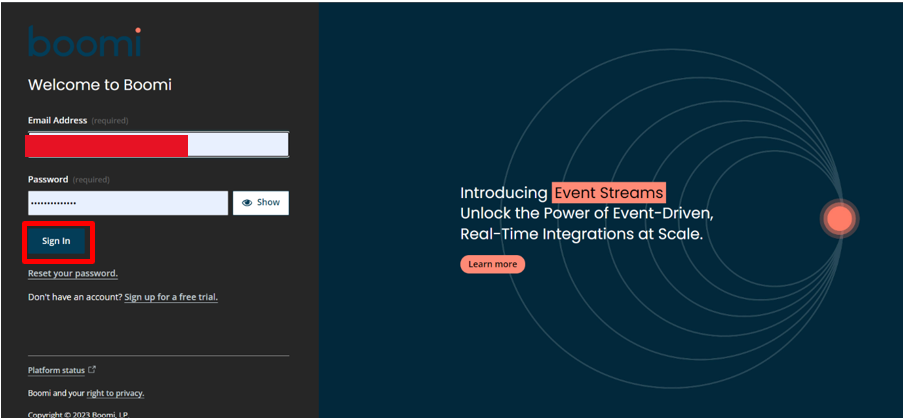
Let get started by logging in the platform:
Go to platform.boomi.com
Login by giving your valid credentials (Username and Password).
Creating and Configuring Model
Go to Services tab and navigate to DataHub
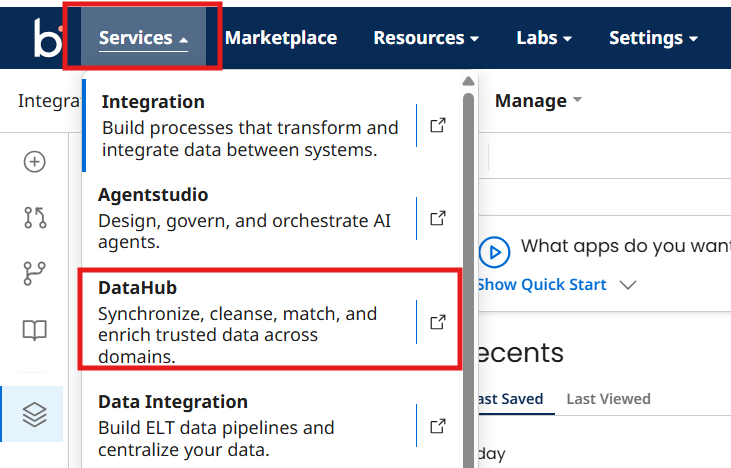
Now Data Hub Service will be opened
Step 4. Now click on Models tab and create a new model
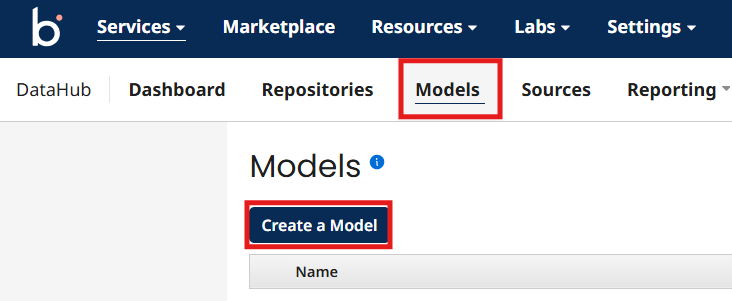
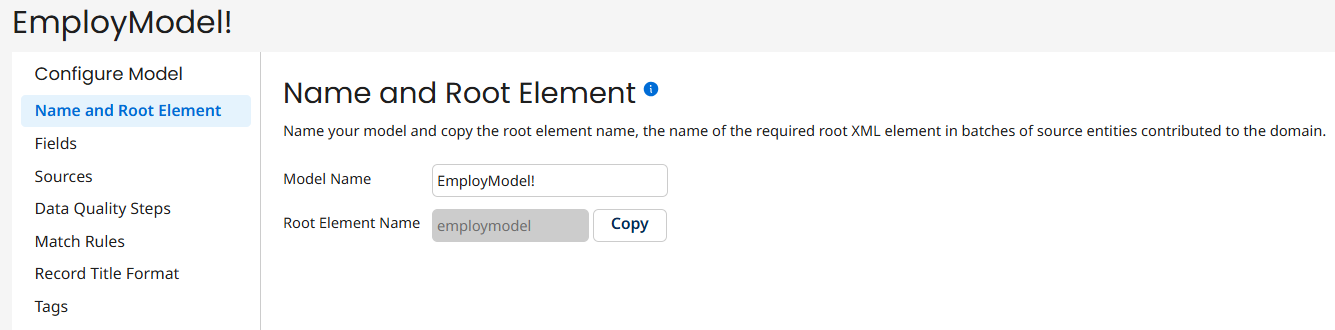
Give Model Name like Employ Model add Source, add fields like Employee ID, Name, Role, and
Salary and configure Match Rule as Name
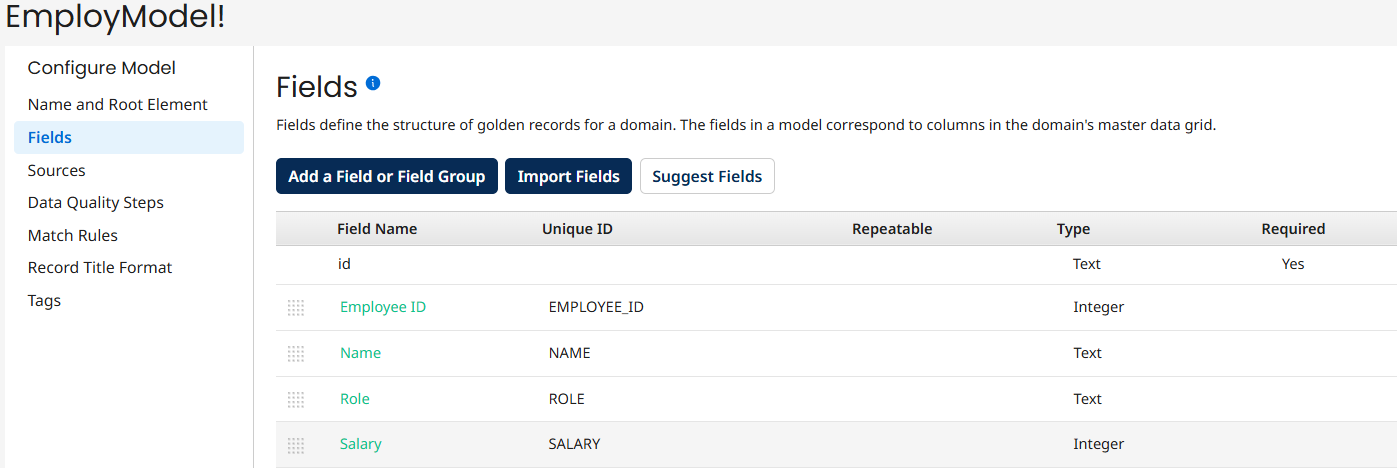
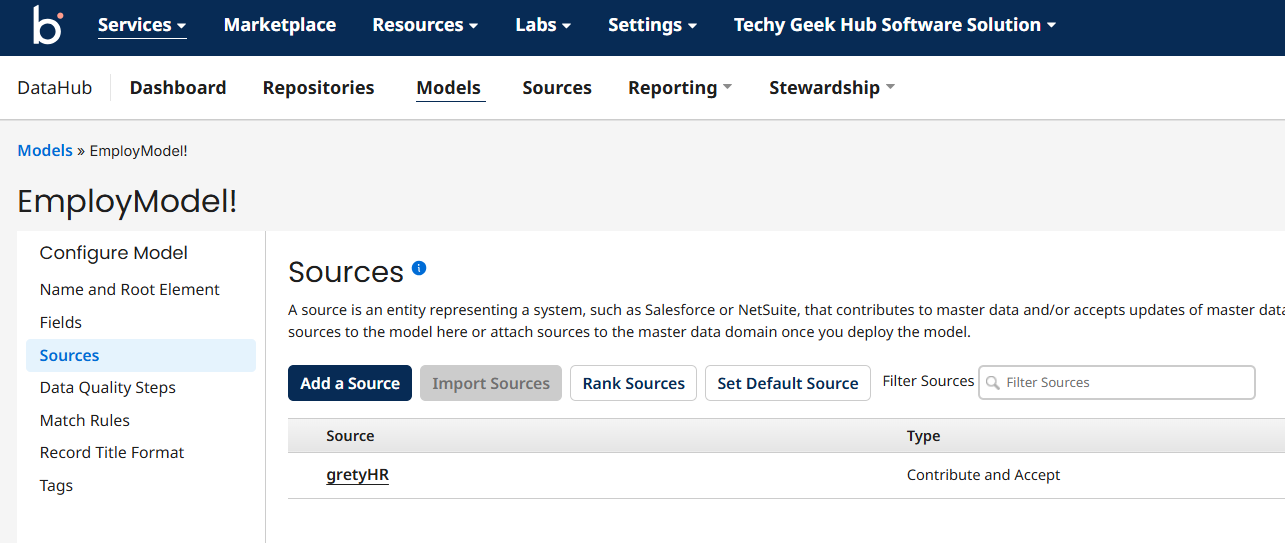
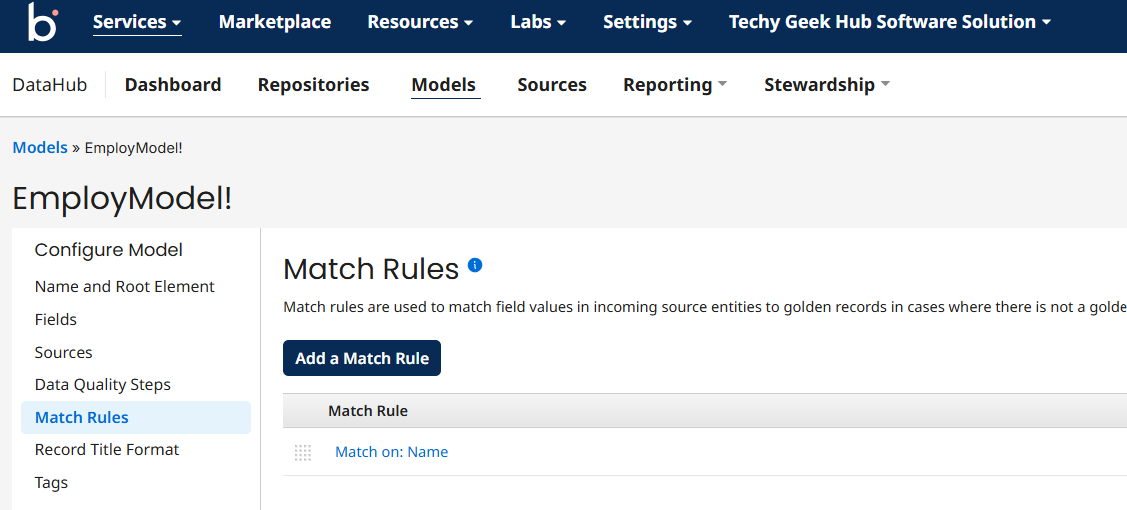
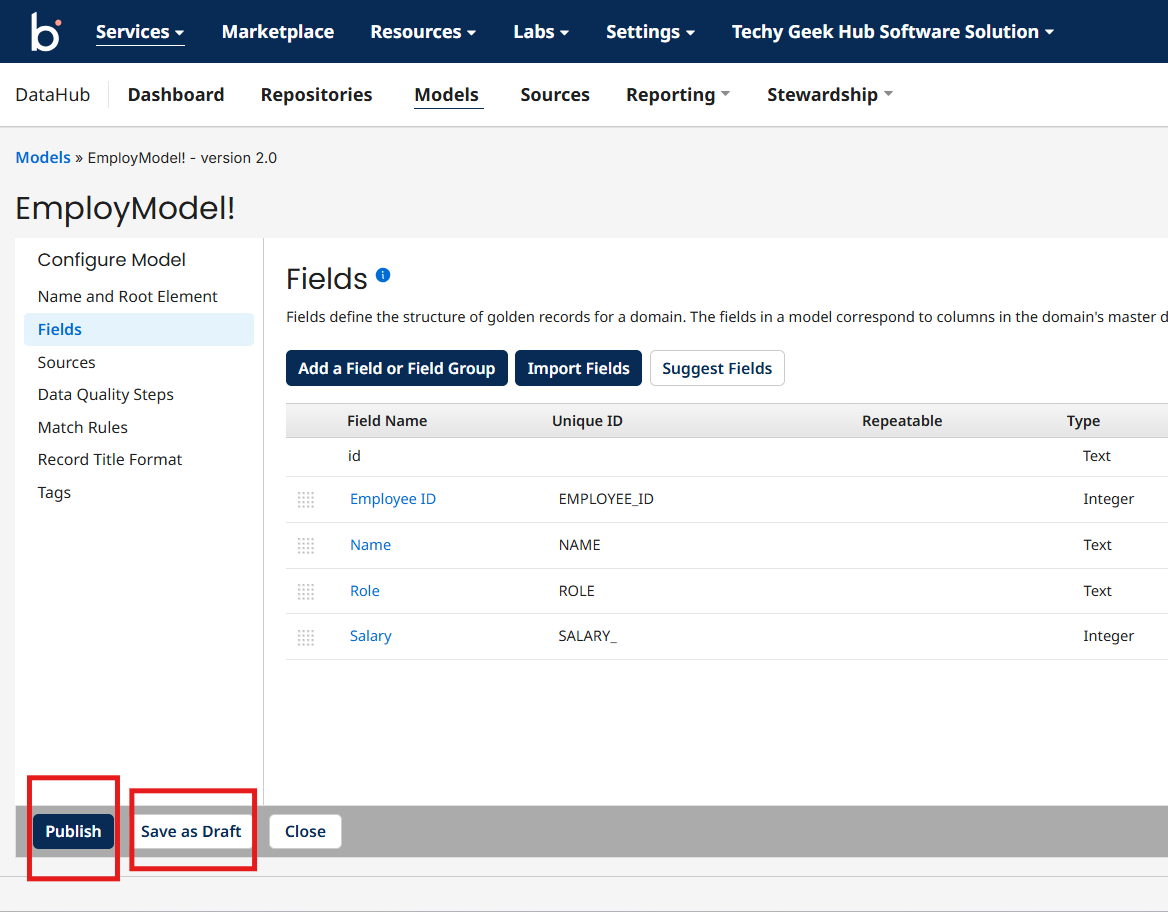
Now you need to publish and deploy the model
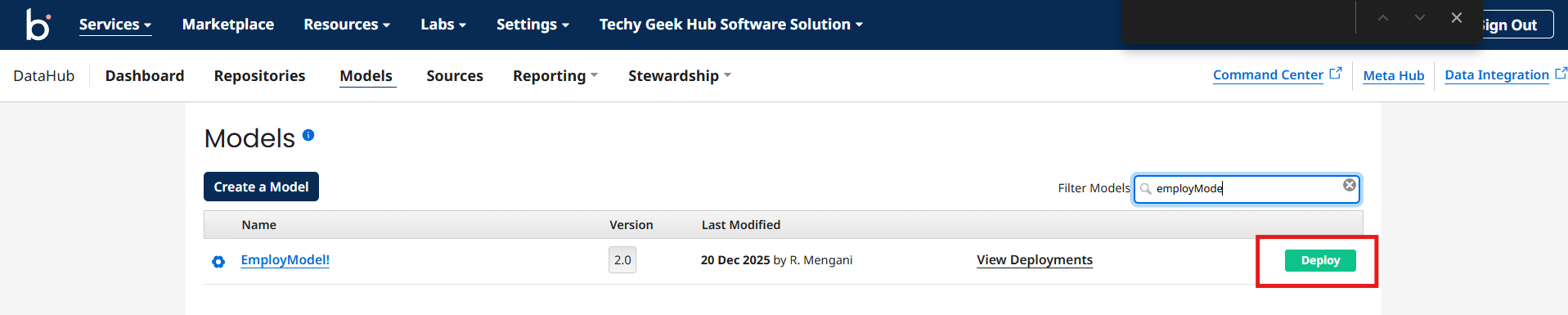
Creating Integration process to send data to MDH
Now Click on the Services tab and navigate to Integration service
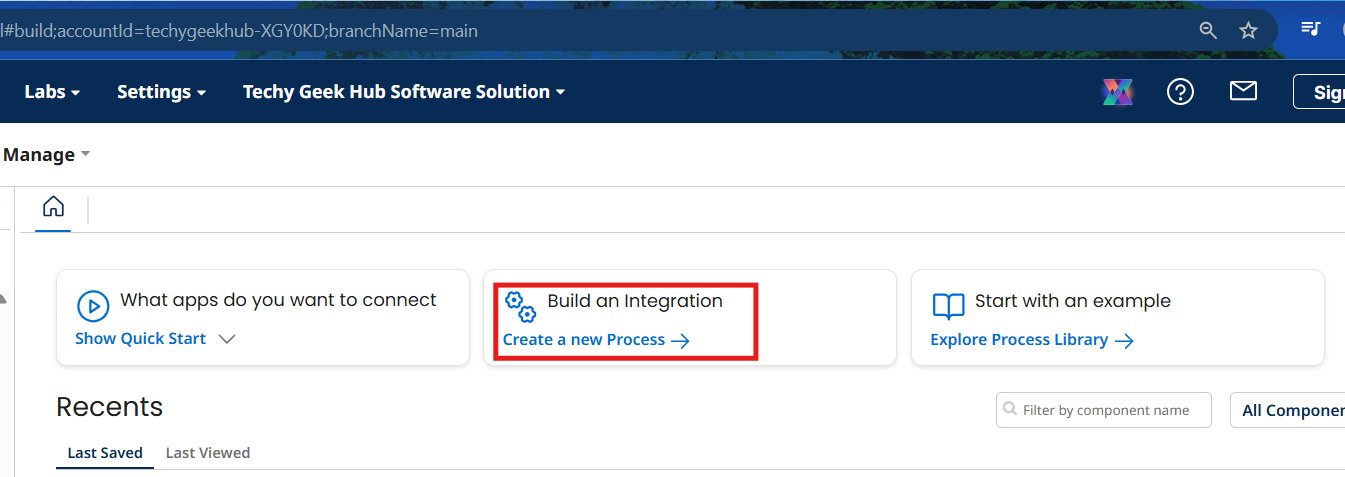
Now create an process to send records to MDH
Click on Create a new process
Choose start type as no data and click on ok
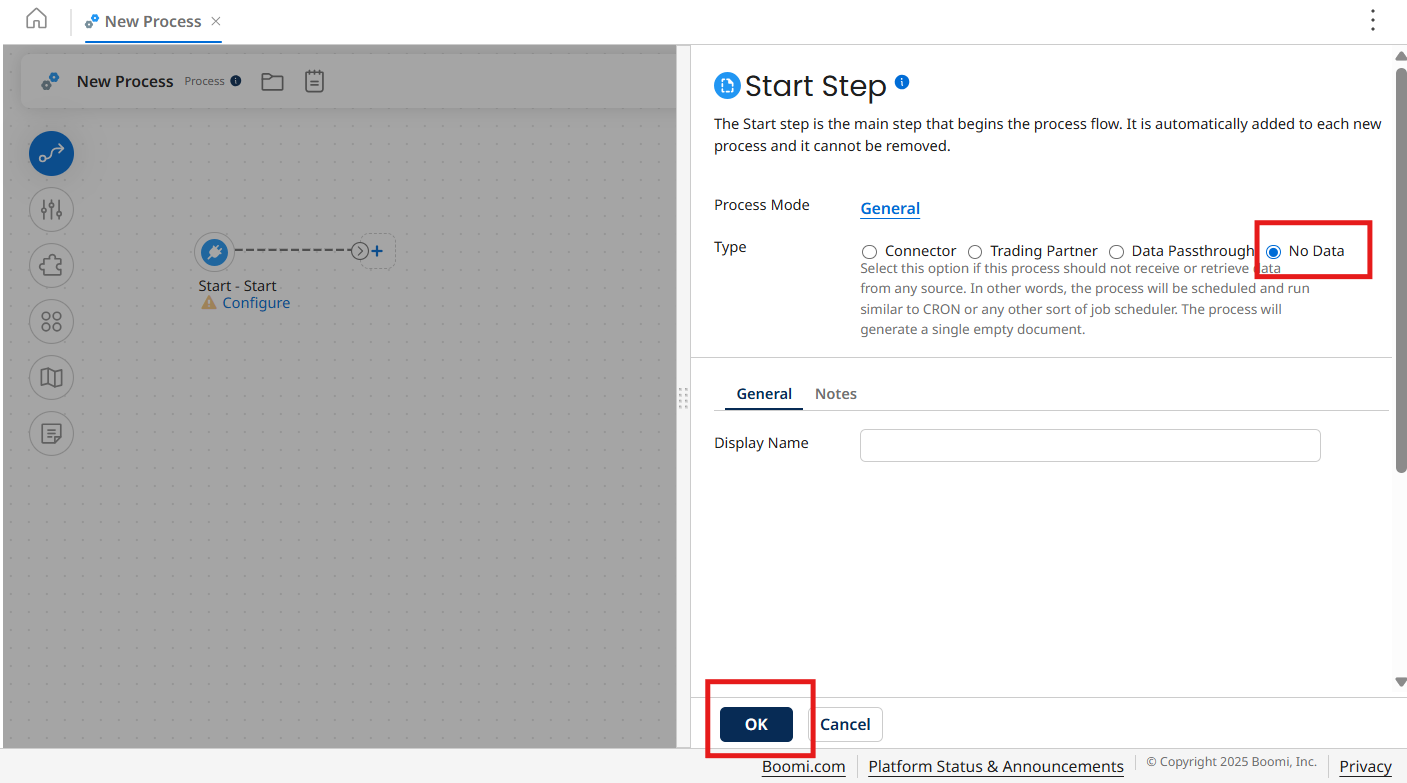
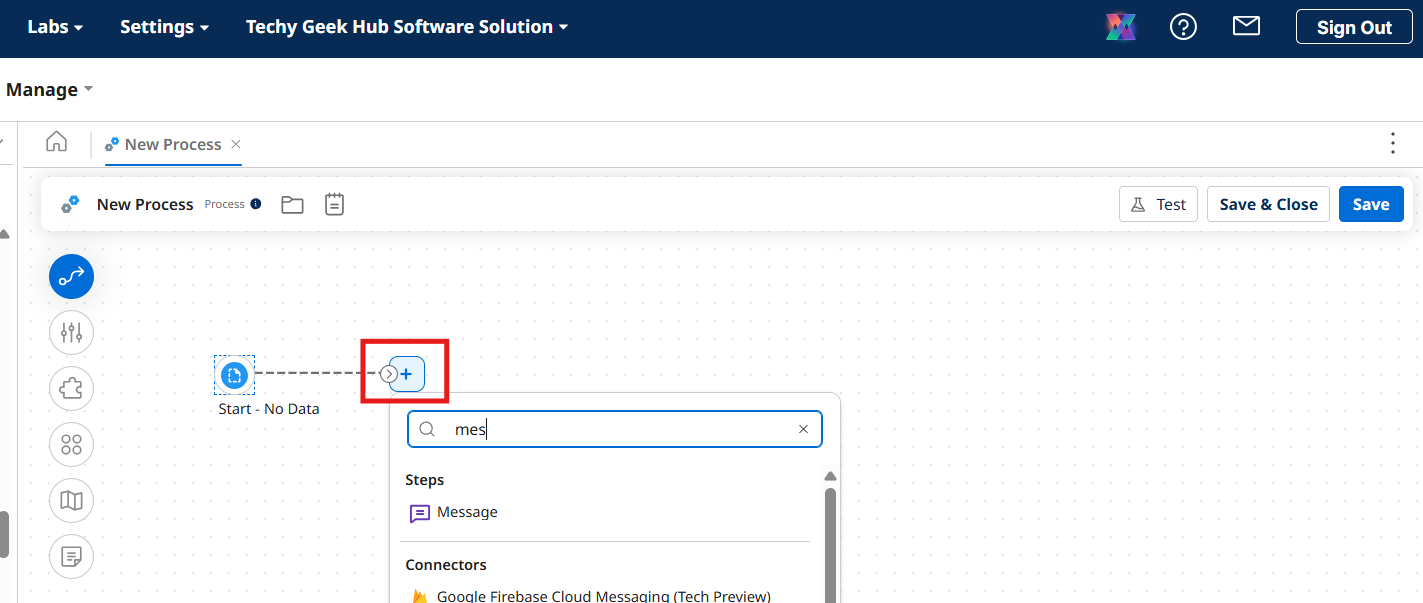
Now start shape is configured
Click on plus icon and search for message shape
Insert these records in message shape and click on ok
Employee ID,Name,Role,Salary
E101,Anil Kumar,Software Engineer,75000
E102,Neha Sharma,QA Engineer,65000
E103,Rahul Verma,Business Analyst,80000
E104,Priya Singh,Project Manager,95000
E105,Anil Kumar,DevOps Engineer,90000
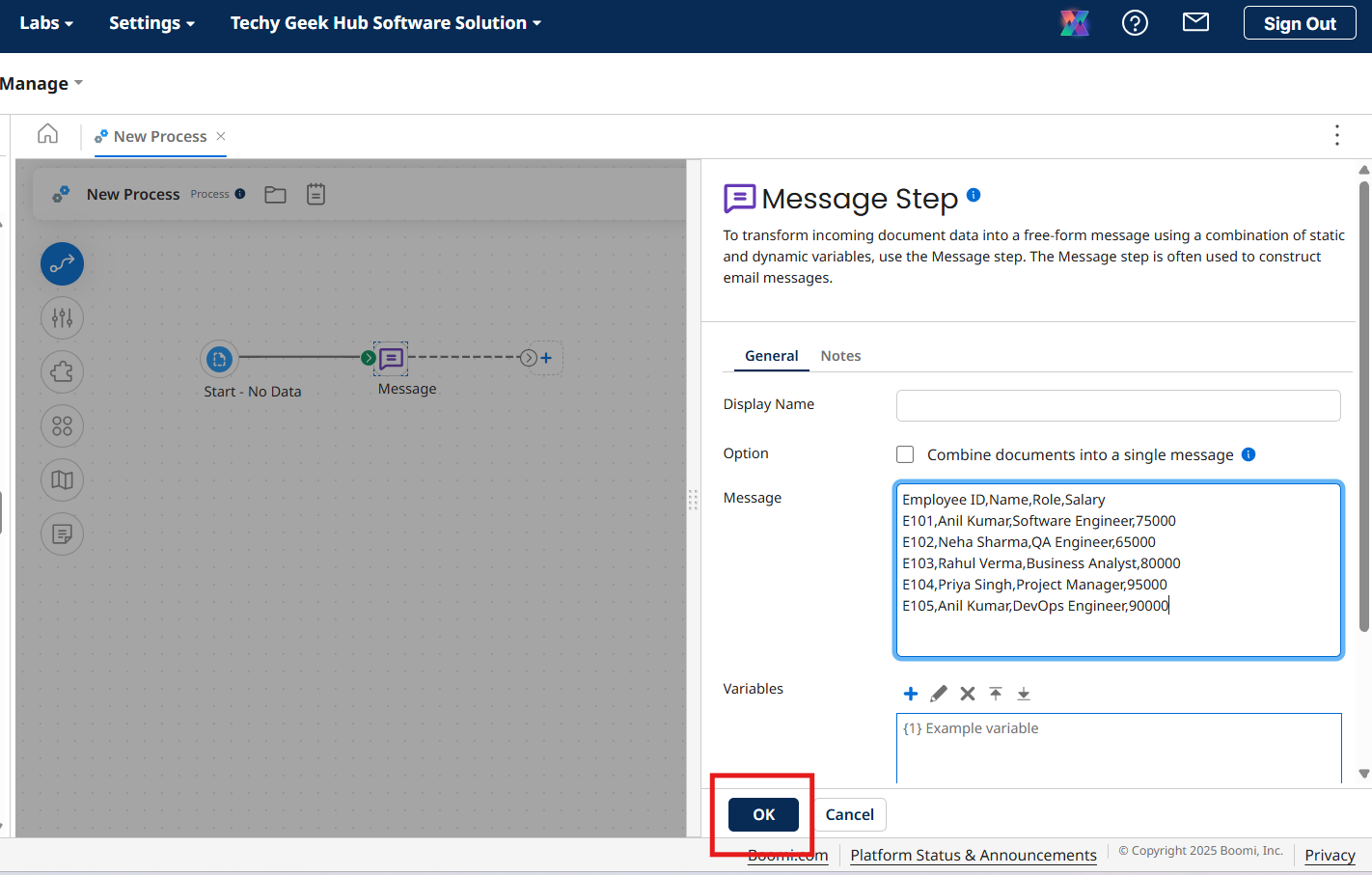
Now click on plus icon and choose data hub connector like before
Choose action as update golden records
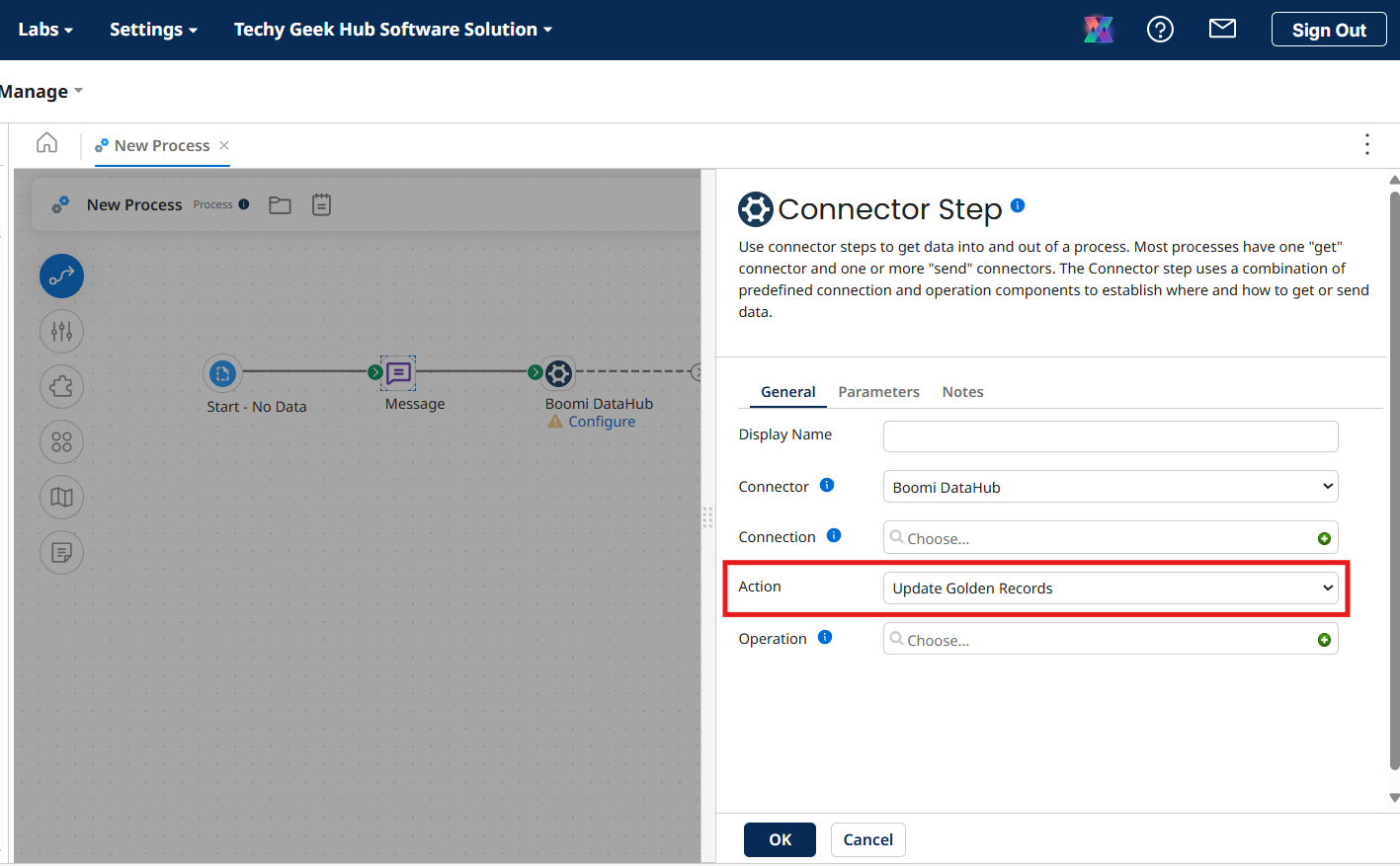
Creating Boomi Data Hub Connection:
Now click on plus icon for connection
Now navigate to Data Hub service and click on repositories
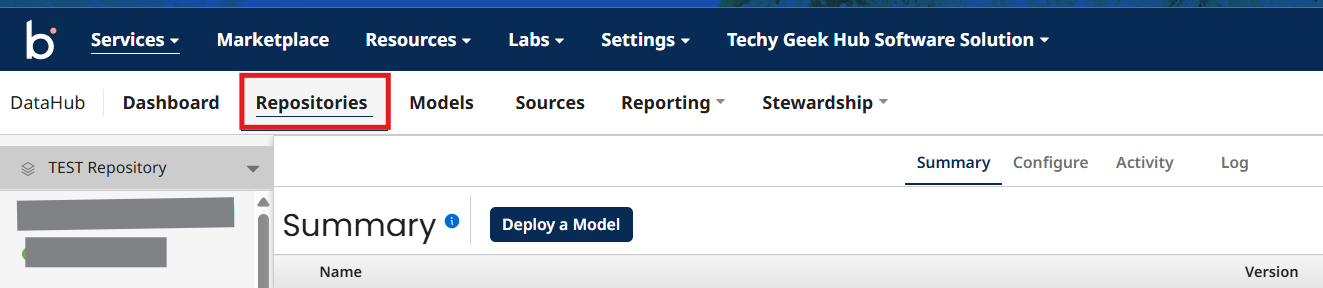
Repositories will be displayed choose your repository
Now click on configure tab copy My Hub Authentication Token, Username, Base URL for API Requests
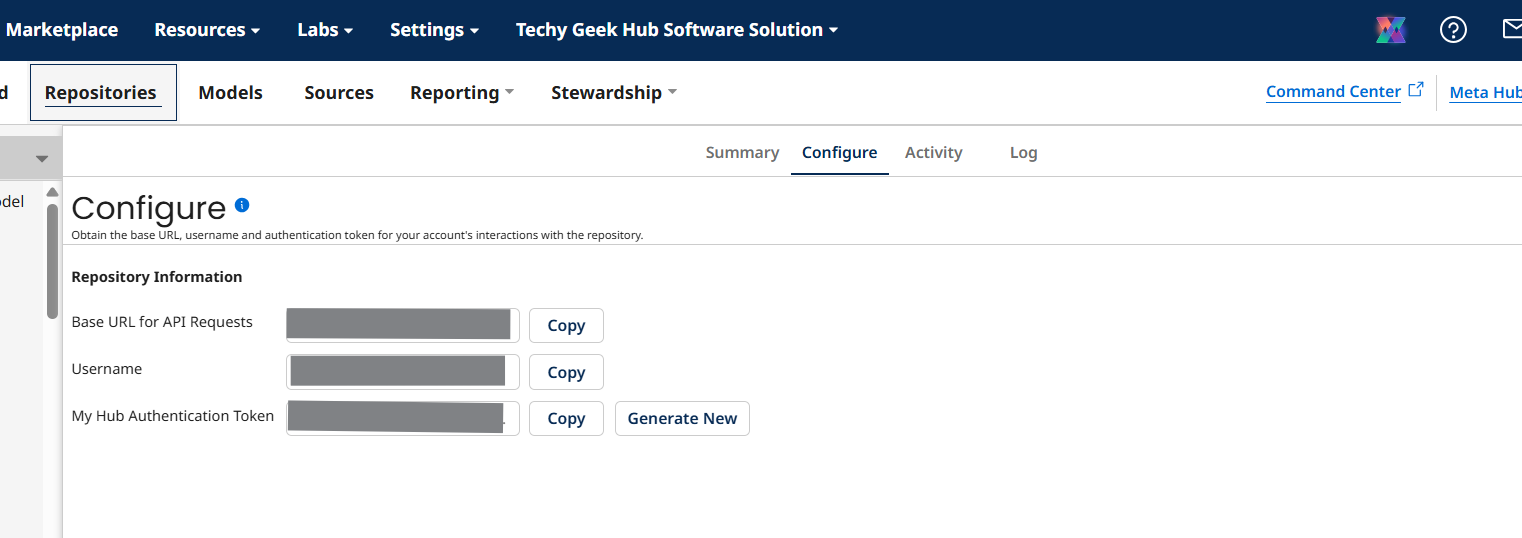
Now go to Data bub Connection component and paste these values and give proper name to connection component
Choose cloud name also from drop down
Click on lock and edit and save and close
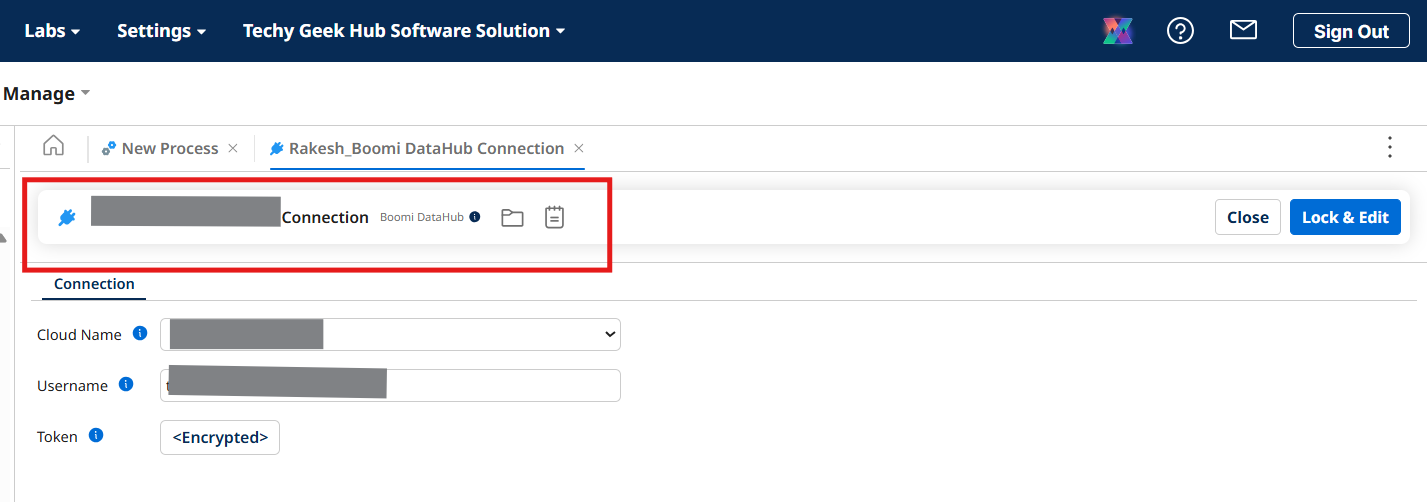
Now click on plus icon of operation to create operation component
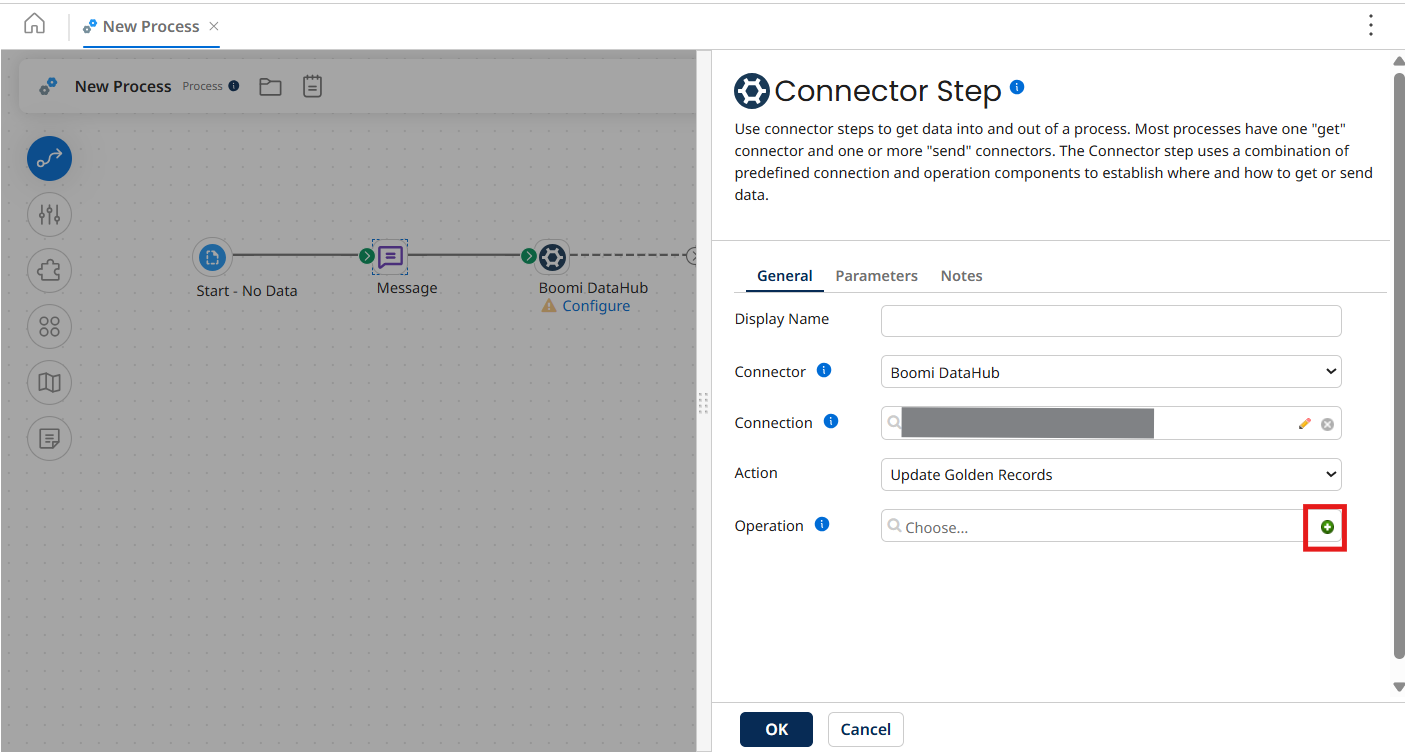
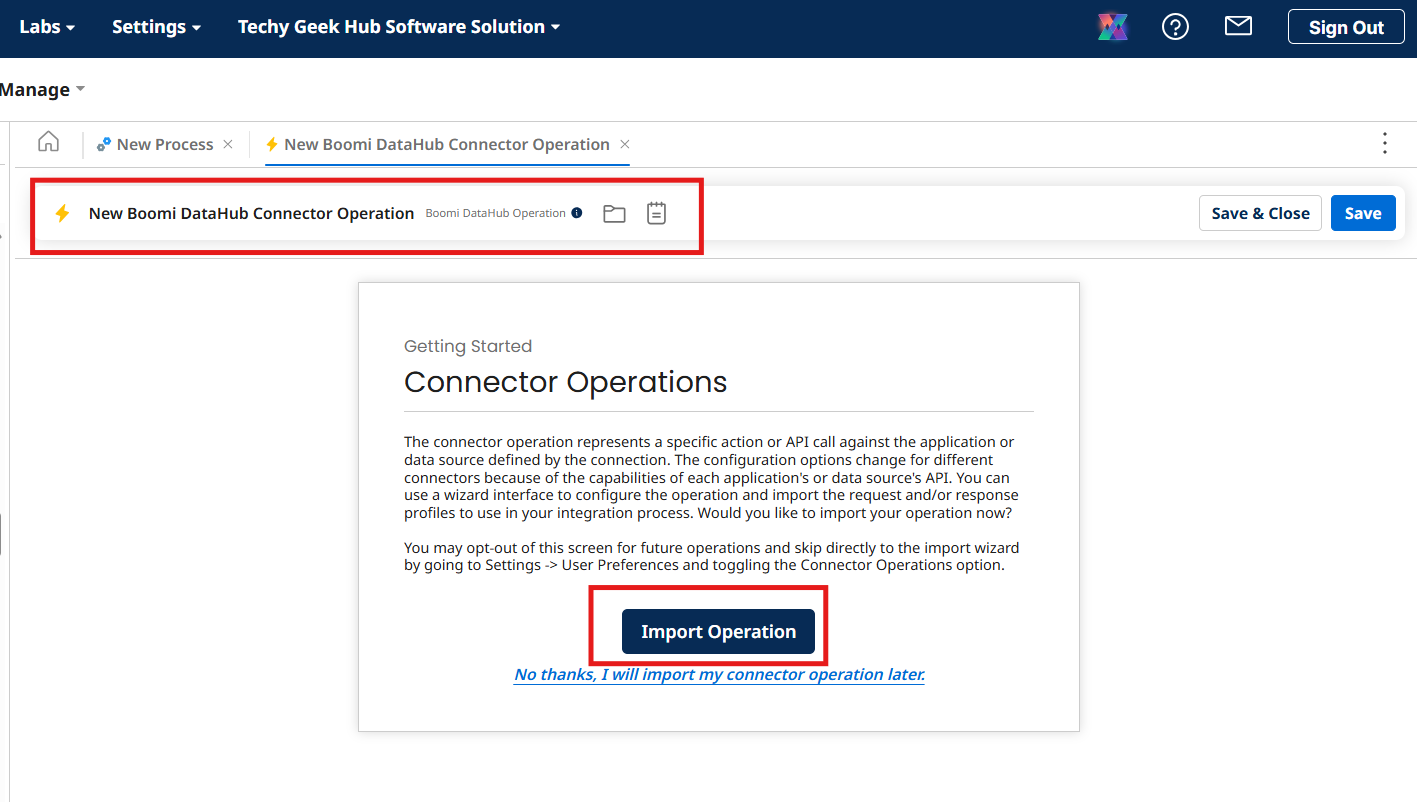
Now give proper name to operation component and click on import operation
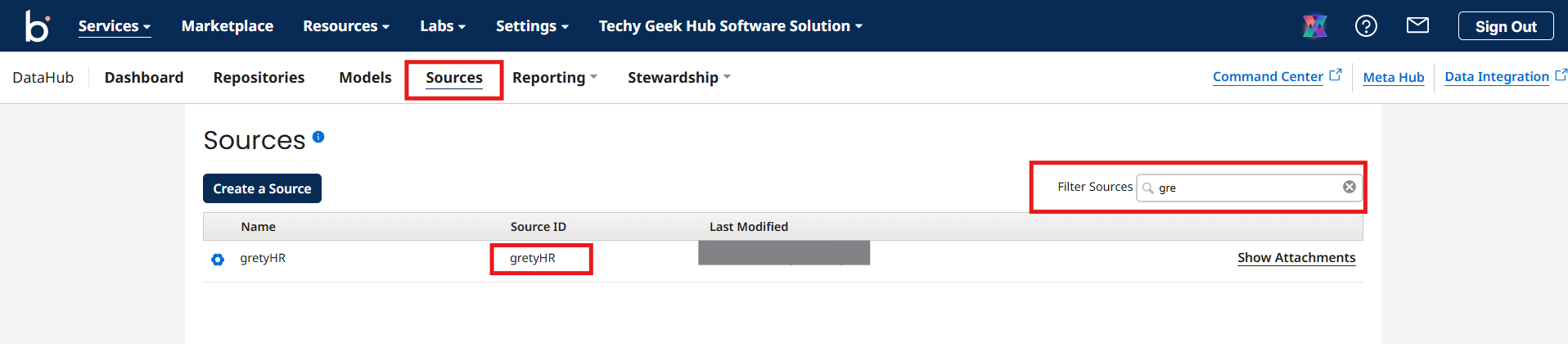
Now Navigate to Data Hub service and search for the source attached to the model and copy the sourceId
Now go to operation component in Integration service and add choose runtime, connected which was created before and paste the SourceId and leave Staging Id as it is and click on next below
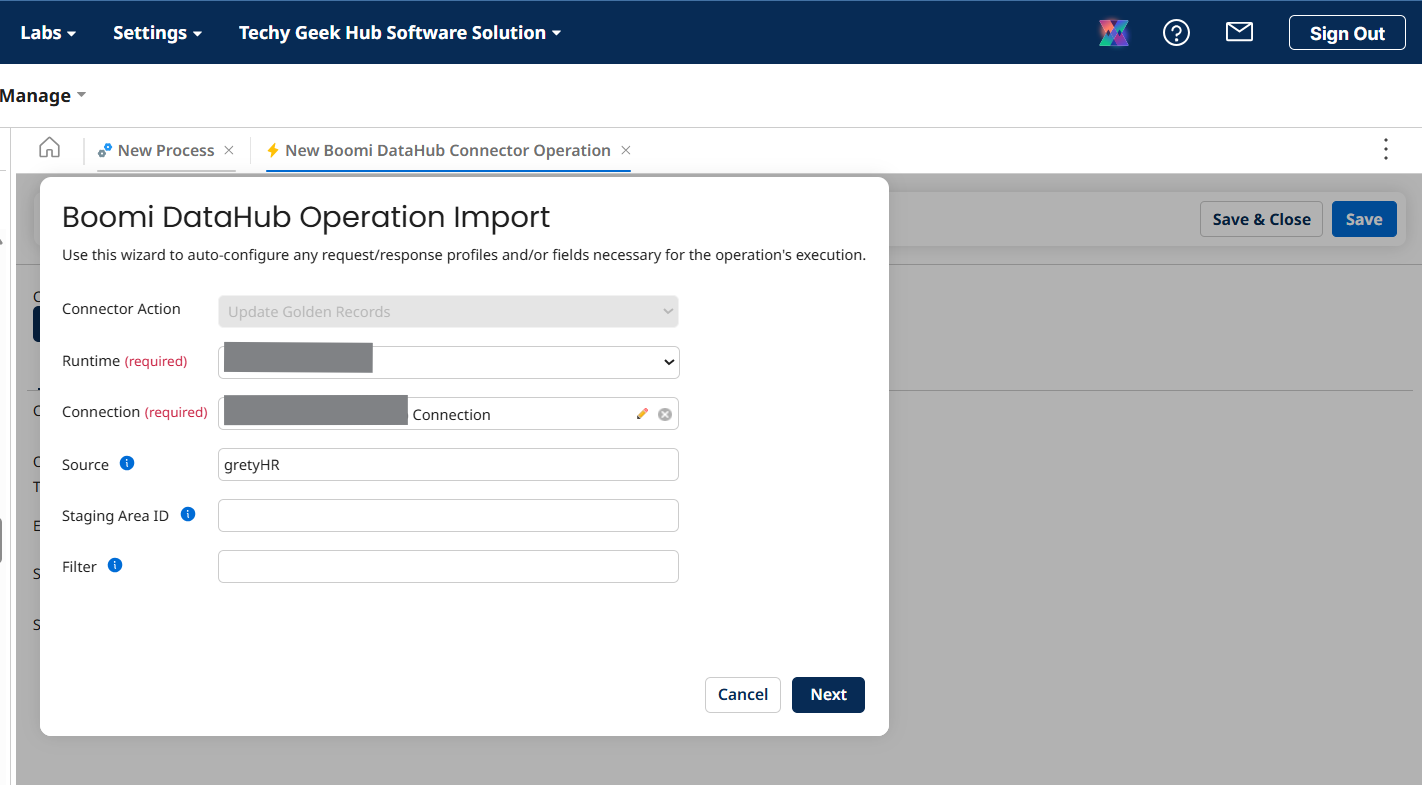
Now choose the Employ Model! which was created from the drop down
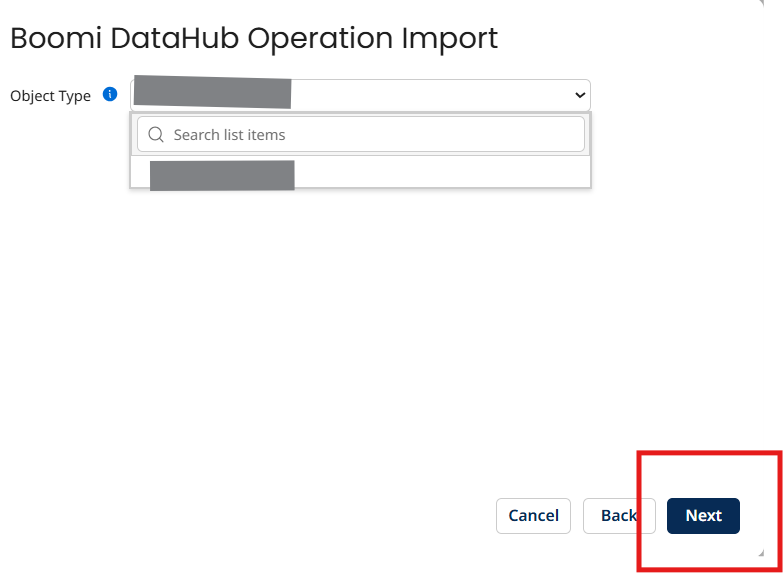
Now request profile for data hub will be created click on finish
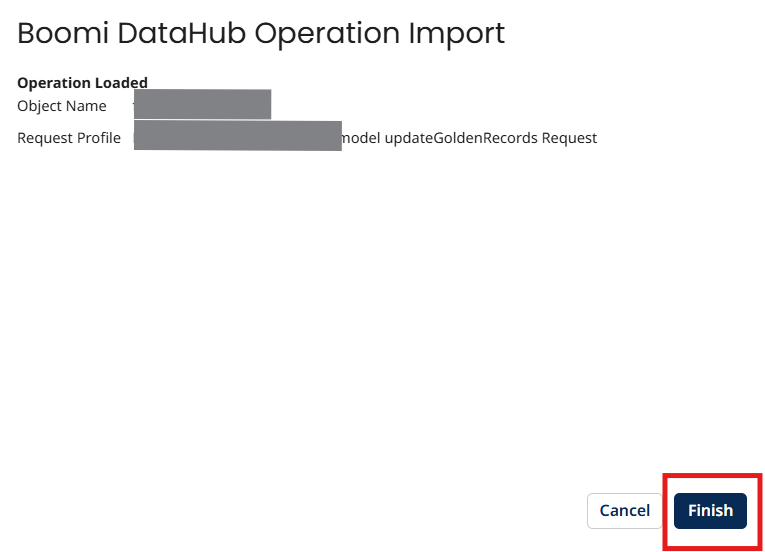
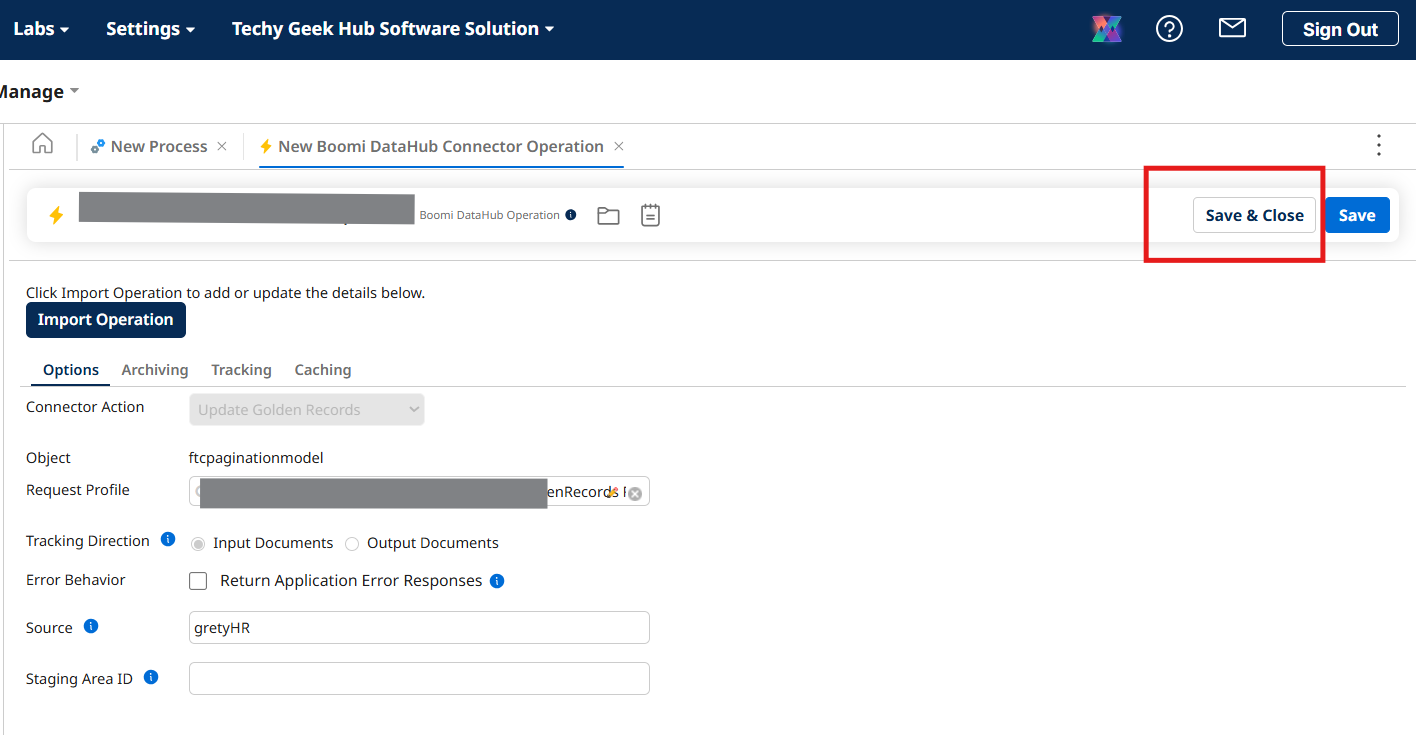
Now click on save and close for operation component
Now drag and drop map shape to the process canvas
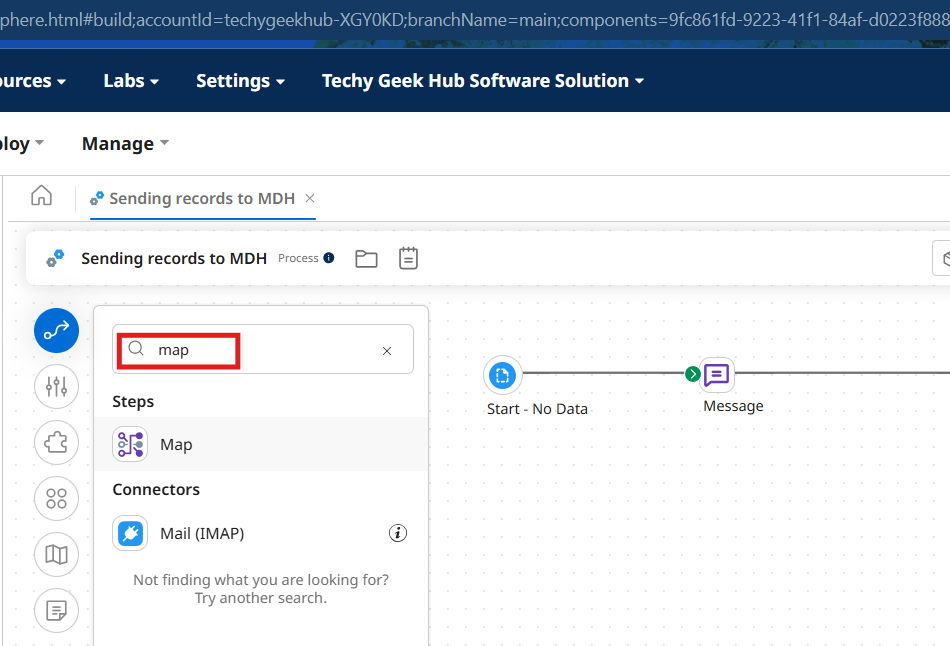
Click on configure and plus icon of map
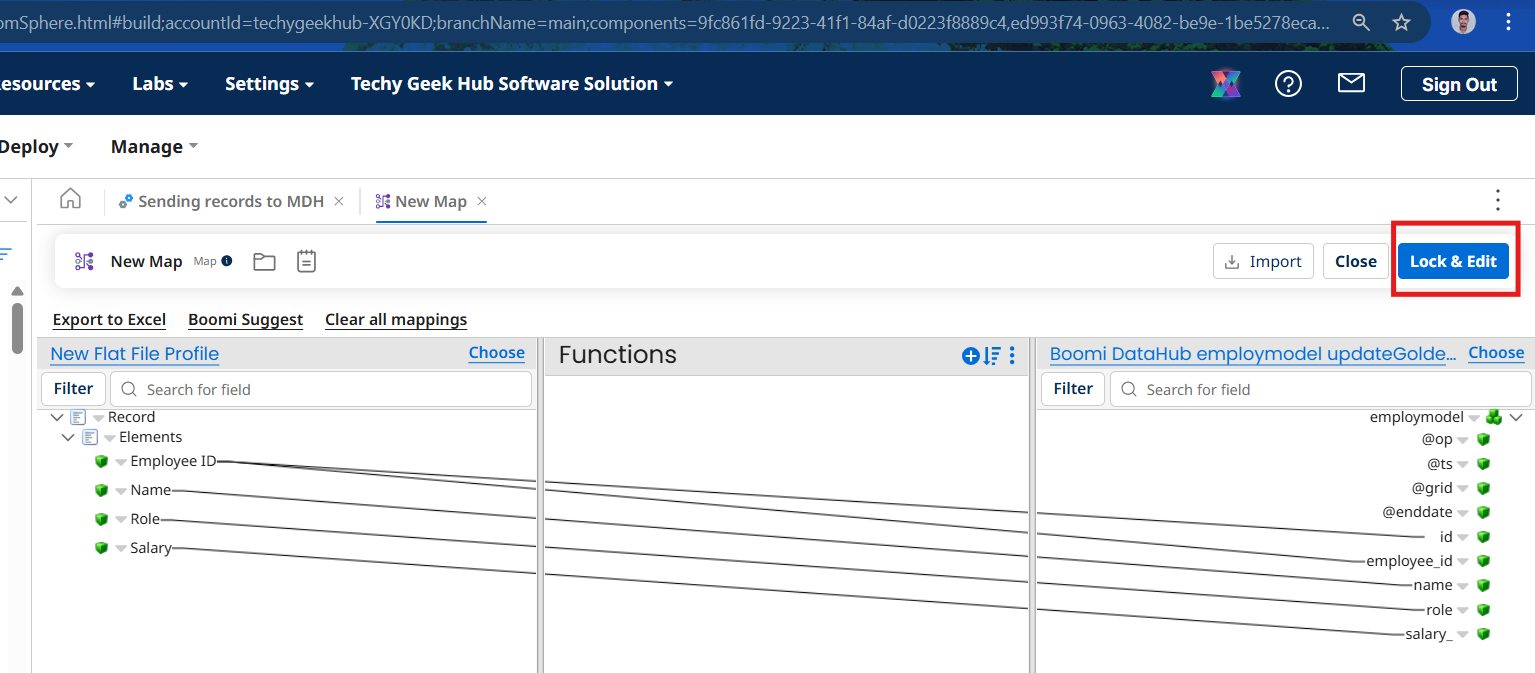
Create a comma separated flat file profile and configure it in the source side of map component and the xml data hub request profile in the target of map component and map the fileds as shown below then click on lock and edit and save close
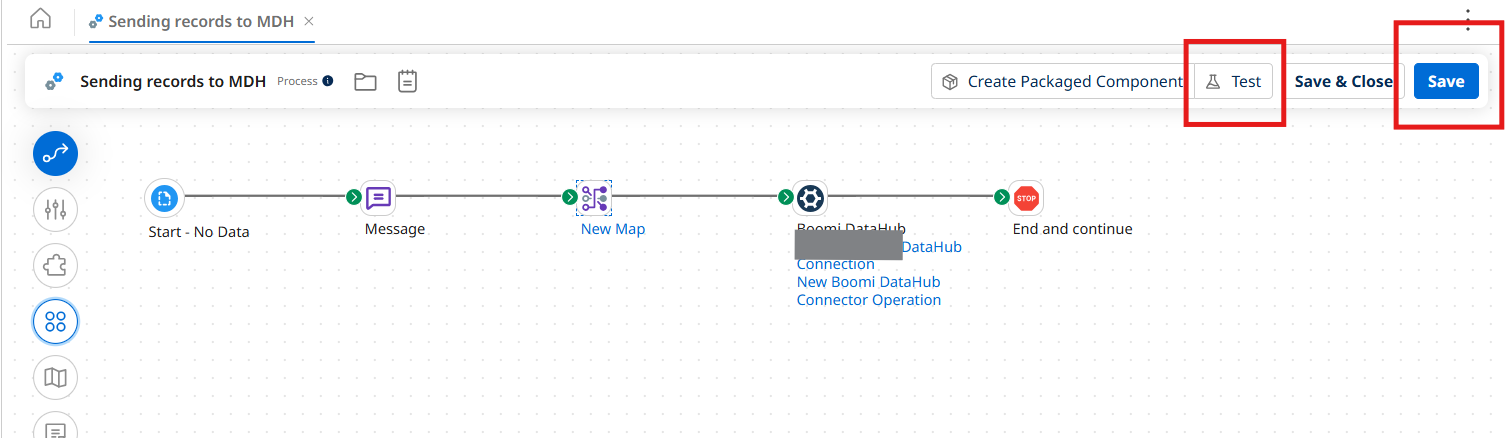
Now arrange the components as shown below click on save and test by choosing your runtime
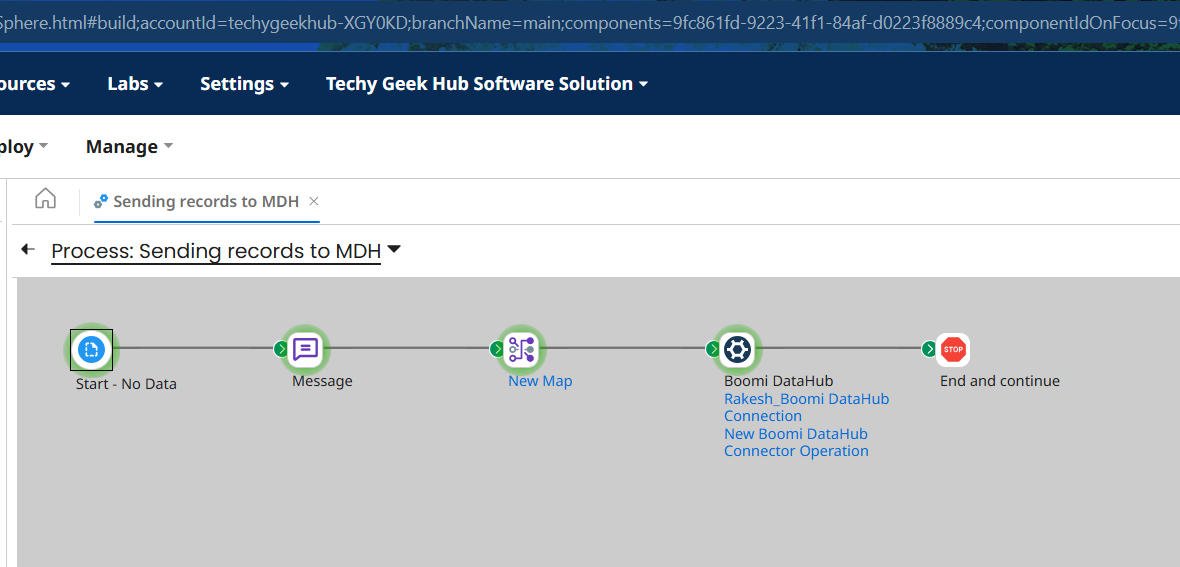
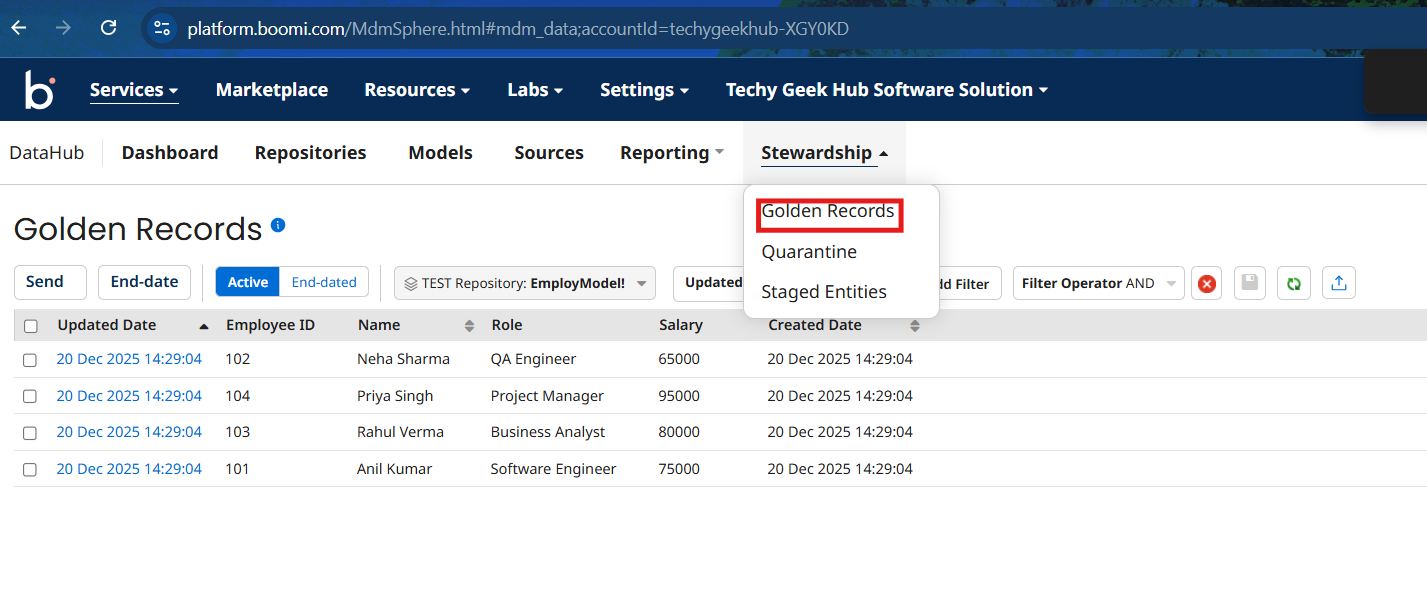
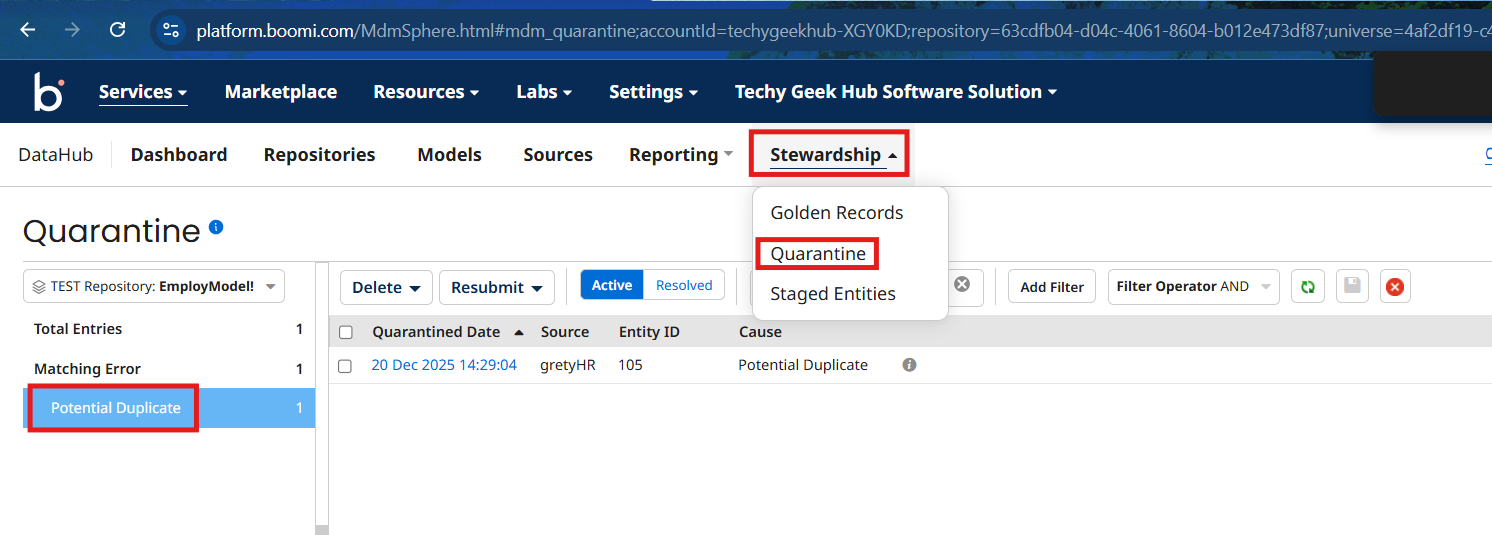
Now if you Navigate to Data Hub and Steward ship you can see the golden and quarantine records
Out of 5, 4 records were golden and 1 record is quarantined due to same Name as match rule
Creating Integration Process to query Quarantine Entries
Now we will see how to create duplicate golden record using API
Now create another process component and give proper name
Configure start shape with no data, drag and drop Boomi data Hub connector into boomi and configure the action as Query Quarantine Entries
Choose the connection which you created before
Now click on plus icon to create operation component
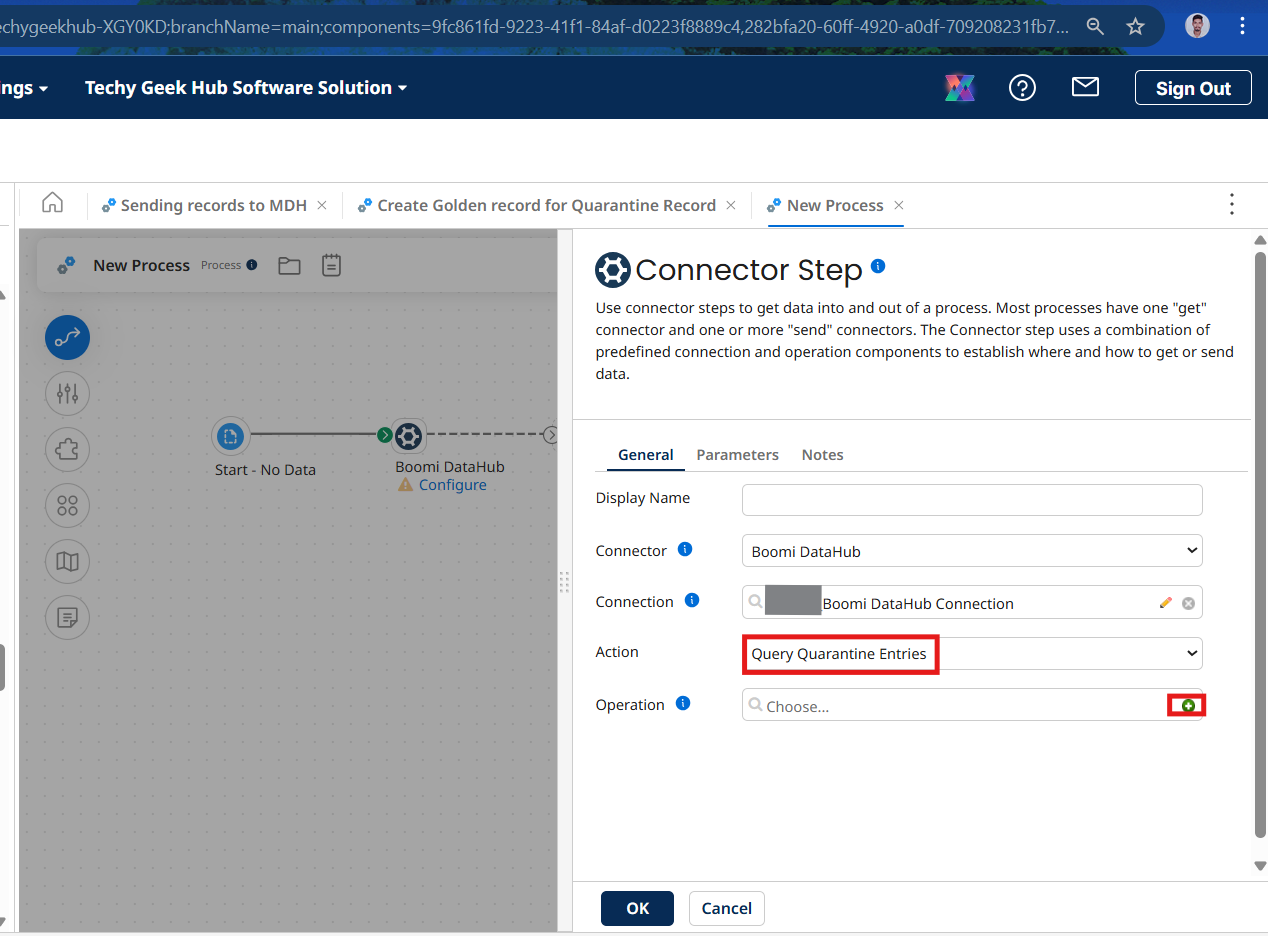
Give proper name to the operation component and click on import button
Now choose the runtime engine and connection component created previously and click on next
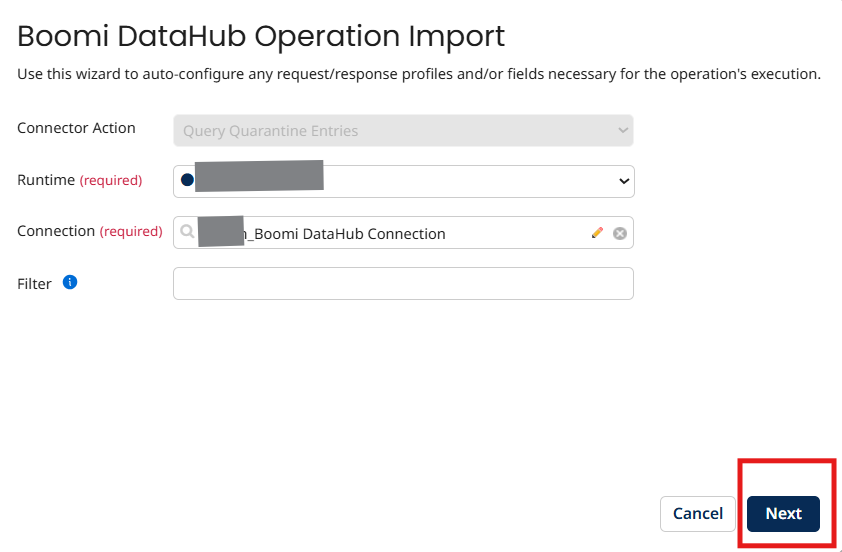
Now choose your model from the drop down and click on next
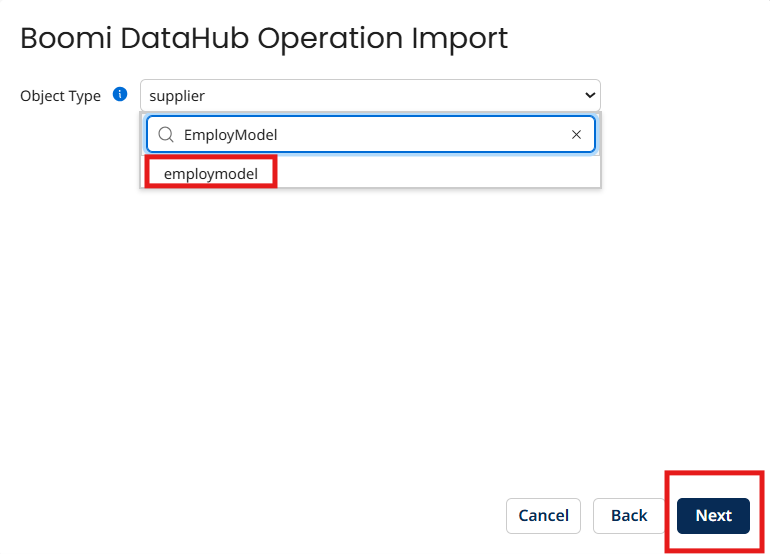
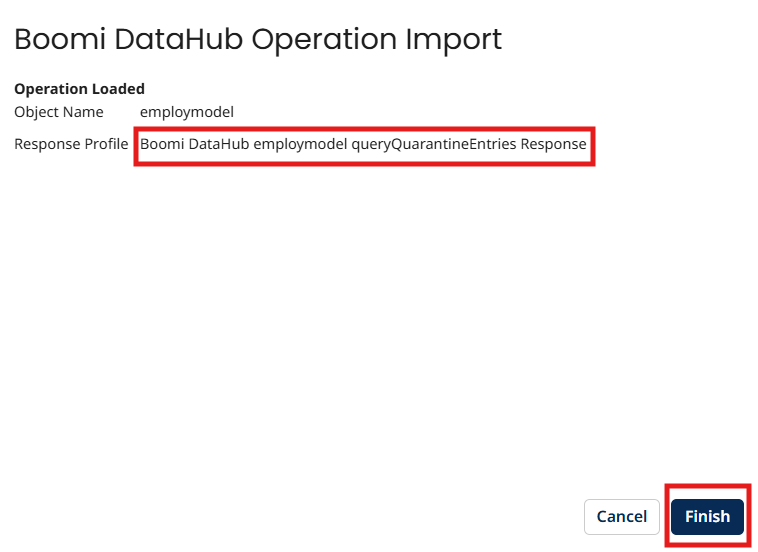
The Response profile for Quarantined records got created and click on finish
Save and close the operation component
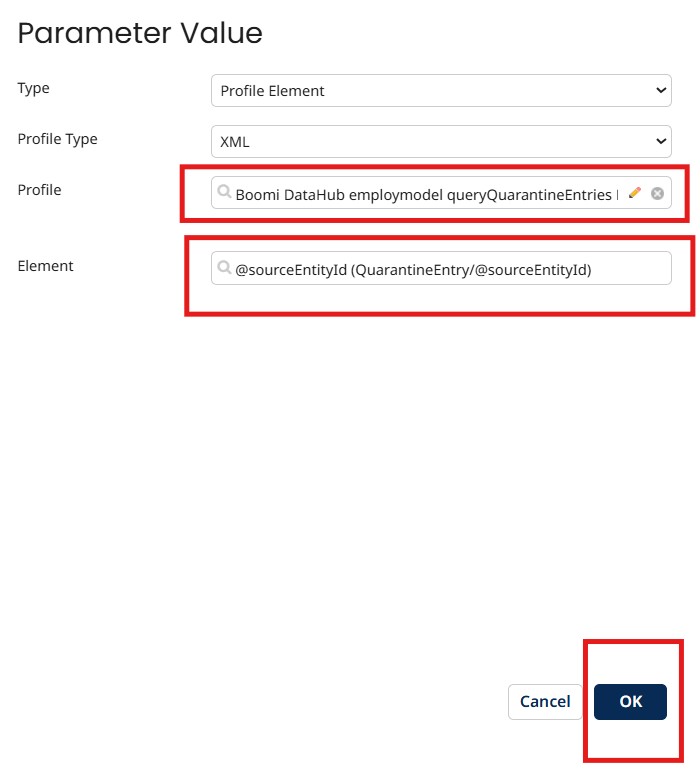
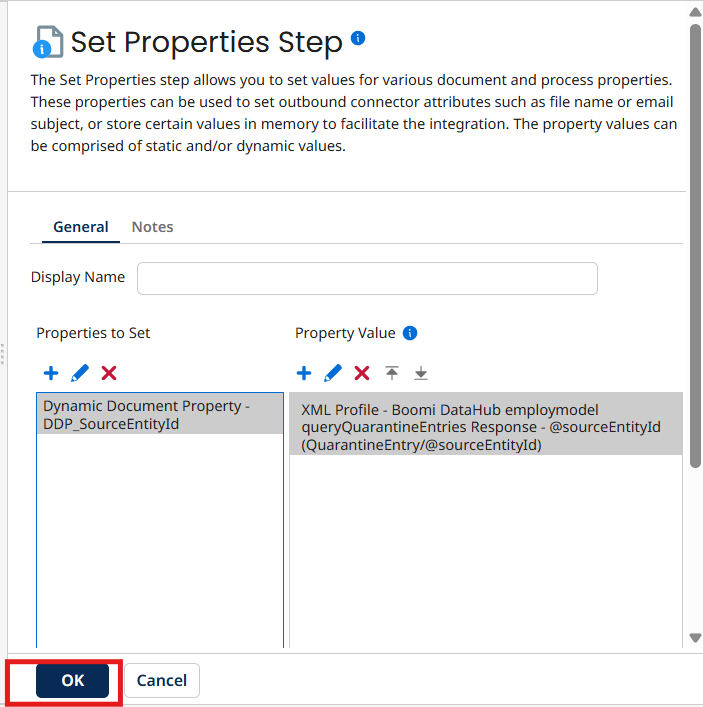
Now to create a duplicate golden record we need to capture the source entity id for the quarantine entry
now drag and drop set properties shape to process canvas and store Source entity Id in a DDP as shown below
Creating HTTP Client Connector Connection
Now Drag and drop HTTP client connector to the process canvas and choose the action as send
Click on plus icon in connection tab to create connection component and click on basic authentication
Provide proper name to the Connection component
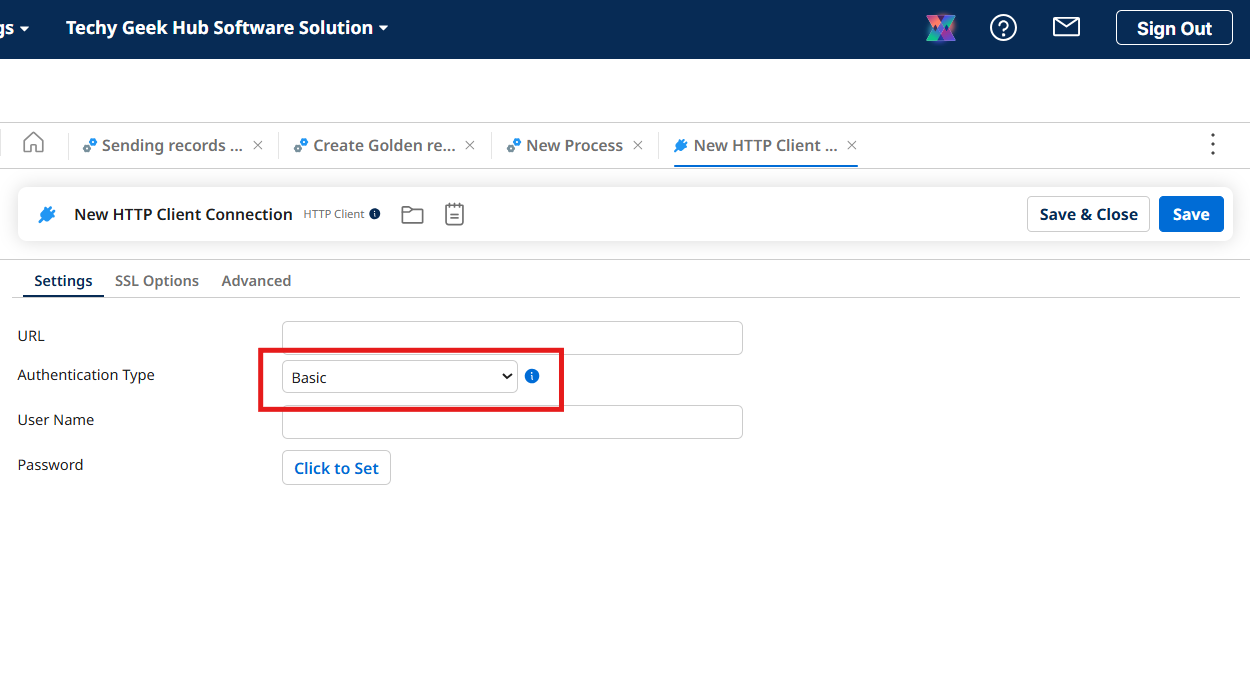
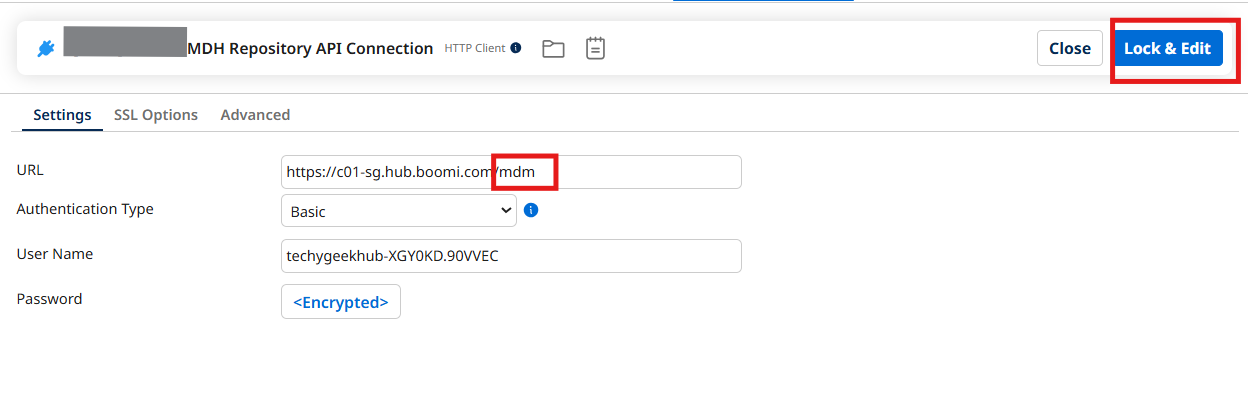
Now go to Data Hub Service and choose your repository and navigate to configure and copy Base URL, user name and My Hub Authentication token and paste them in the HTTP client connection component
Concatinate /mdm to the base URL, click on lock and edit save and close
Configuring Resource Path
Now click on plus icon operation
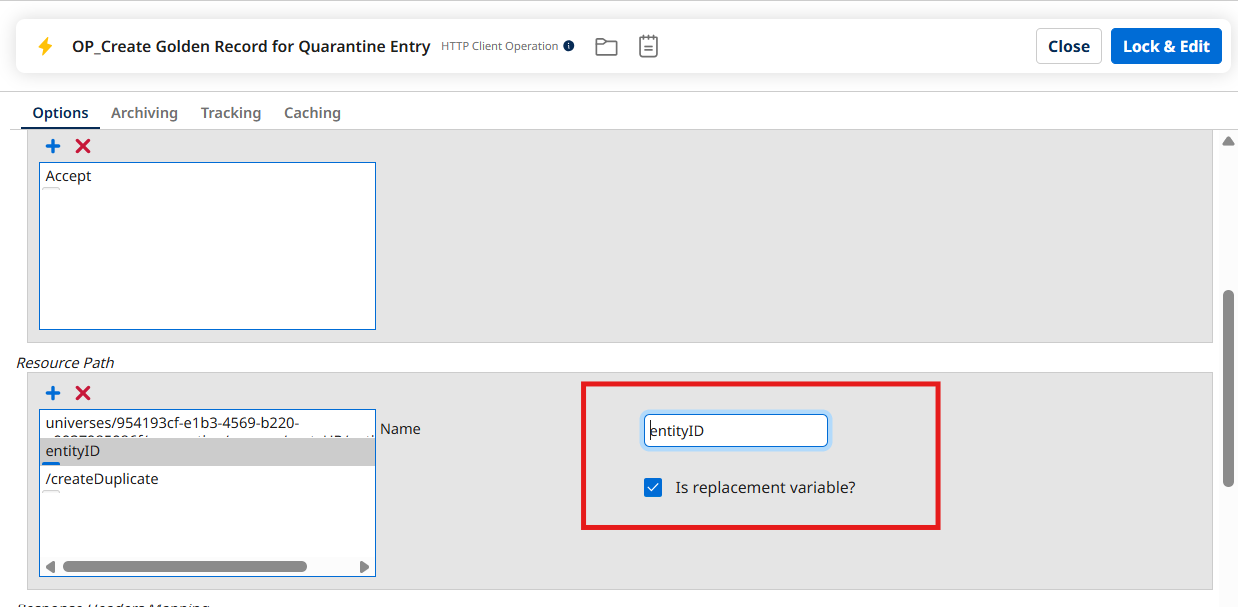
/universes/<universeID>/quarantine/sources/<sourceID>/entities/<entityID>/createDuplicate
Use this in the resource path
Give universeID, sourceID, as static and entityID dynamically
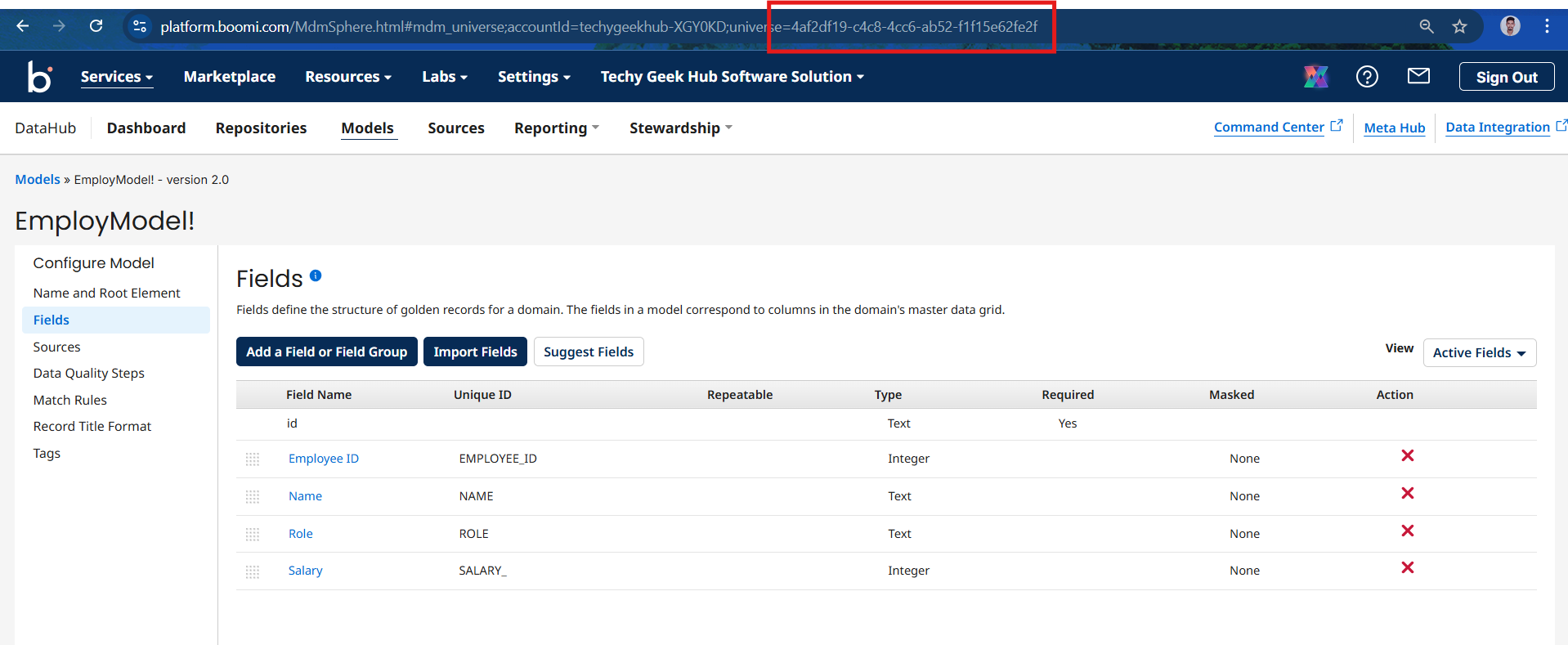
You will get universe Id in the URL once you choose your model
entityID is configured as replaceable passed dynamical which was captured and in DDP before
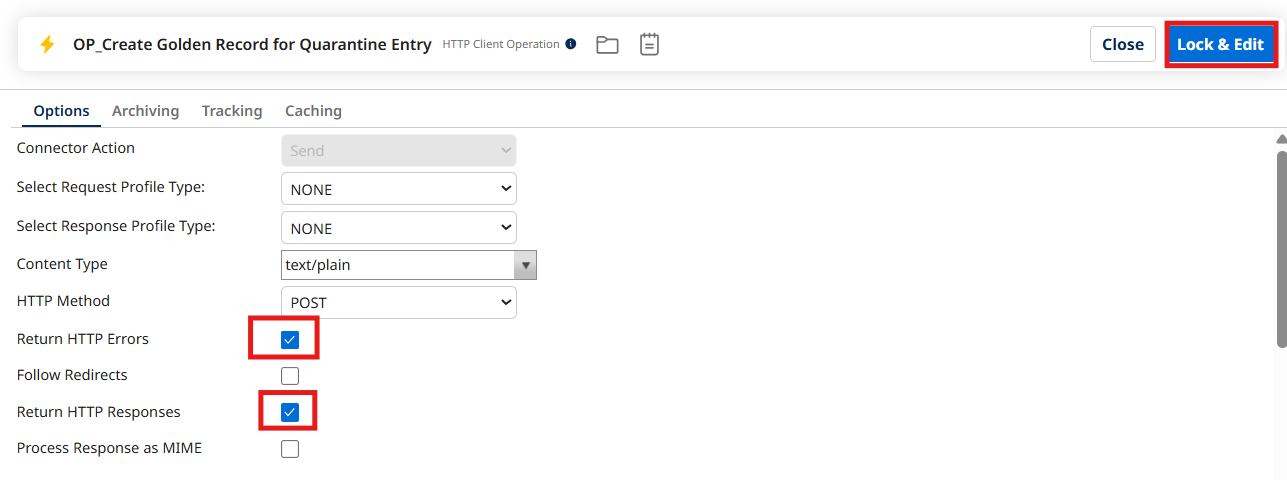
Configure the options as shown above and click on lock and edit and save and close
Now Click on Http client connector and navigate to parameter tab and click on plus icon and pass DDP_EntityId which was create before
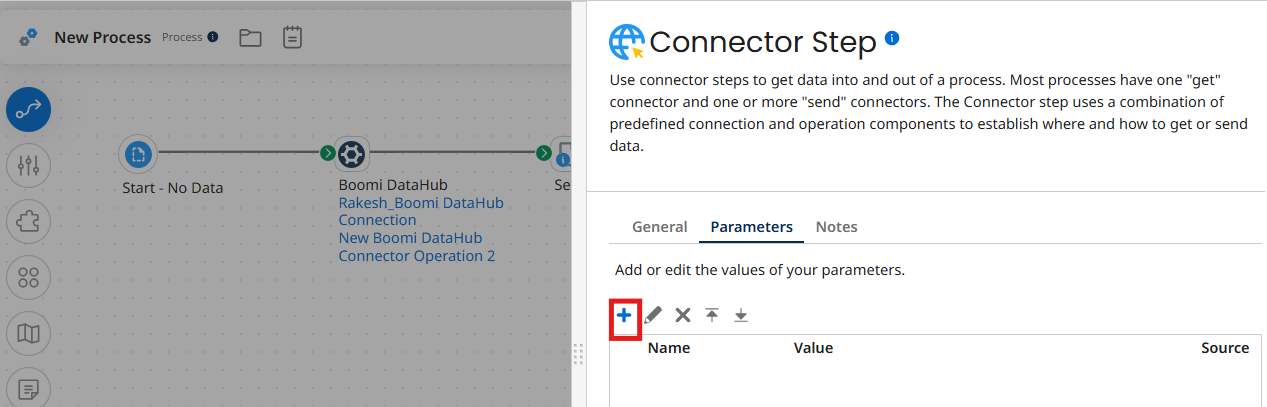
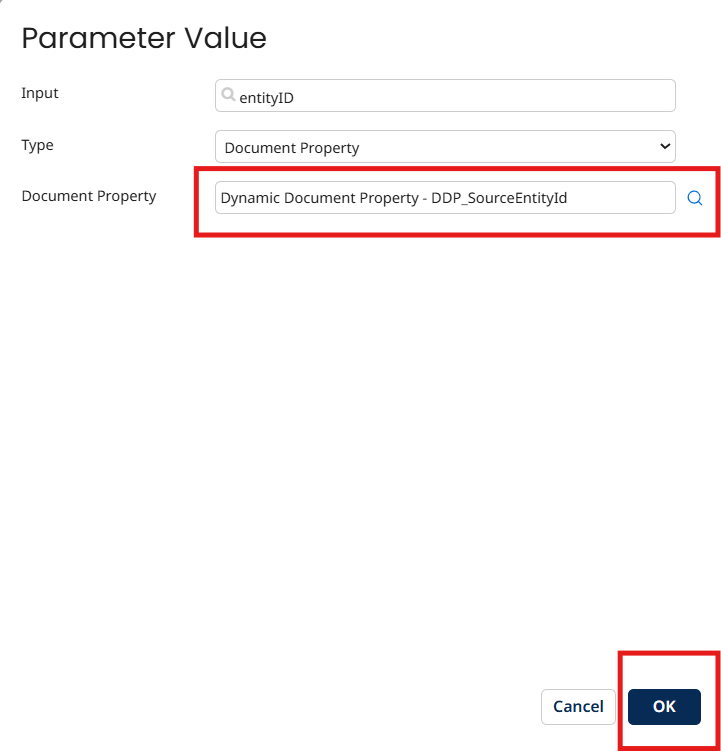
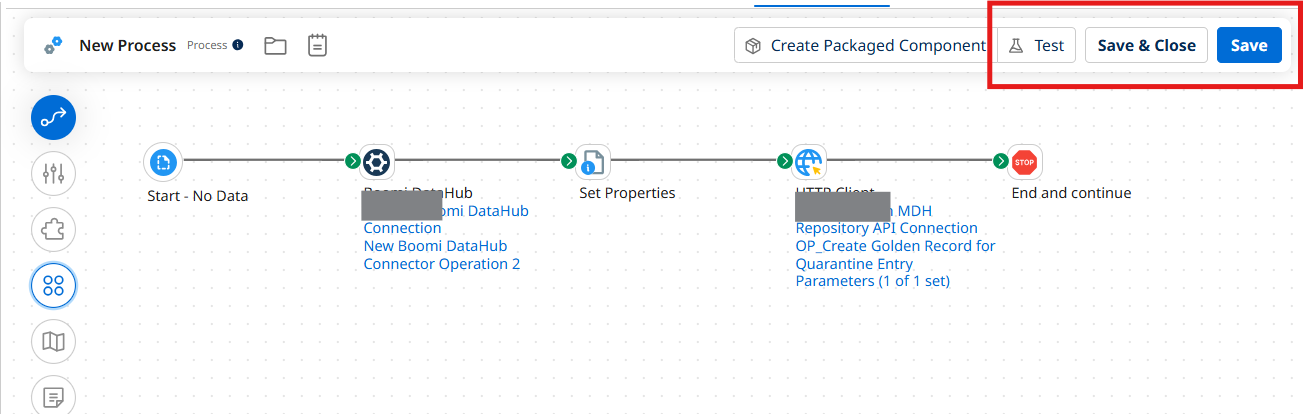
Arrange the shapes as shown here
Clik on save and close and test
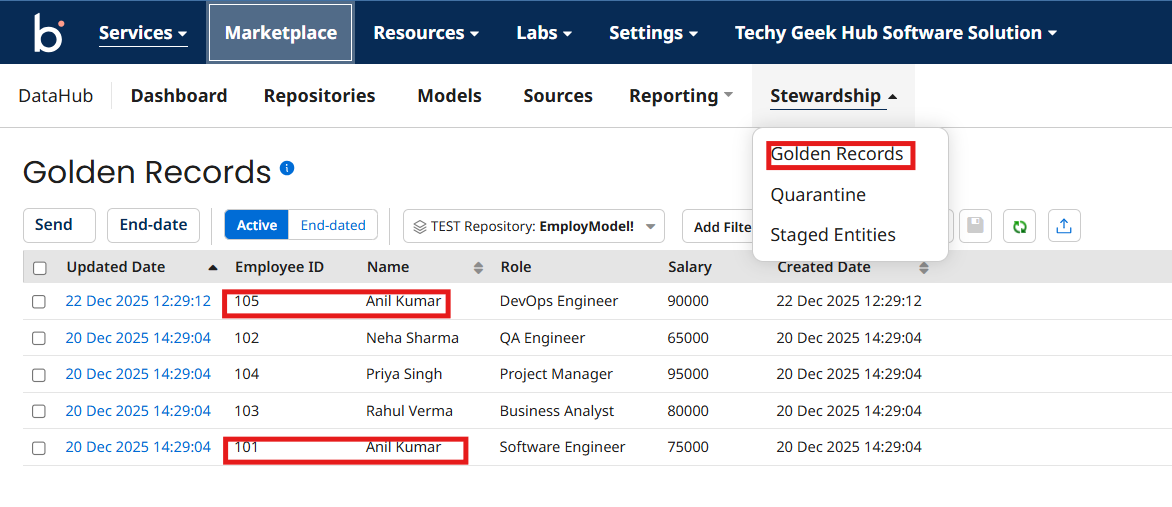
Now go to golden records and observe the records
You can see quarantined record was created as duplicate golden record
Looking to streamline your Master Data Management and Boomi integration strategy? TGH helps enterprises design scalable, automation-driven integration solutions that improve data quality, governance, and operational efficiency.
📱 +91 8810610395
🌐 www.techygeekhub.com
📩 connect@techygeekhub.com
