

Updating Environment Properties using HTTP Connector in Workato
Introduction
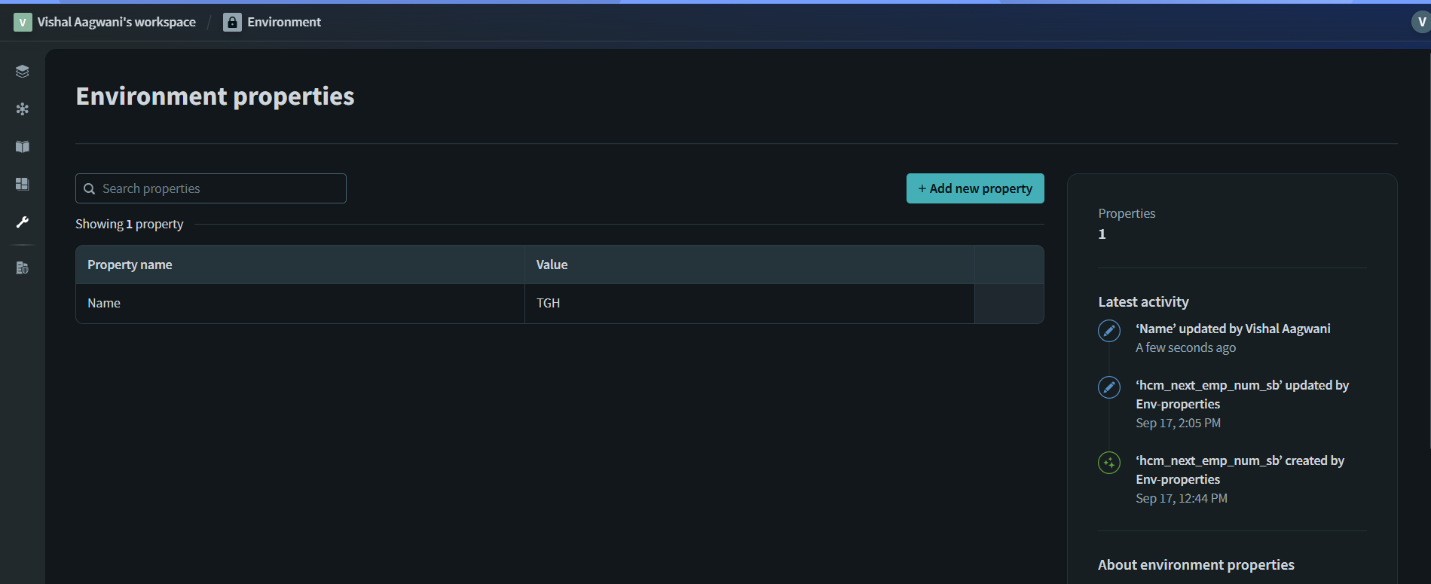
In modern integration workflows, environment properties play a crucial role in managing environment-specific configurations like API keys, base URLs, and feature flags. Workato provides a secure way to define and manage these properties, ensuring portability across development, testing, and production environments.
Sometimes, you may need to update these environment properties dynamically — for example, when rotating API keys or switching service endpoints during deployment. This is where the HTTP Connector comes into play.
What are Environment Properties in Workato?
Environment properties are key-value pairs stored in Workato to manage environment-specific settings. Examples include: – API keys – Base URLs – Authentication tokens – Feature flags
These properties help: – Avoid hardcoding sensitive data in recipes – Maintain portability across environments – Ensure centralized management of configurations.
Why Use HTTP Connector to Update Environment Properties?
The HTTP Connector allows recipes to interact with Workato’s REST APIs and external services. By using it, you can programmatically update environment properties without manual intervention.
Key Benefits: – Automate configuration updates – Integrate secret rotation flows – Synchronize settings across multiple environments
HTTP Connector Overview
The HTTP Connector in Workato enables interaction with REST APIs. It supports: – HTTP methods: GET, POST, PUT, PATCH, DELETE – Custom headers, query parameters, and body payloads – Authentication methods (API key, OAuth, etc.)
When used with Workato APIs, it provides a way to manage environment properties programmatically.
Steps to Get Admin API key
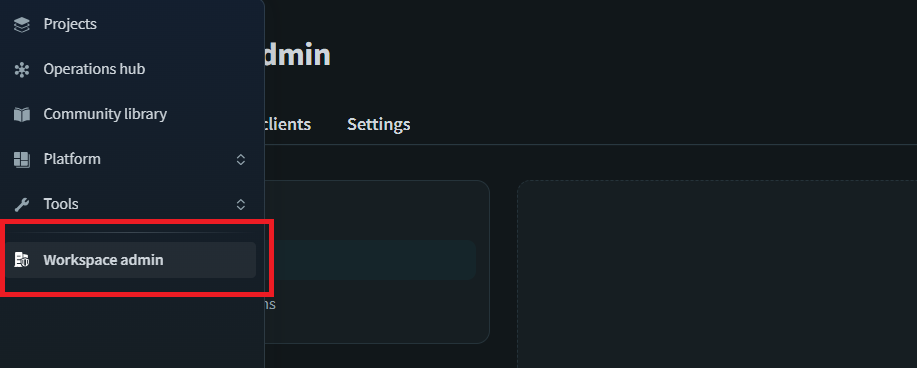
1. Step-1 Navigate to Workspace Admin:
-
- Click on “Workspace admin” in the left-hand navigation menu. This is the main entry point for managing your Workato workspace.
2. Step-2 Manage and Create New Clients:
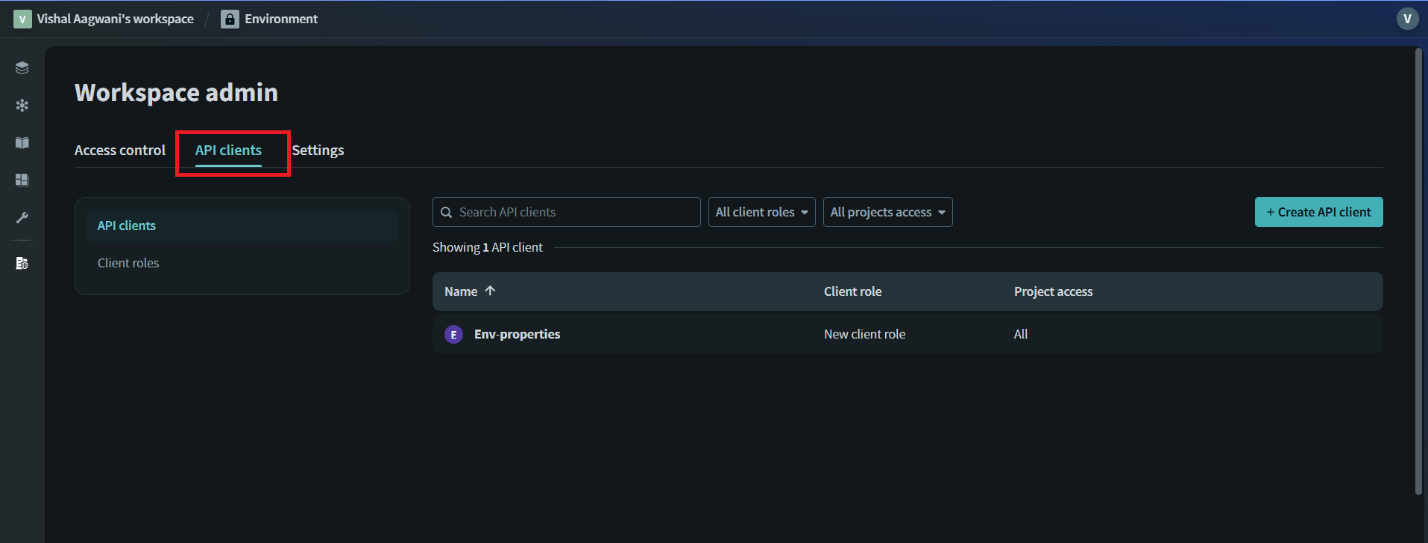
-
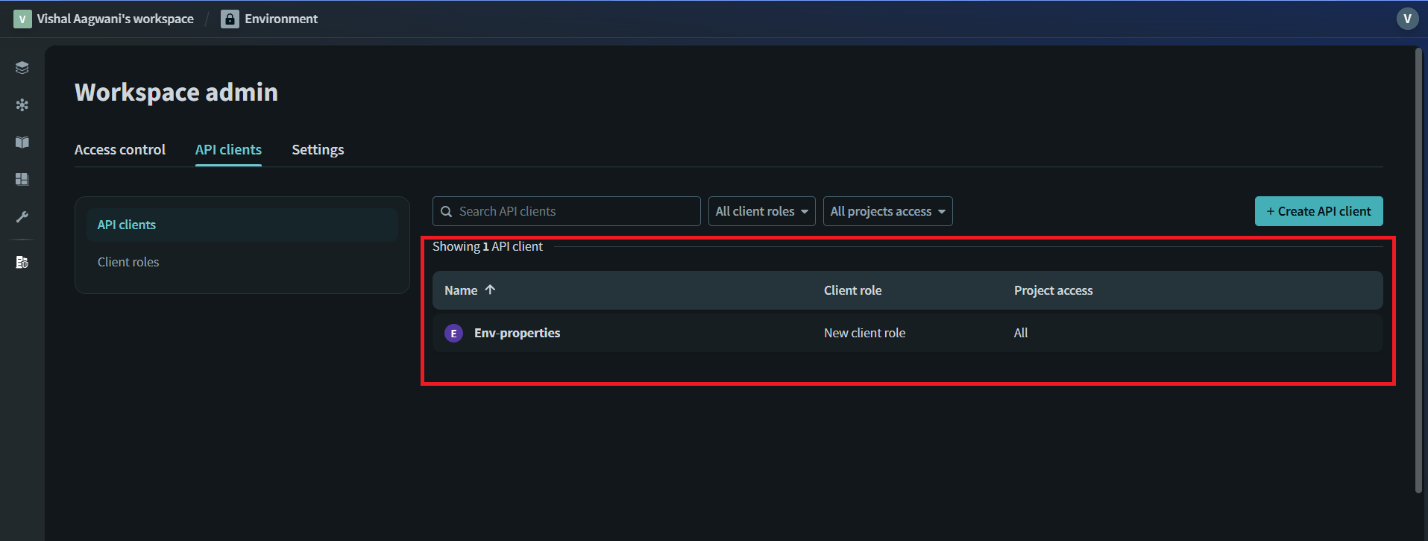
- Go to API clients, there’s a button labeled + Create API client.
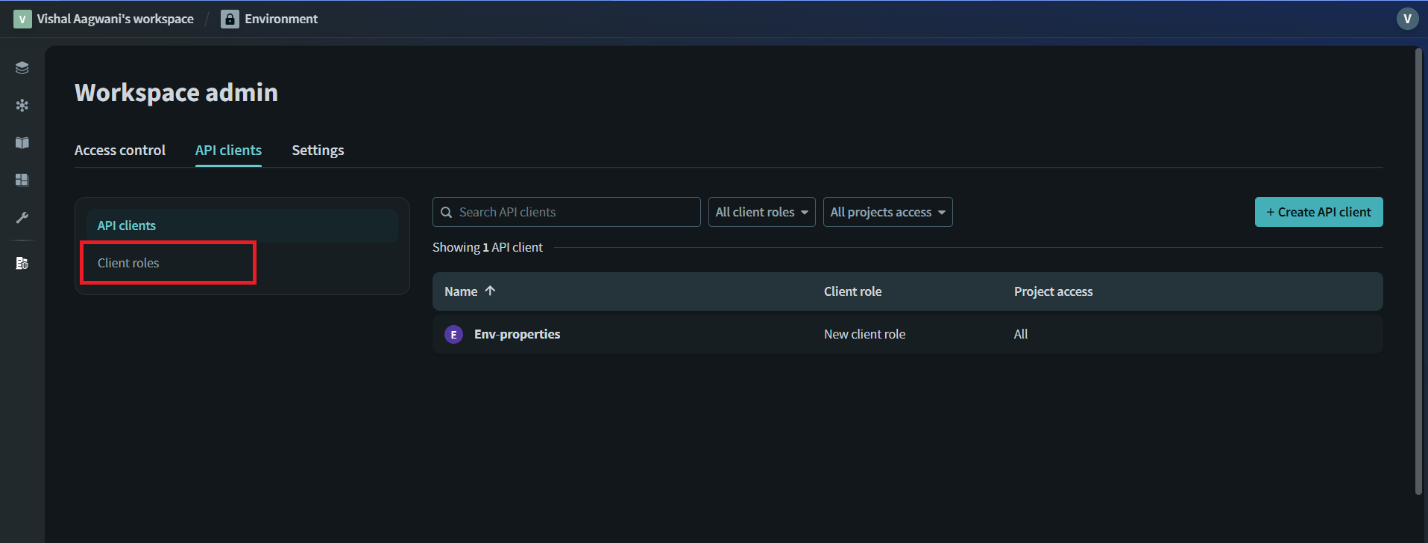
3. Step 4
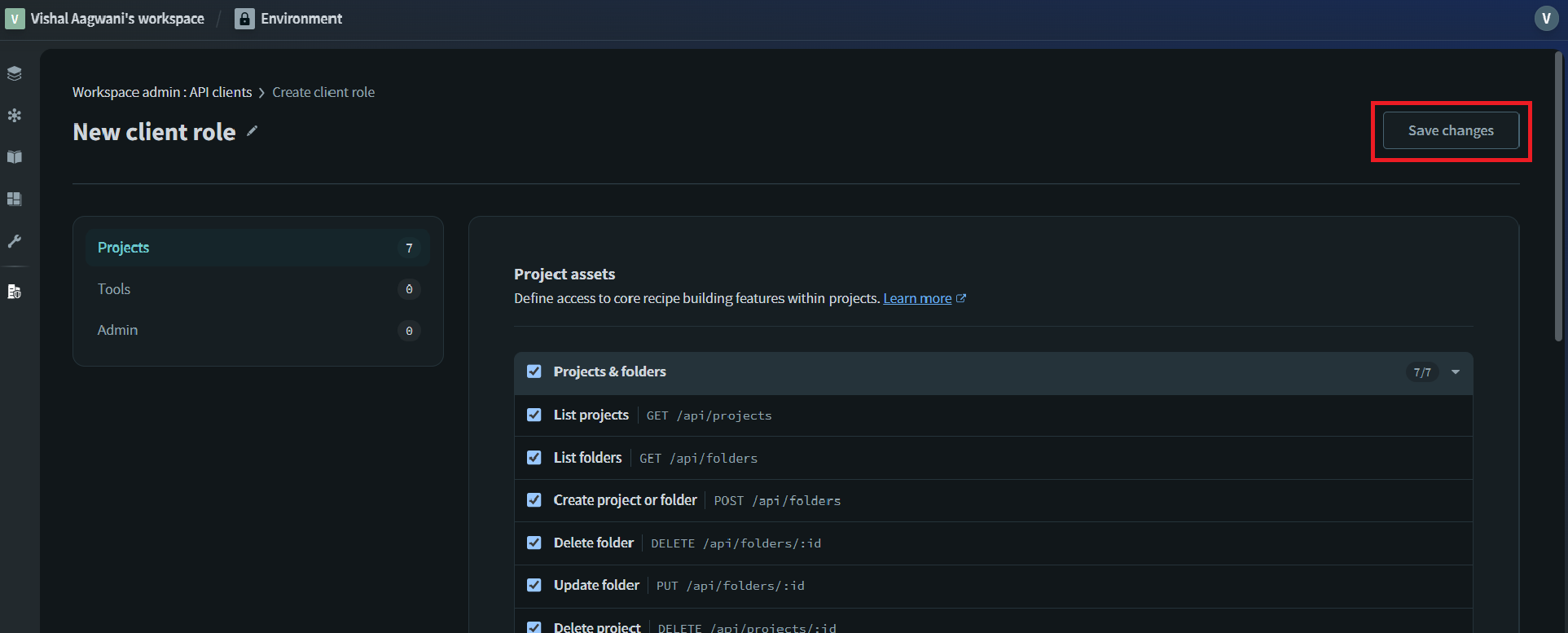
i. Select API clients > Client roles > Add client role.
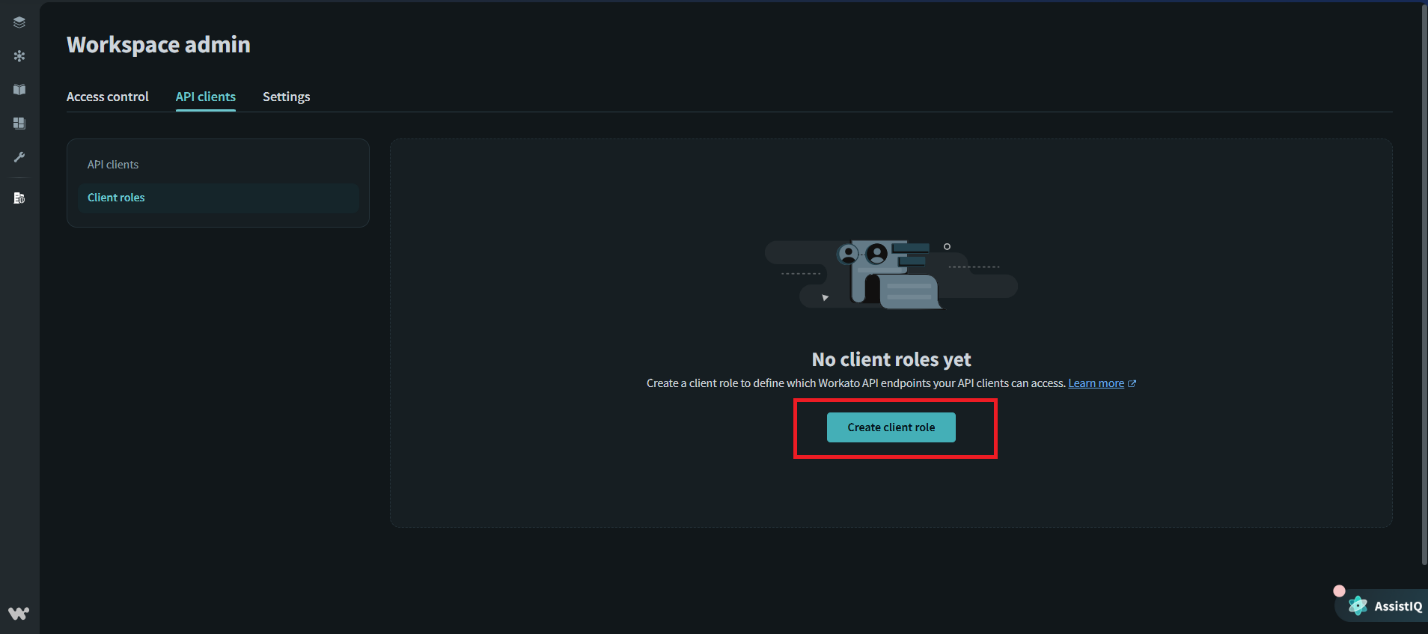
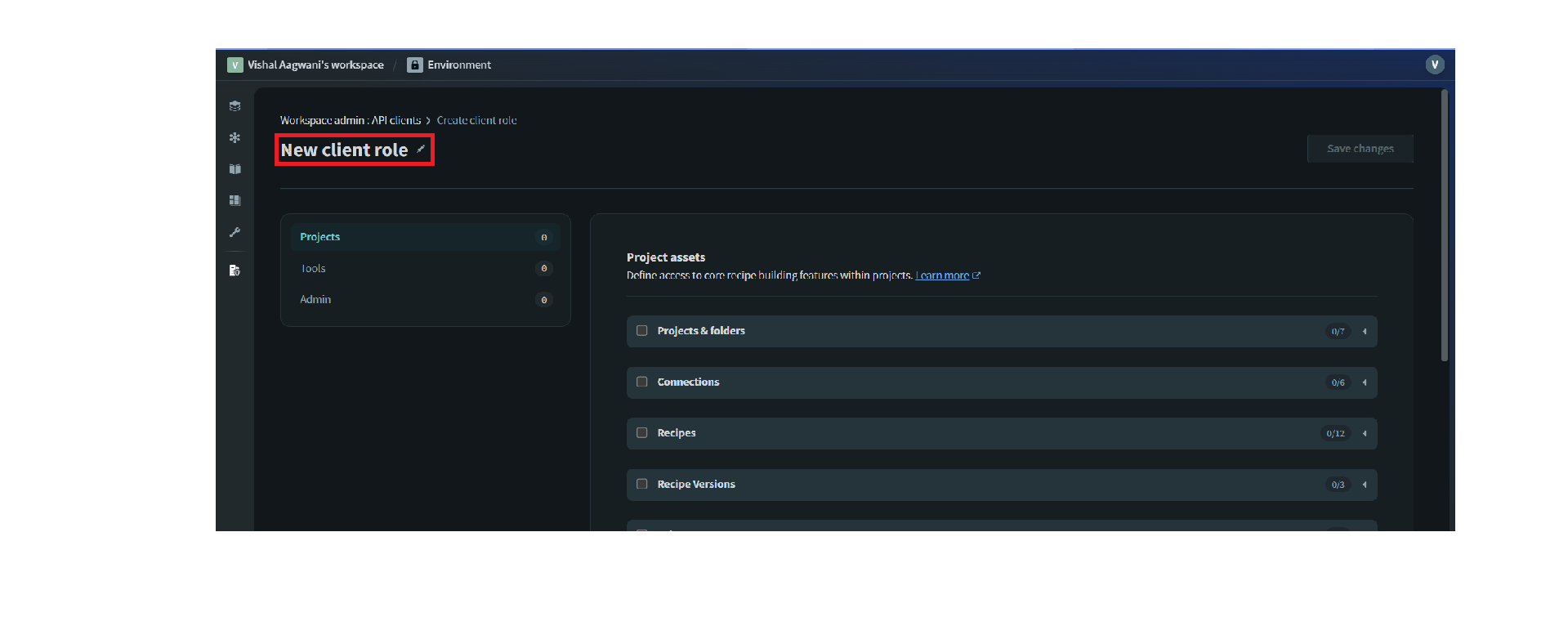
ii. Enter a name for the new client role.
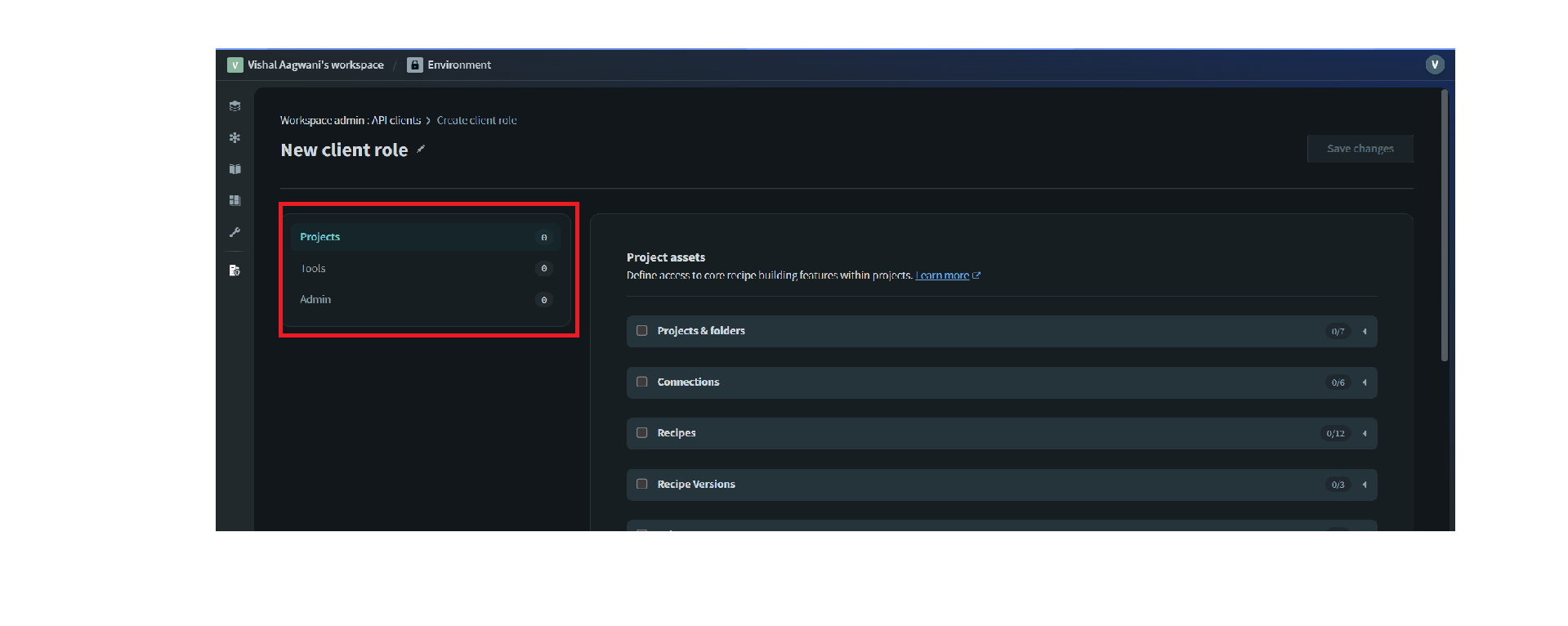
iii. Select the required endpoints for the role under each section.
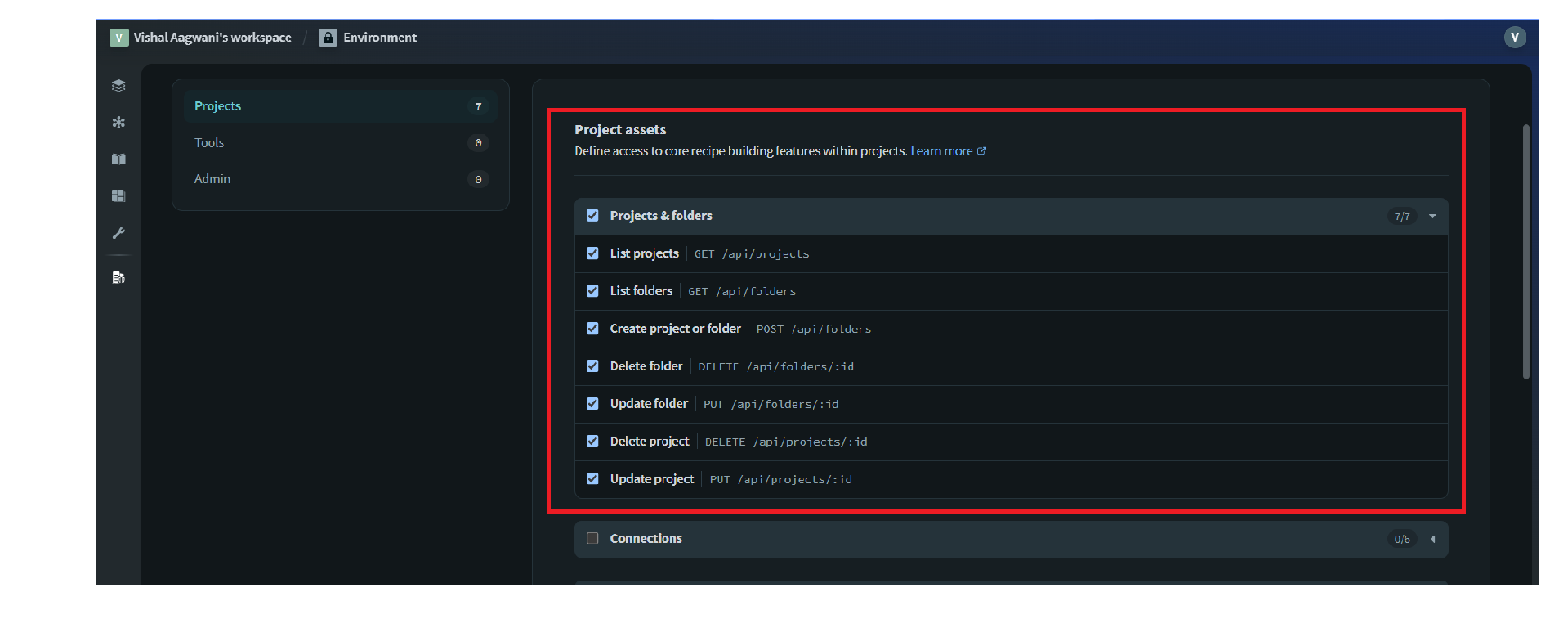
iv. Save your role after you are done with your selections. You can edit the client role later if needed.
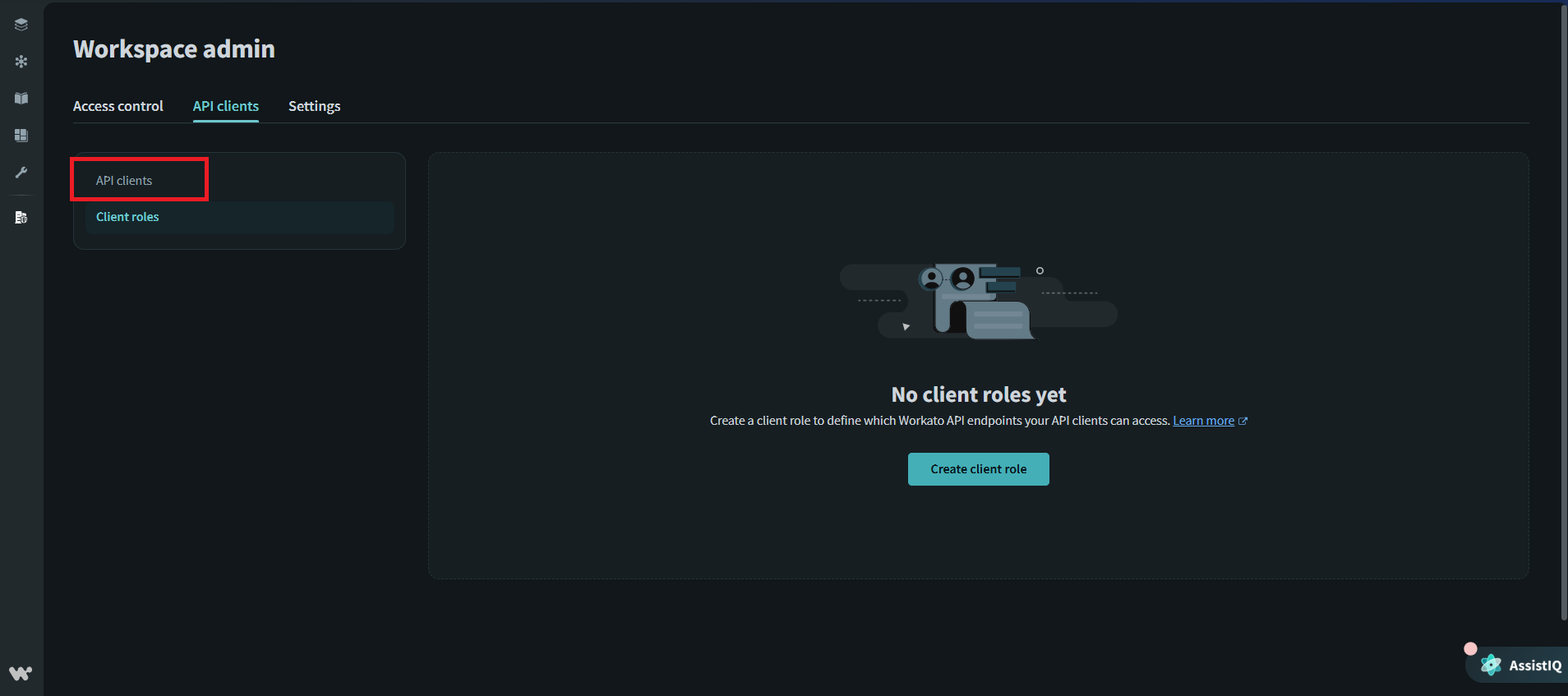
4. Step 5
-
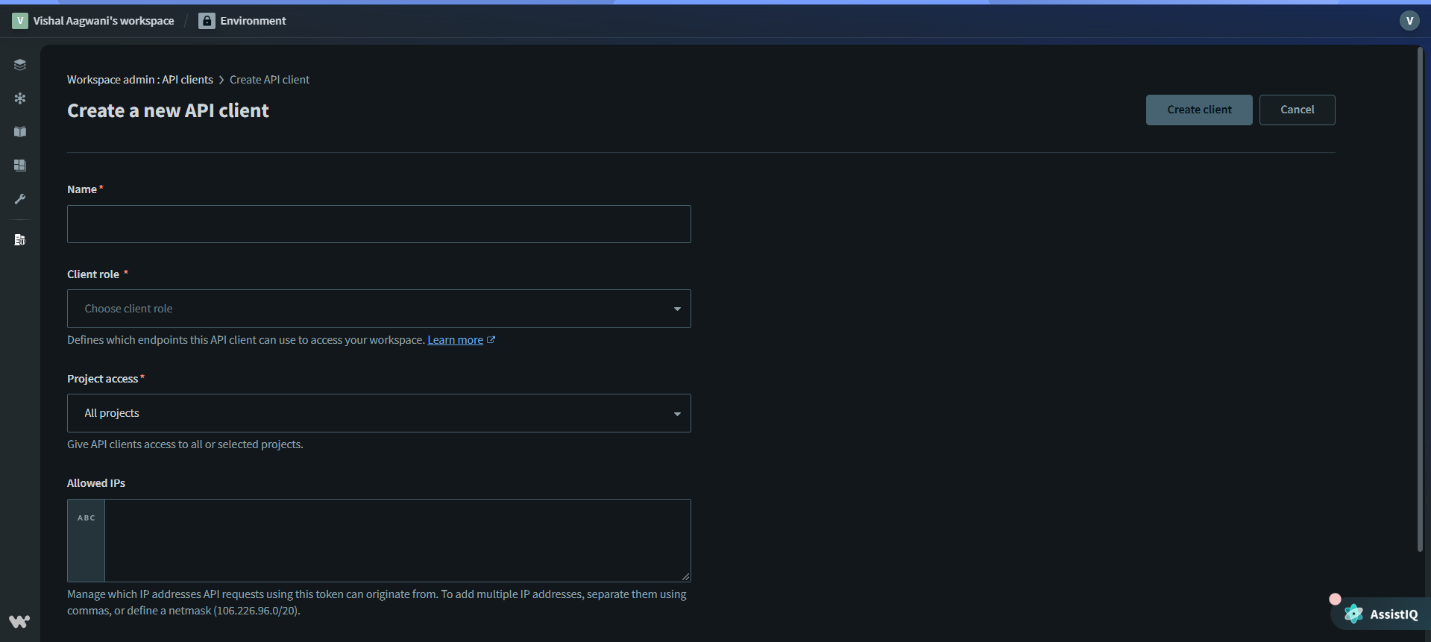
- Select API clients > Create API client.
-
- Enter a name for the new client
- Select the appropriate client role.
5. Step 3: Navigate to API Keys
-
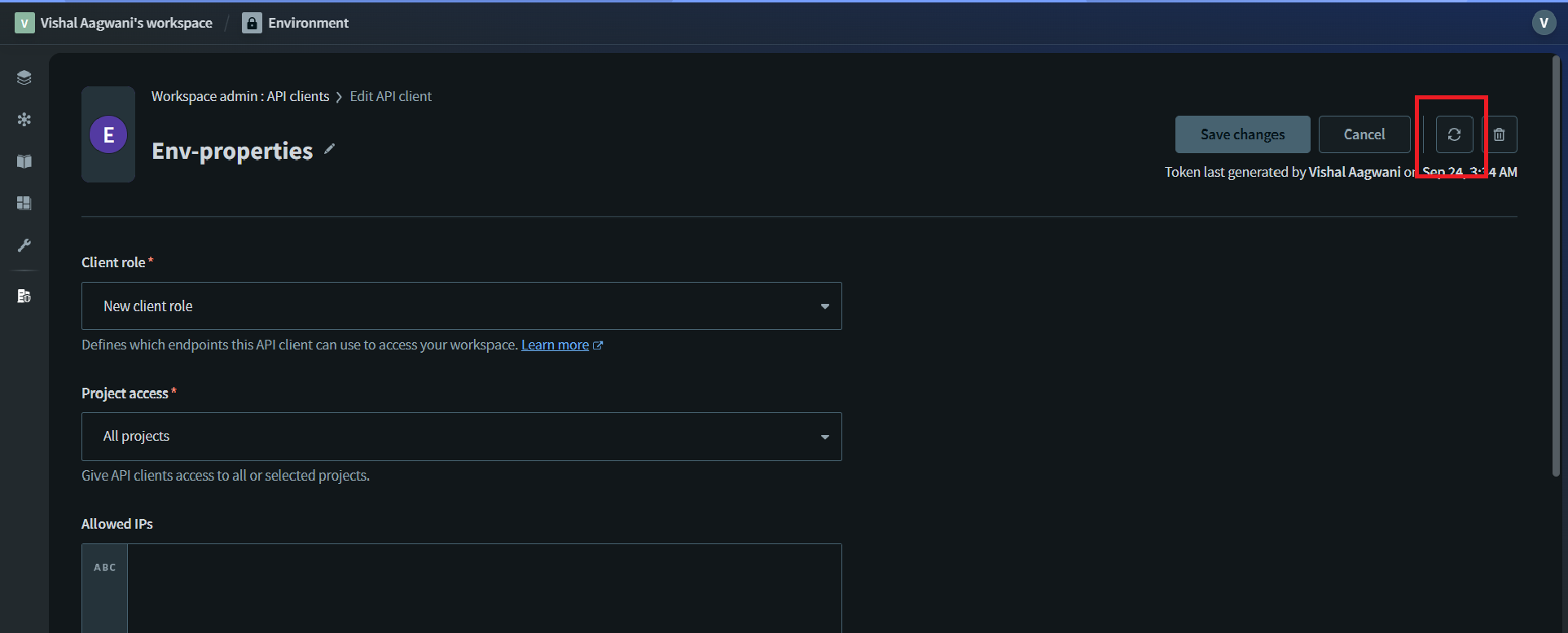
- Click on the client you just have created.
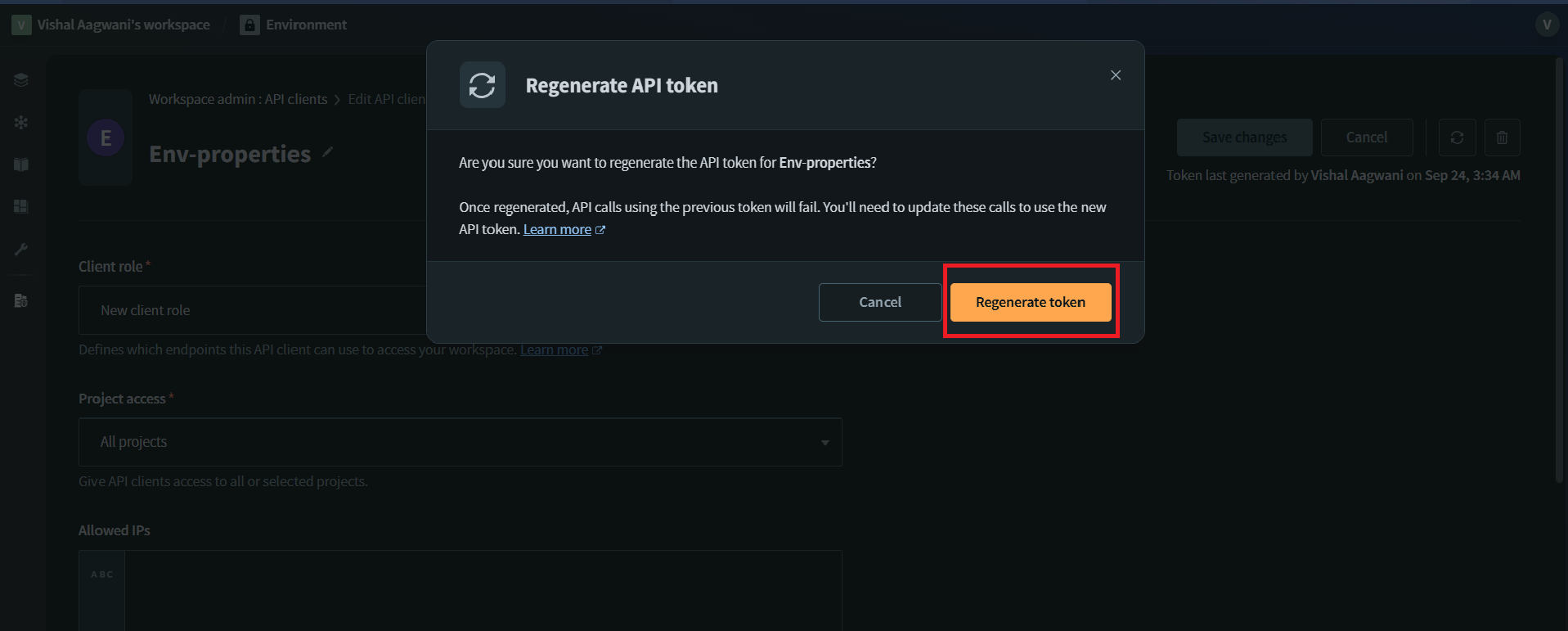
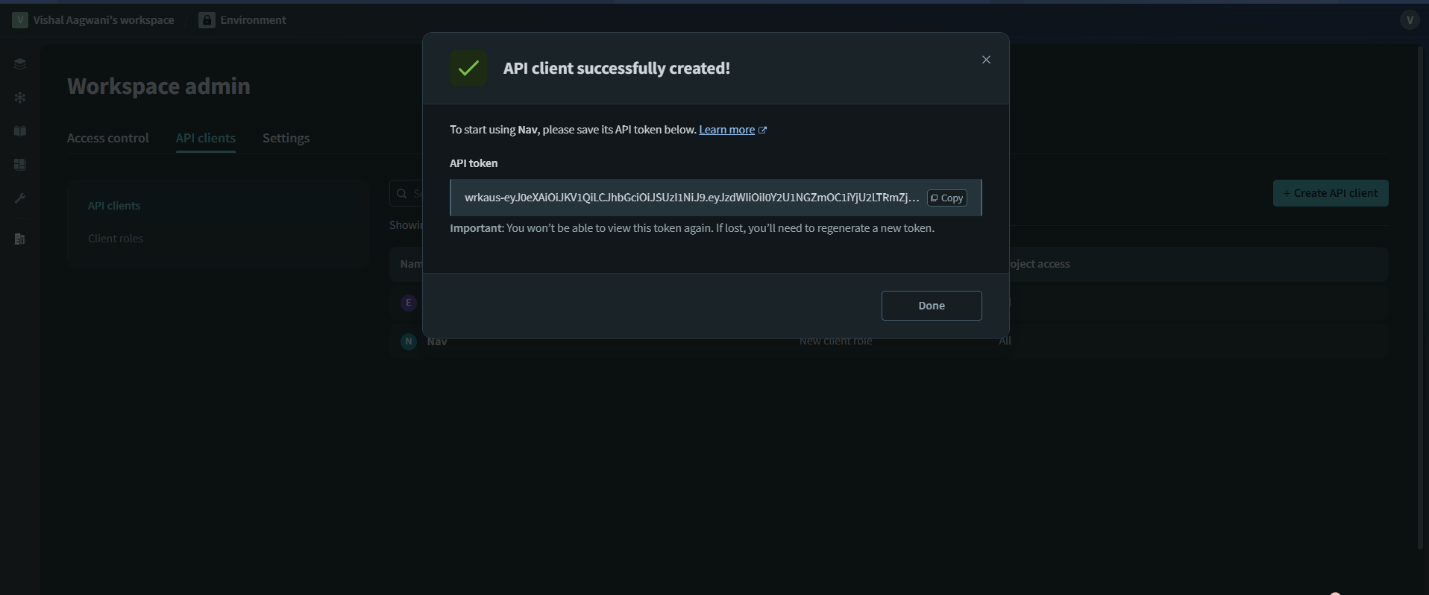
- Click on the refresh/reload button to get a new API key for the client.
Steps to Update Environment Properties
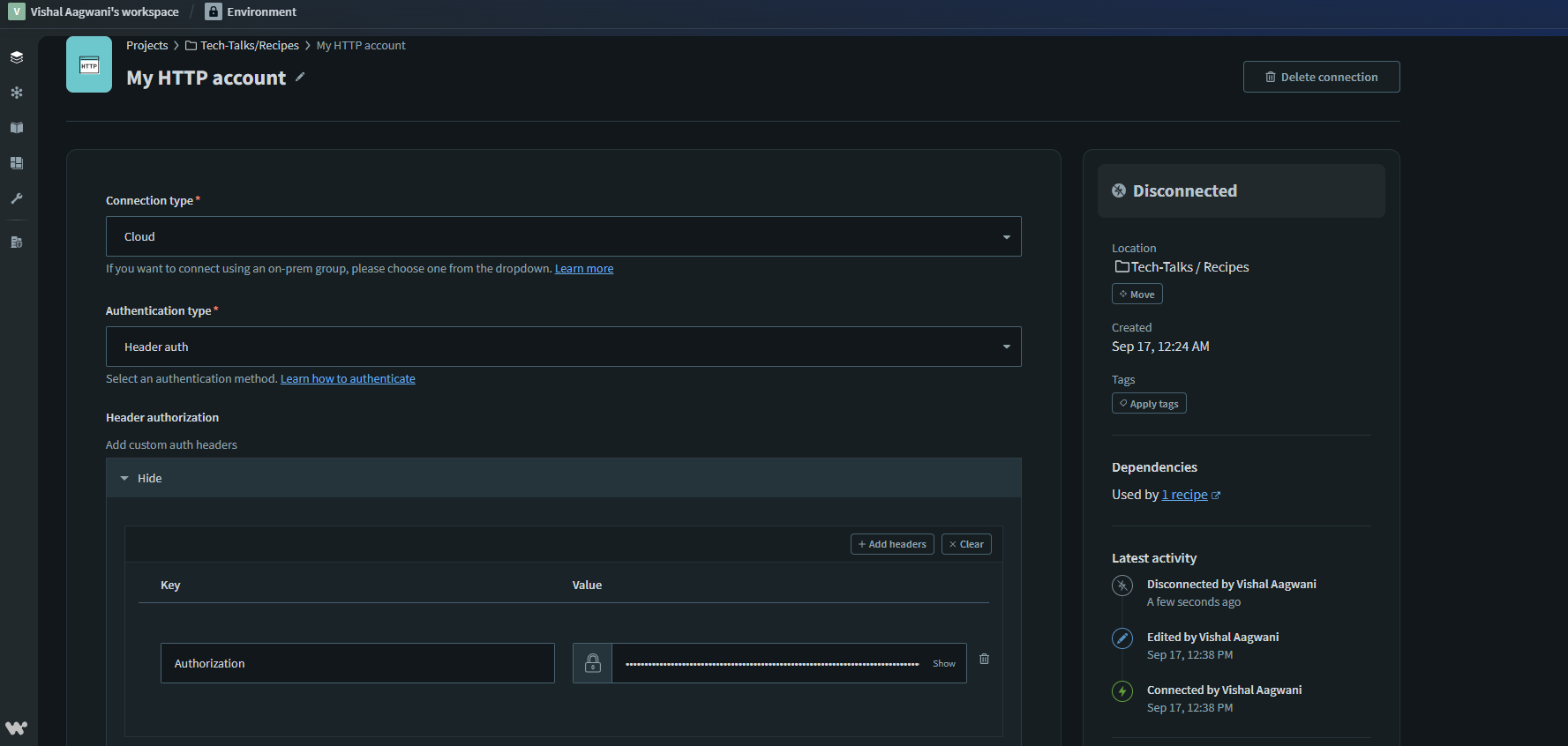
6. Configure HTTP Connector in Workato
-
- Create a new HTTP connection in your Workato account.
- Provide authentication (API key or OAuth).
7. Find Workato API Endpoint
-
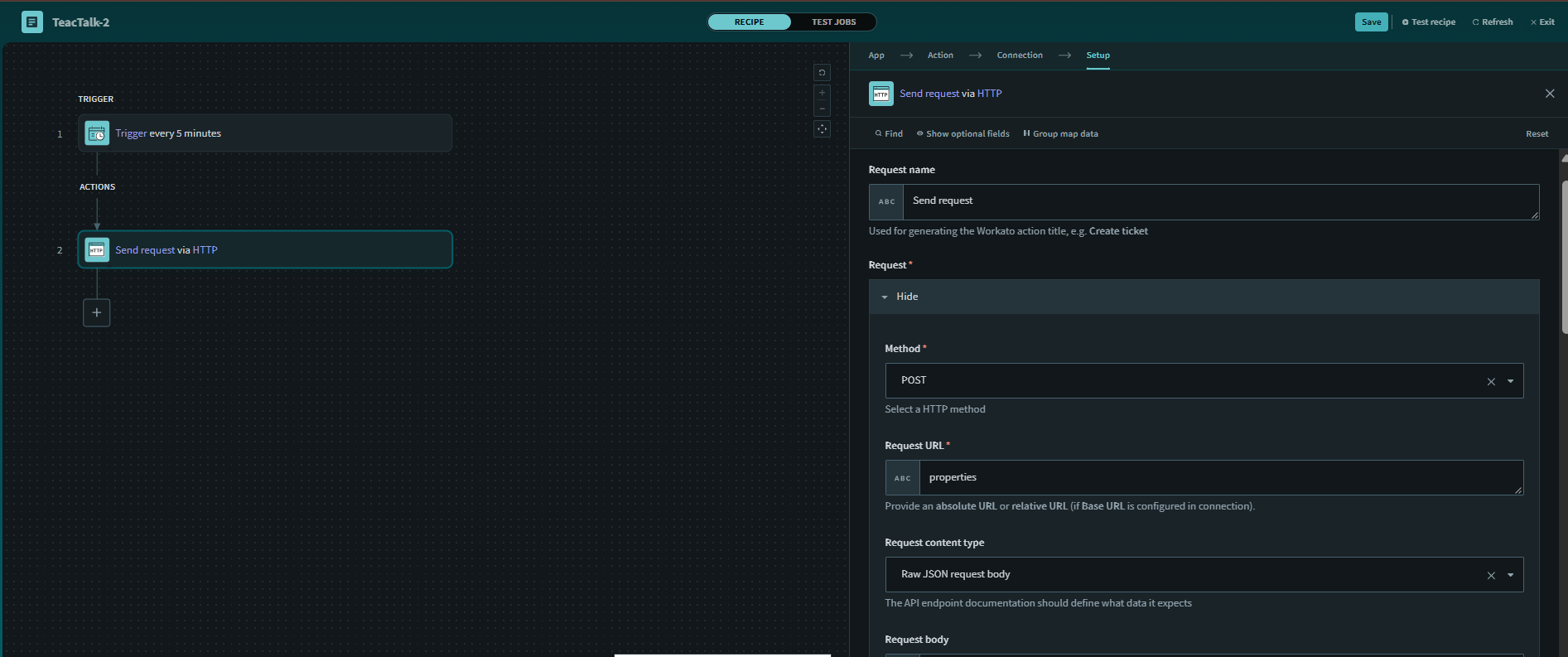
- Endpoint for updating properties:
POST /environments/{env_id}/properties
- Endpoint for updating properties:

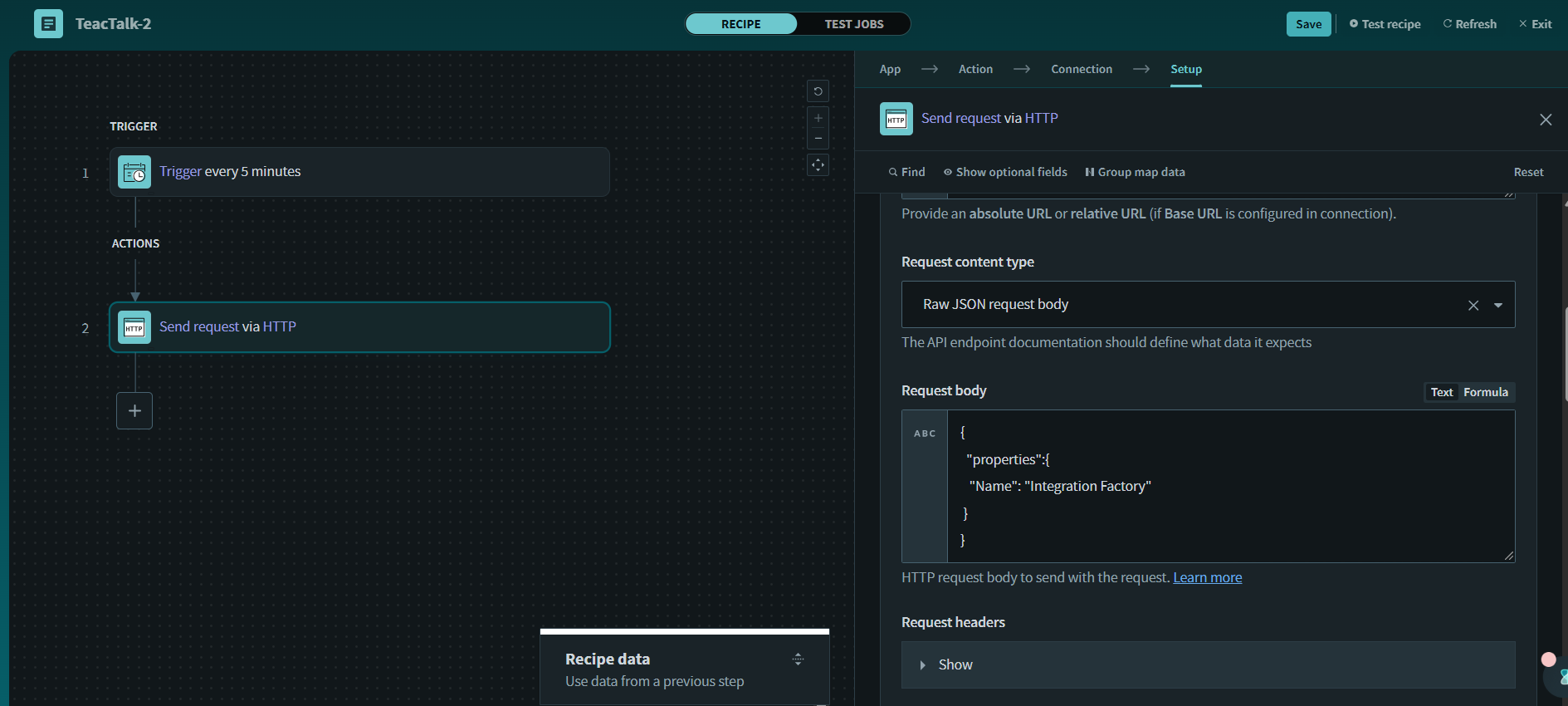
8. Define Request and Map Values in Recipe
-
- Add the request body containing updated key-value pairs.
- Map new property values dynamically from recipe steps.
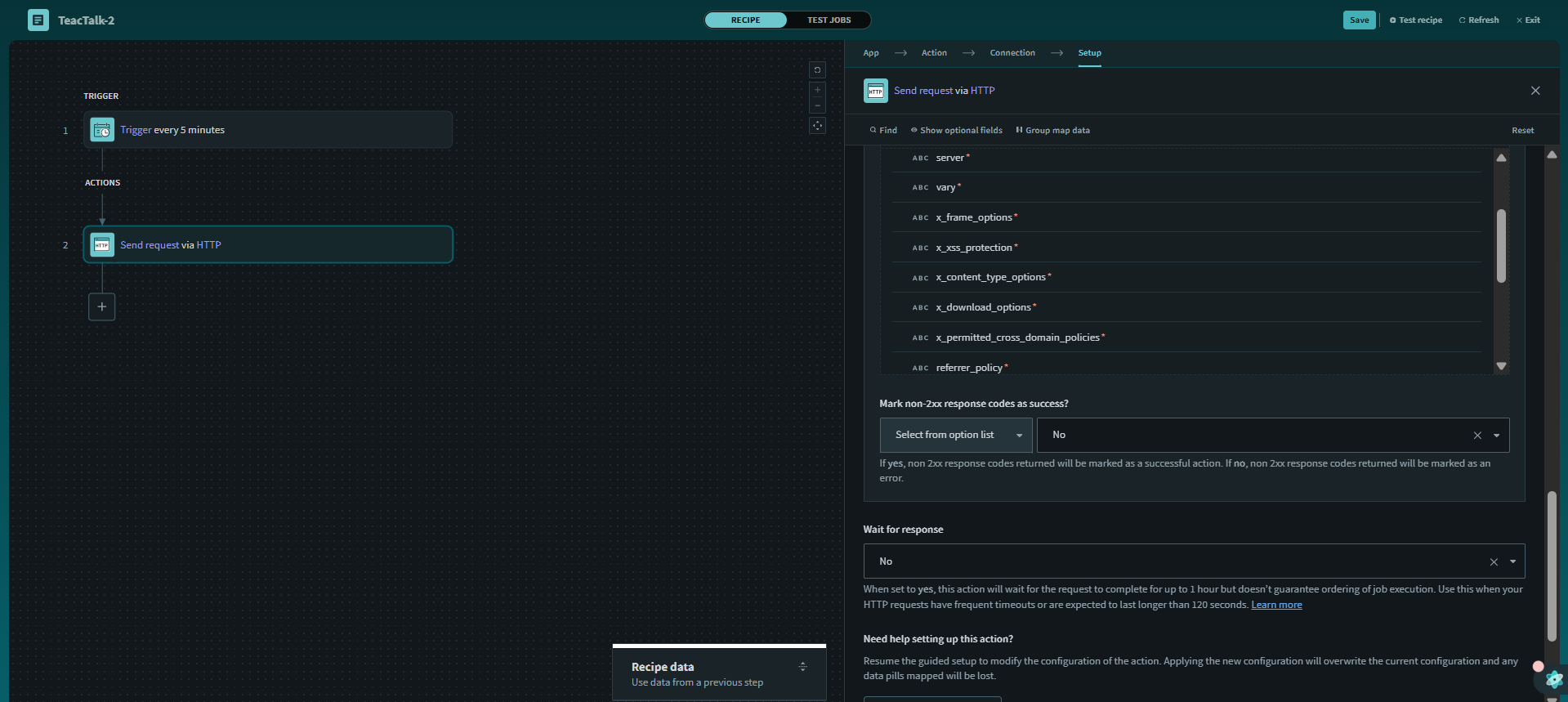
9. Test and Deploy
-
- Run the recipe to confirm updates.
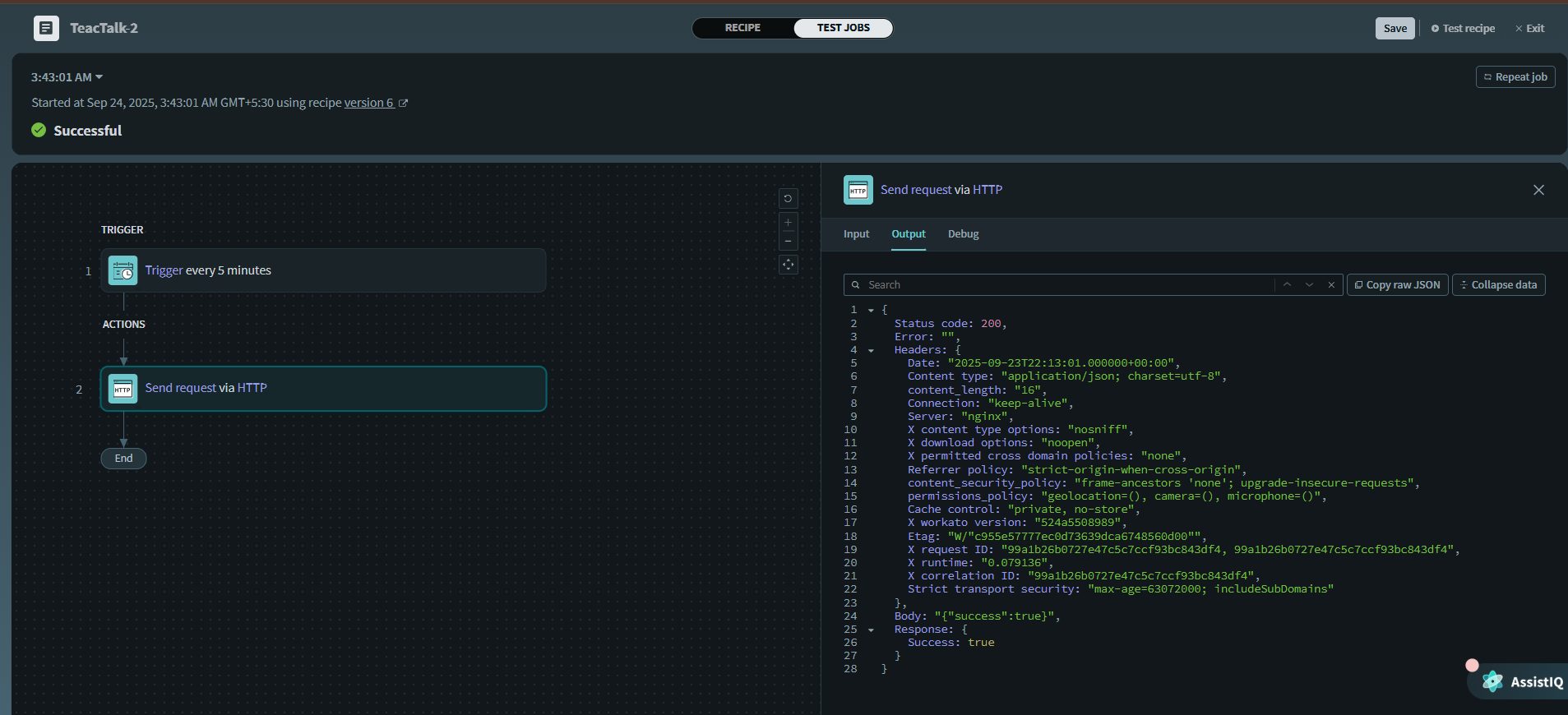
10. Result:
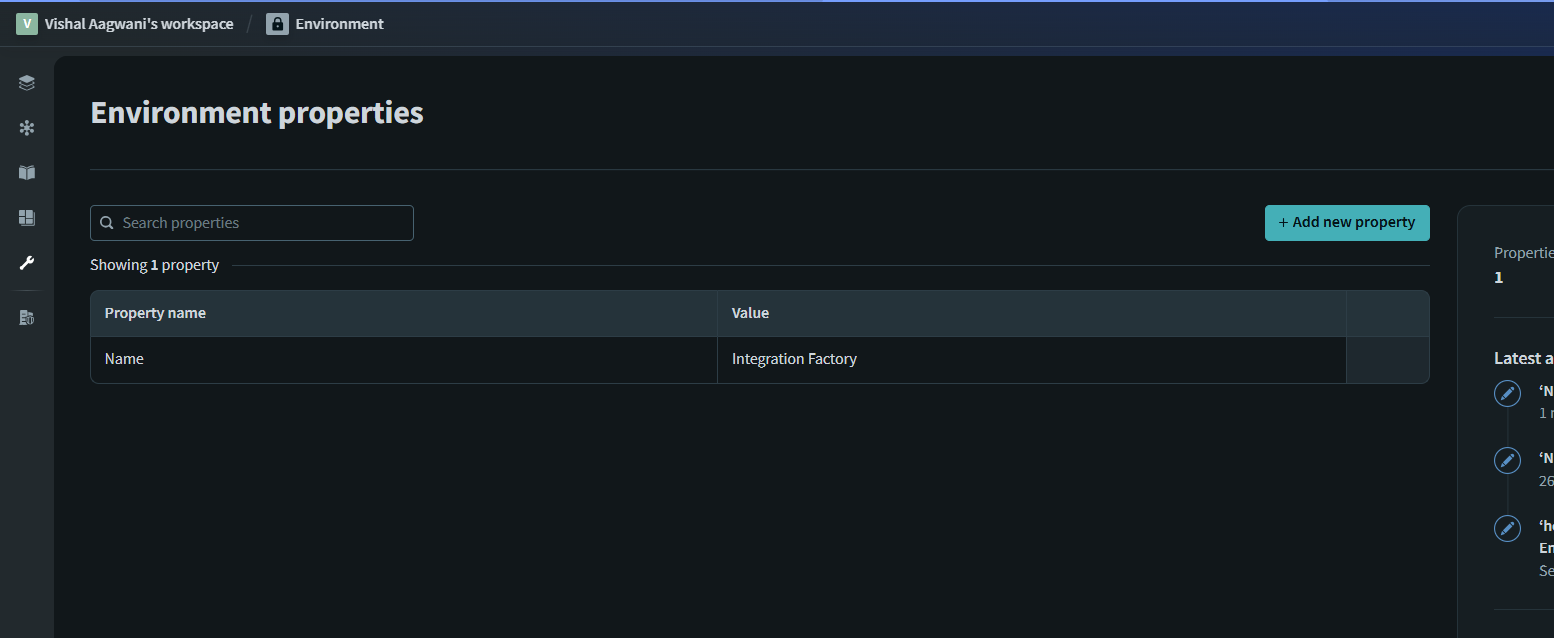
Best Practices
- Use encrypted properties for sensitive data (API keys, secrets).
- Do not log property values in plain text.
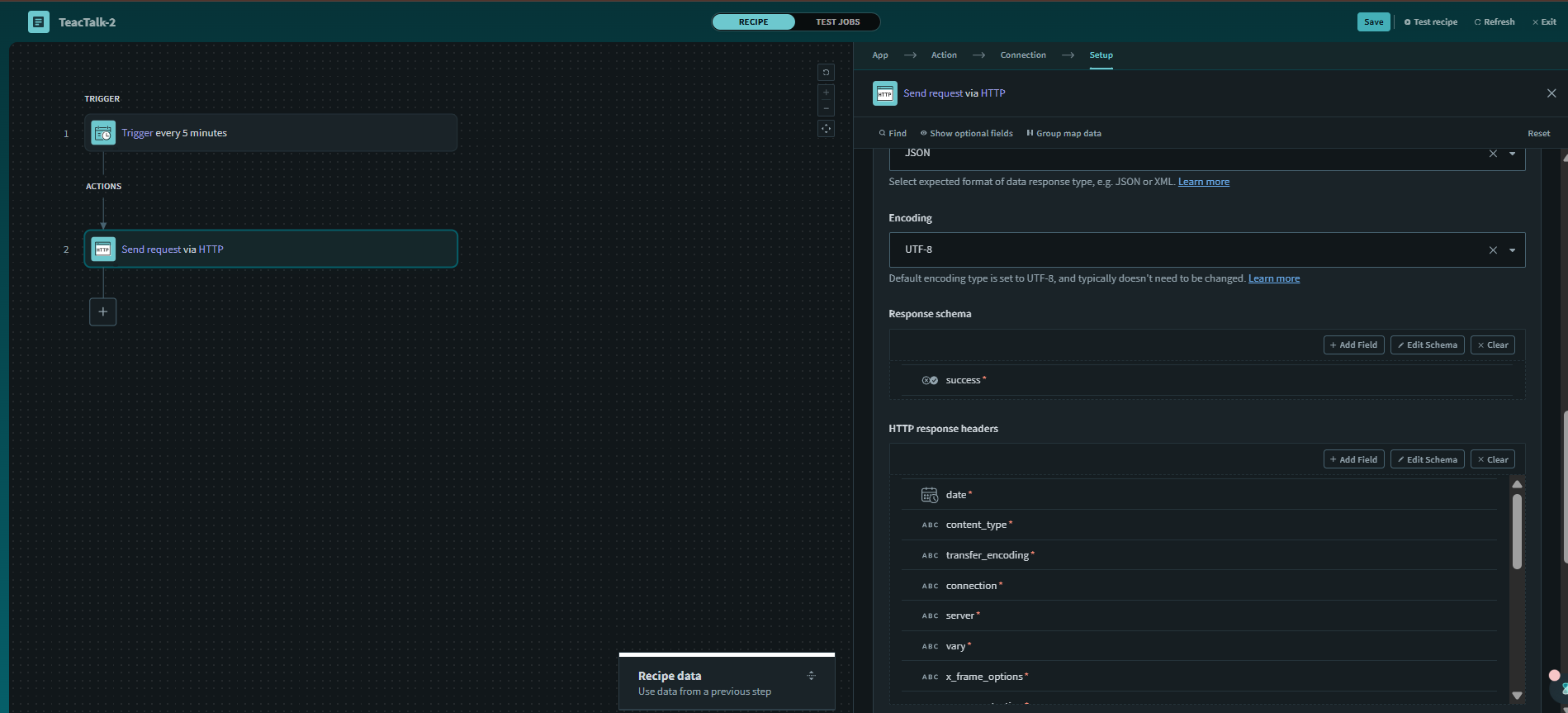
- Validate API responses before applying changes.
- Maintain documentation of environment IDs.
- Implement version control for property changes.
Common Use Cases
- API Key Rotation: Automatically update properties when keys expire.
- Deployment Pipelines: Switch base URLs for test vs. production.
- Feature Flags: Enable/disable functionality dynamically.
- Configuration Sync: Keep multiple environments aligned.
Conclusion
Updating environment properties using the HTTP Connector in Workato ensures security, flexibility, and automation in your integration workflows. By leveraging Workato APIs through HTTP Connector, you can eliminate manual intervention, reduce risks, and improve operational efficiency.
Next Steps: – Explore Workato API documentation. – Set up your first HTTP Connector. – Automate property management in your recipes.
By automating these critical workflows, you can keep your environments synchronized, secure, and ready for rapid deployment. Partner with TGH’s Workato experts to simplify environment property management, enhance operational efficiency, and unlock seamless automation across your integrations.