

EDI -EDIFACT Transactions-ORDERS
Introduction to EDI
What is the EDI?
EDI stands for Electronic Data Interchange. EDI is the automated exchange of business documents between organizations.
What are the different EDI Standards available in EDI?
- X12
- EDIFACT
- ODETTE
- TRADACOMS
- ROSETTANET
- HL7
What are the different Communication methods available in EDI?
- AS2
- DISK
- FTP
- HTTP
- MLLP
- OFTP2
- SFTP
Trading Partner – Trading Partners are any organizations exchanging EDI Documents or data.
My Company – The company/ Client for which we are configuring Trading
Inbound – Control comes towards the system . To ERP from Partners/Vendors
Outbound – Controls moves away from the system . From ERP to Partners/Vendors
What is an EDIFACT File?
- EDIFACT stands for Electronic Data Interchange For Administration, Commerce, and Transport.
- It is a UN standard (ISO 9735) for exchanging structured business documents between computer systems.
- These files replace paper documents like purchase orders, invoices, shipping notices, etc.
- EDIFACT files are plain text, structured using segments, data elements, and delimiters.
Structure of an EDIFACT File
An EDIFACT message is organized into segments. Each segment contains data elements, separated by +, :, and terminated by ‘.
Basic Structure
- UNA – Service string advice (optional)
- Defines separators for segments and data elements:
- UNA:+.? ‘
- : = component data element separator
- + = data element separator
- . = decimal notation
- ? = release character
- ‘ = segment terminator
- UNB – Interchange header
- Contains sender, receiver, date, and control reference
- UNH – Message header
- Starts a specific message (e.g., ORDERS, INVOIC, REMADV)
- Segments for business data
- Examples:
- BGM – Beginning of message (document type, number)
- DTM – Date/time
- NAD – Name and address (buyer, supplier, ship-to, etc.)
- LIN – Line item (product)
- QTY – Quantity
- PRI – Price
- Examples:
- UNT – Message trailer
- Indicates the number of segments and the message reference
- UNZ – Interchange trailer
- Marks the end of the EDI interchange
Common EDIFACT Document Types
| Document Type | Message Code | Description |
|---|---|---|
| Purchase Order | ORDERS | Order from buyer to supplier |
| Invoice | INVOIC | Billing document |
| Remittance Advice | REMADV | Payment details from buyer |
| Despatch Advice | DESADV | Shipping/dispatch notice |
| Order Response | ORDRSP | Confirmation/rejection of an order |
| Payment Order | PAYORD | Payment initiation instruction |
| Financial Statement | FINSTA | Bank statement / account balances |
Introduction to ORDERS
What is EDIFACT ORDERS?
- ORDERS is the standard EDIFACT message for purchase orders.
- It is sent electronically from a buyer to a supplier to request goods or services.
- Replaces traditional paper purchase orders, enabling automated processing.
- Supports multiple products/items in one message.
- Commonly used in industries like retail, manufacturing, logistics, and FMCG.
Key objective: Ensure accuracy, automation, and efficiency in order placement.
General Structure of an ORDERS Message
EDIFACT ORDERS is hierarchical, structured like this:
UNB → Interchange Header (start of EDI file)
UNH → Message Header (start of ORDERS message)
BGM → Document type and number
DTM → Dates (order date, requested delivery date)
RFF → References (purchase requisition, contract)
NAD → Name and Address (buyer, supplier, delivery party)
CUX → Currency used in the order
LIN → Line Item (product code, sequence)
PIA → Additional product identifiers
IMD → Item description
QTY → Quantity ordered
DTM → Delivery date for line item
PRI → Price of line item
TAX → Tax information
PAC → Packaging information (if needed)
FTX → Free text (special instructions)
UNT → Message Trailer (end of ORDERS message)
UNZ → Interchange Trailer (end of file)
Key Segments Explained in Detail
Header Segments
- UNB – Interchange header
- Identifies sender, receiver, date/time, control number
- Example:
- UNB+UNOC:3+3021080049000:14+1210002043076:14+251110:0911+76358166′
- UNH – Message header
- Begins the message, specifies ORDERS message type
- Example:
- UNH+1+ORDERS:D:96A:UN:EAN008′
- BGM – Beginning of message
- Identifies document type, number, and function
- Example:
- BGM+220::9+08951600+9′
- 220 = Purchase order
- 08951600 = Order number
- DTM – Date/time reference
- Example:
- DTM+137:20251110:102′
- 137 = Document/message date
- 102 = Format YYYYMMDD
- NAD – Name and address
- Identifies buyer, supplier, delivery party
- Example:
- NAD+BY+3021080006500::9++CSF FRANCE SENART+ZAC PARIS SUD 4+COMBS LA VILLE++77380′
- NAD+SU+1210002043076::9++TROPICANA FRANCE SAS+74 RUE DE ROME+PARIS++75008+FR’
- CUX – Currency
- Example:
- CUX+2:EUR:9′
Line Item Segments
- Each product or service ordered is represented by LIN segment + related segments:
| Segment | Purpose |
|---|---|
| LIN | Line number, product identifier |
| PIA | Additional item identifiers (like vendor or GTIN) |
| IMD | Item description (textual details) |
| QTY | Quantity ordered (order unit and delivered unit) |
| DTM | Requested delivery date for the line |
| PRI | Price information (price type, amount, unit) |
| TAX | Tax rate and type (e.g., VAT) |
| PAC | Packaging info (case/unit codes) |
Sample EDI Document
UNA:+.?
UNB+UNOC:3+3021080049000:14+1210002043076:14+251110:0911+76358166
UNH+1+ORDERS:D:96A:UN:EAN008
BGM+220::9+08951600+9
DTM+137:20251110:102
DTM+2:202511120300:203
FTX+PUR+1++LUDOVIC COQUELET TEL 01 64 85 57 52 LUDOVIC COQUELET CAR:REFOUR.COM
NAD+BY+3021080006500::9++CSF FRANCE SENART+ZAC PARIS SUD 4+COMBS LA VILLE++77380
NAD+SU+1210002043076::9++TROPICANA FRANCE SAS+74 RUE DE ROME+PARIS++75008+FR
NAD+DP+3021080006500::9++CSF FRANCE SENART+ZAC PARIS SUD 4+COMBS LA VILLE++77380
CUX+2:EUR:9
TDT+20++30
TOD+10E+X1E
LIN+1++1210002000659:EN
QTY+59:6:PCE
QTY+21:30:PCE
DTM+361:20251208:102
PRI+AAA:2.729::NTP::PCE
PRI+AAB:4.39::NTP::PCE
PAC+5+3+CS:::0001210002000666
TAX+7+VAT+++:::5.5+S
ALC+A++2++PAD:::RPP
PCD+3:12.8
LIN+2++1210002001458:EN
QTY+59:6:PCE
QTY+21:12:PCE
DTM+361:20251208:102
PRI+AAA:1.943::NTP::PCE
PRI+AAB:3.08::NTP::PCE
PAC+2+3+CS:::0001210002001465
TAX+7+VAT+++:::5.5+S
ALC+A++2++PAD:::RPP
PCD+3:13.5
LIN+3++3168930156741:EN
QTY+59:6:PCE
QTY+21:42:PCE
DTM+361:20251208:102
PRI+AAA:2.738::NTP::PCE
PRI+AAB:4.39::NTP::PCE
PAC+7+3+CS:::0003168930156758
TAX+7+VAT+++:::5.5+S
ALC+A++2++PAD:::RPP
PCD+3:12.5
LIN+4++3168930156376:EN
QTY+59:6:PCE
QTY+21:60:PCE
DTM+361:20251208:102
PRI+AAA:2.738::NTP::PCE
PRI+AAB:4.39::NTP::PCE
PAC+10+3+CS:::0003168930156383
TAX+7+VAT+++:::5.5+S
ALC+A++2++PAD:::RPP
PCD+3:12.5
LIN+5++3168930156772:EN
QTY+59:6:PCE
QTY+21:12:PCE
DTM+361:20251208:102
PRI+AAA:2.148::NTP::PCE
PRI+AAB:3.17::NTP::PCE
PAC+2+3+CS:::0003168930156789
TAX+7+VAT+++:::5.5+S
ALC+A++2++PAD:::RPP
PCD+3:5.2
LIN+6++3168930156680:EN
QTY+59:6:PCE
QTY+21:102:PCE
DTM+361:20251208:102
PRI+AAA:2.616::NTP::PCE
PRI+AAB:3.87::NTP::PCE
PAC+17+3+CS:::0003168930156697
TAX+7+VAT+++:::5.5+S
ALC+A++2++PAD:::RPP
PCD+3:5.2
LIN+7++3168930156987:EN
QTY+59:6:PCE
QTY+21:6:PCE
DTM+361:20251214:102
PRI+AAA:3.633::NTP::PCE
PRI+AAB:5.11::NTP::PCE
PAC+1+3+CS:::0003168930156994
TAX+7+VAT+++:::5.5+S
LIN+8++3168930156925:EN
QTY+59:6:PCE
QTY+21:48:PCE
DTM+361:20251208:102
PRI+AAA:2.516::NTP::PCE
PRI+AAB:3.72::NTP::PCE
PAC+8+3+CS:::0003168930156932
TAX+7+VAT+++:::5.5+S
ALC+A++2++PAD:::RPP
PCD+3:5.2
LIN+9++1210002001908:EN
QTY+59:6:PCE
QTY+21:60:PCE
DTM+361:20251208:102
PRI+AAA:2.743::NTP::PCE
PRI+AAB:4.06::NTP::PCE
PAC+10+3+CS:::0001210002001915
TAX+7+VAT+++:::5.5+S
ALC+A++2++PAD:::RPP
PCD+3:5.2
UNS+S
UNT+101+1
UNZ+1+76358166
Importing of ORDERS Profile in Boomi
STEP 1: Login to Boomi Platform
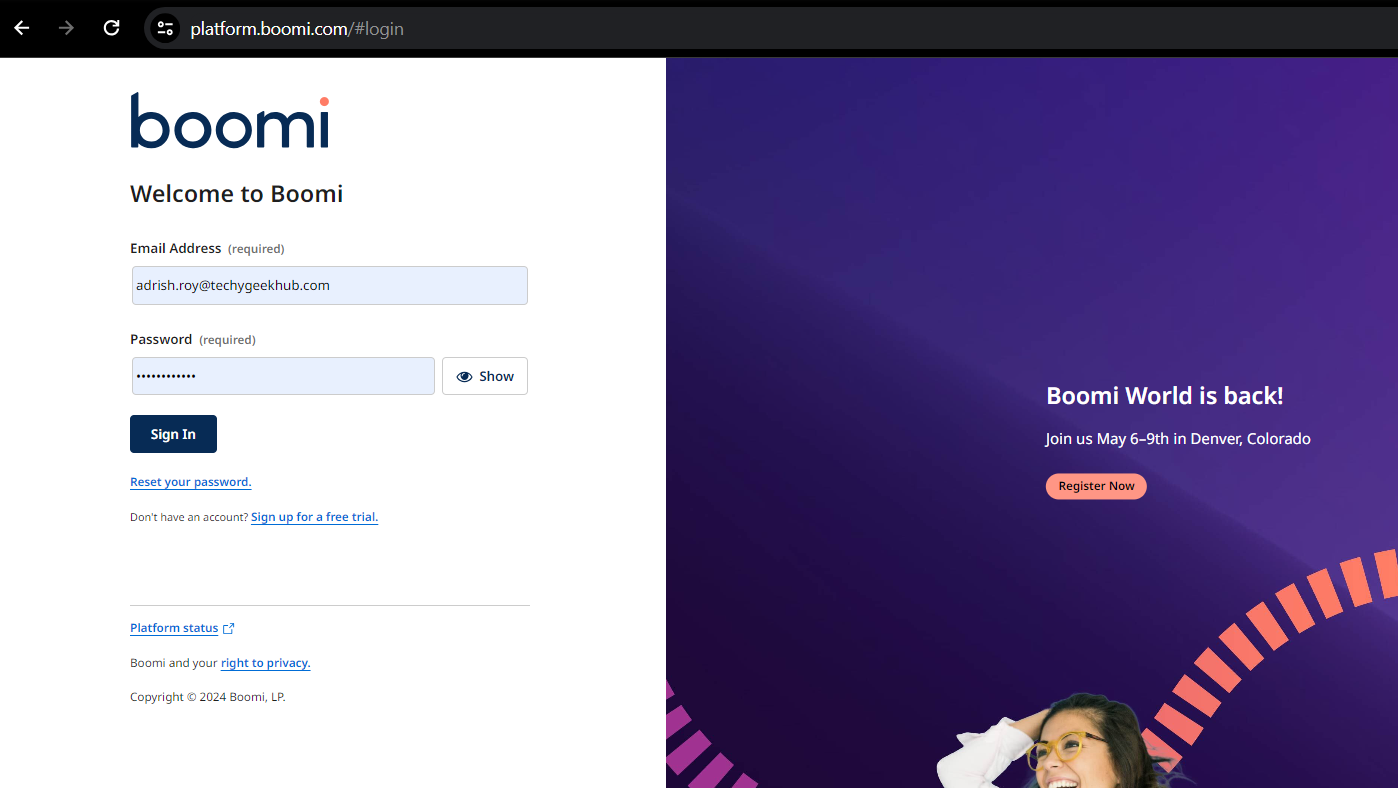
STEP 2: Click on the (+) sign to create a new component

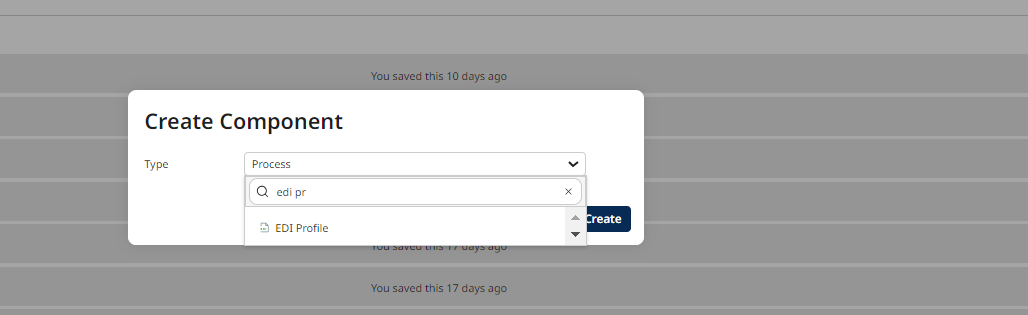
STEP 3: Select the type of component as ‘EDI Profile’
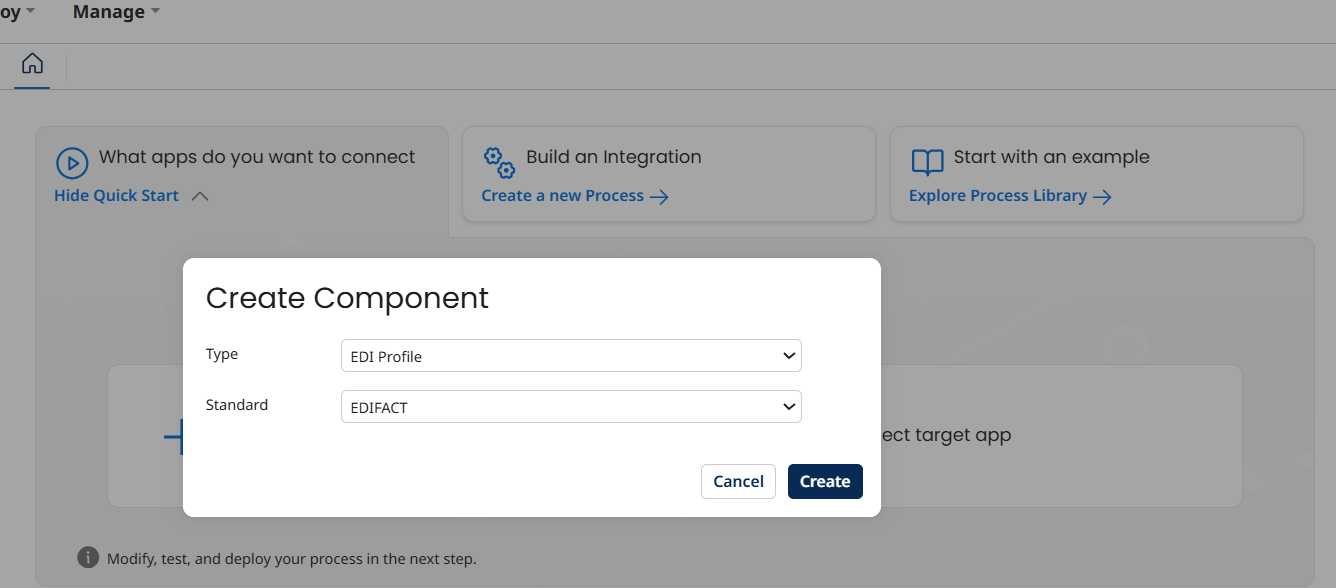
STEP 4: Select the Standard as EDIFACT and click on create
STEP 5: Give proper naming convention as per industry standards and select ‘Import a Profile’
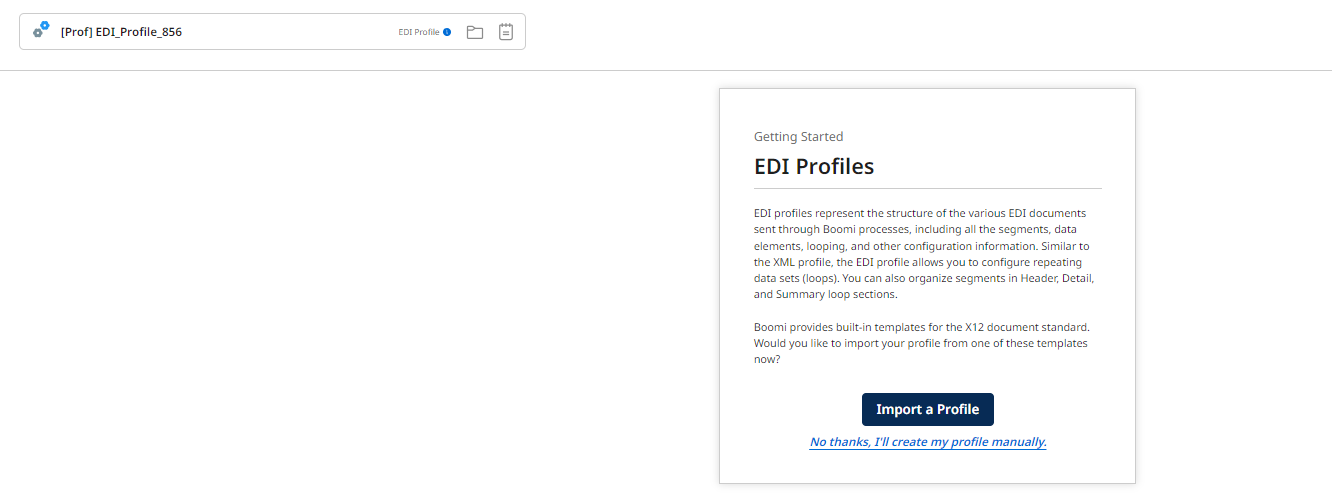
STEP 6: Select the Version
In this blog, we are using Version D96A.
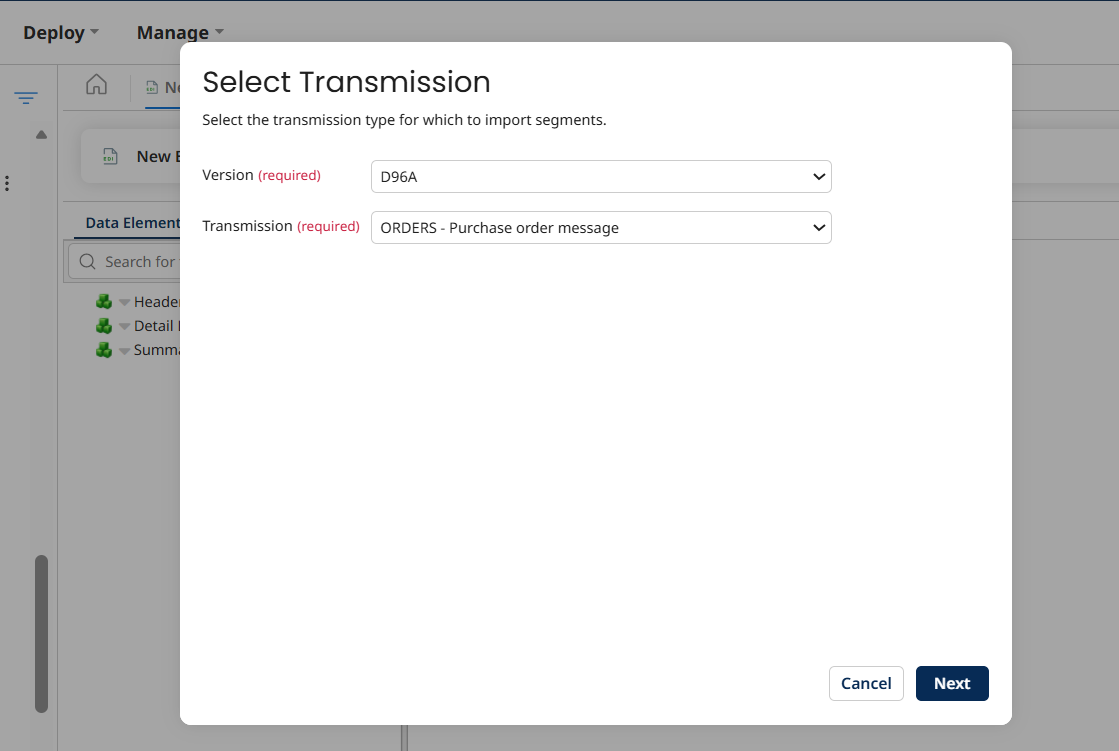
STEP 7: Select the ORDERS
Choose the ORDERS option.
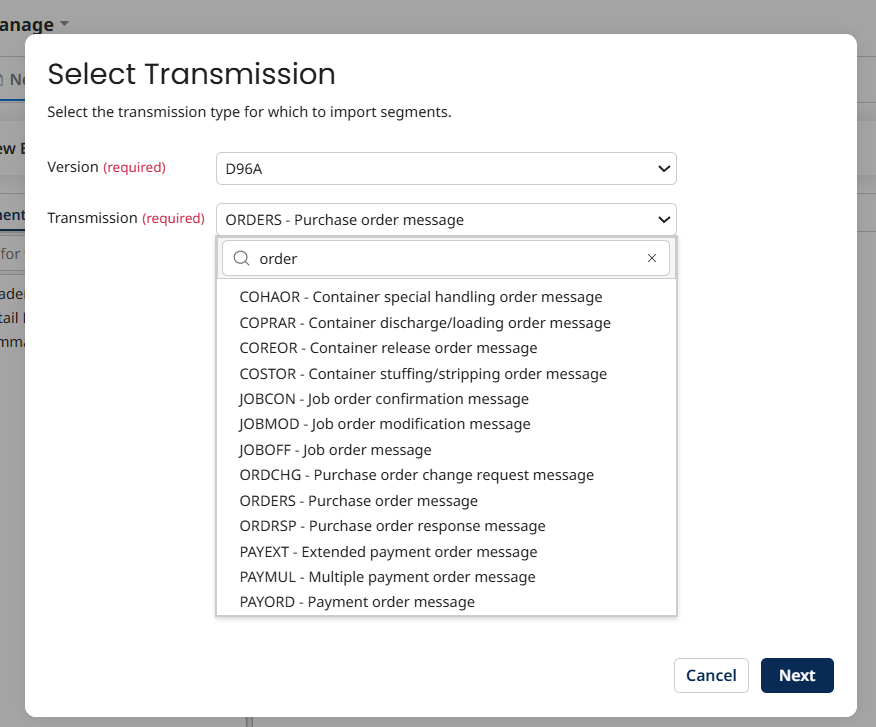
STEP 8: Proceed by clicking Next.
STEP 9: Select the Segments
It is preferred to select all segments. You can also choose specific segments as needed. Once selected, click Import.
STEP 10: Click ‘Save & Close’ to complete the import.
You can view the description of each element in the right pane by selecting the element.
For example, UNH is the message header.
Adding Qualifiers and Instance Identifiers to the EDI Profile
We can add Qualifiers and Instance Identifiers to the EDI profile.
As per the sample EDIFACT provided above, we need to add two Qualifiers for the DTM 1.1 element.
Step 1: Select the element where we need to add the Qualifier,In this case select DTM1.1,on the right pane we can see the option Qualifiers.We can select add option and add multiple qulifiers as per the requirement .In this case,we have added 137,2.
And select the save button.
Now we need to add the Instance identifiers
Step 2: Now we need to select the element where the Instance identifiers need to be added.Here ,from the drop down button at the DTM segment ,select Add Instance Identifiers option
Step3:Now select the option ,Identify by Qualifier and choose the required Qualifiers from the list of Qualifiers available .We can select one qualifier for each instance.
Step 4: In the same we can add Qualifiers and Identifiers as per the requirement.Here, in this example Qualifiers are added to NAD segment.
Step 5: After adding the required Instance idenfiers we need to save the profile.
Ready to streamline your EDI workflows with Boomi? Connect with TGH’s integration experts and transform your order processing with secure, automated, and scalable EDI solutions.
👉 Talk to our team: https://techygeekhub.com/contact-us
