

Tracing Module
Tracing module enables users to enhance the logs by adding, removing, and clearing all variables from the logging context for a given Mule event. It also enables you to modify the correlation ID during flow execution.
- The Tracing Module in MuleSoft is used to improve and enrich logging by leveraging MDC (Mapped Diagnostic Context). MDC enables contextual information to be attached to a Mule event’s log entries, making logs more informative and easier to analyze.
Why MDC Logging?
- MDC stands for Mapped Diagnostic Context. It enriches logging and improves tracking by providing more context and information in the logs for the current Mule event.
- By default, Mule logs two MDC entries: processor, which shows the location of the current event, and event, which shows the correlation ID of the event. The logging context exists for the entire execution of the corresponding event.
Uses Of Tracing Module
- Clear all the logging variables from the event logging context.
- Remove a logging variable from logging context.
- Set logging variables to logging context.
- Modify the correlation ID during flow execution.
How to use MDC Logging
1. Add the Tracing Module to your Mule Project
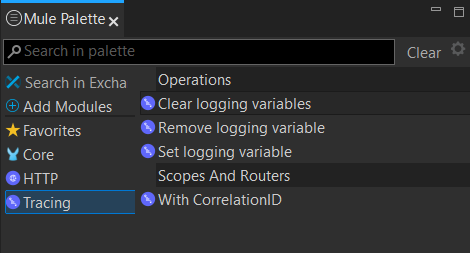
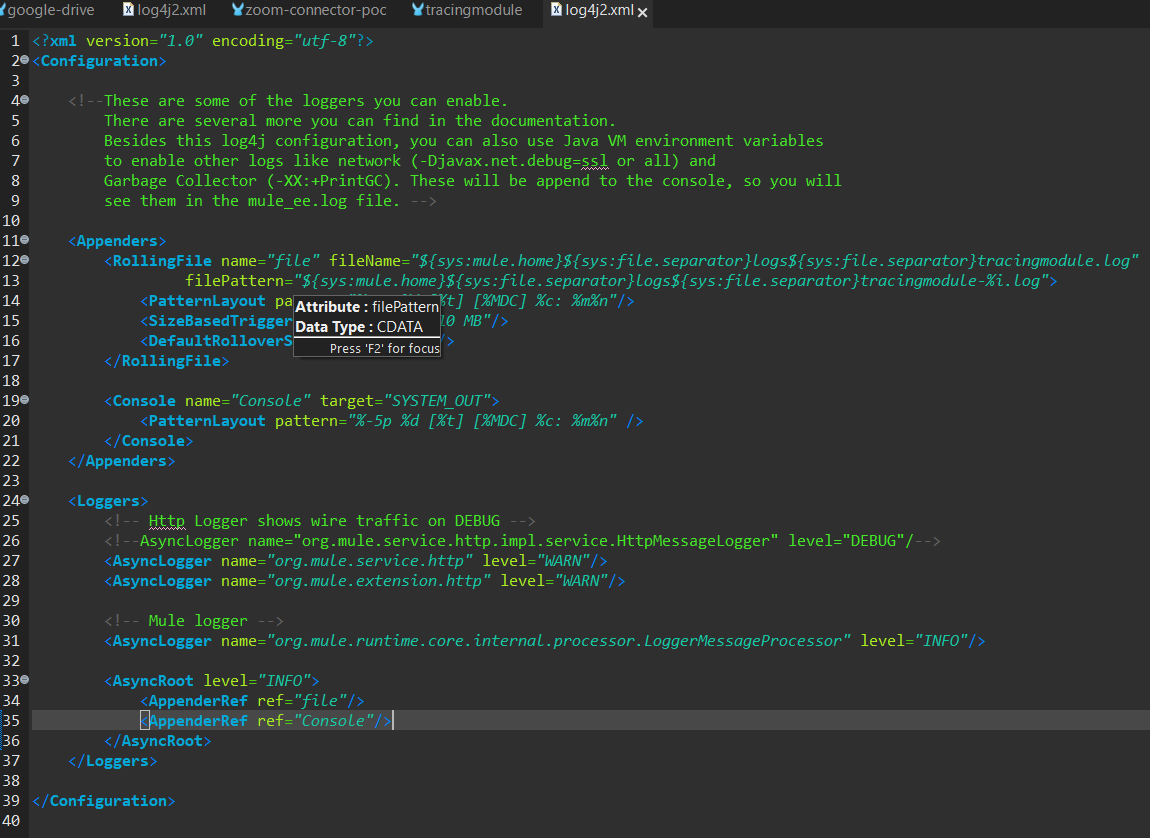
2. Change Pattern Layout to MDC in log4j2.xml present in the src/main/resources.
- Open log4j2.xml located at the src/main/resources of your project and replace [processor: %X{processorPath}; event: %X{correlationId}] with [%MDC] for Pattern Layout.
- This change instructs Mule to automatically add the MDC context, which includes the correlation ID and the processor path.
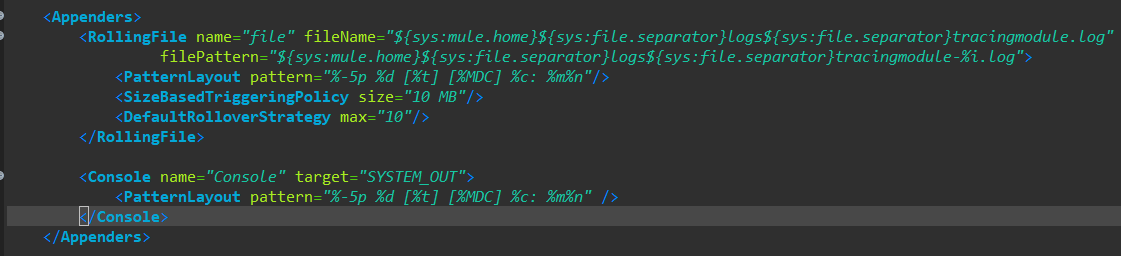
3. To see the variable in the console as well, kindly add the Console logging in Appenders tag. Also, add this reference to the AsyncRoot tag.
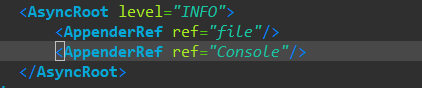
Example Log4j2.xml:
Let’s begin with the implementation, where we will use loggers to verify whether the correlation ID and tracing variables are being logged in the console. There is no need to configure anything in the logger message itself, as we will rely on the logging pattern configuration, which I will explain in the implementation section.
Steps:
- To begin, a new Mule project needs to be created. Then, a HTTP listener component dragged and dropped into the project from the HTTP module. Configure the listener, and set the host to All interface (0.0.0.0), port number as 8081. Set the path as /tracing. Add the Logger and log the correlationId where it will log the default correlationId.
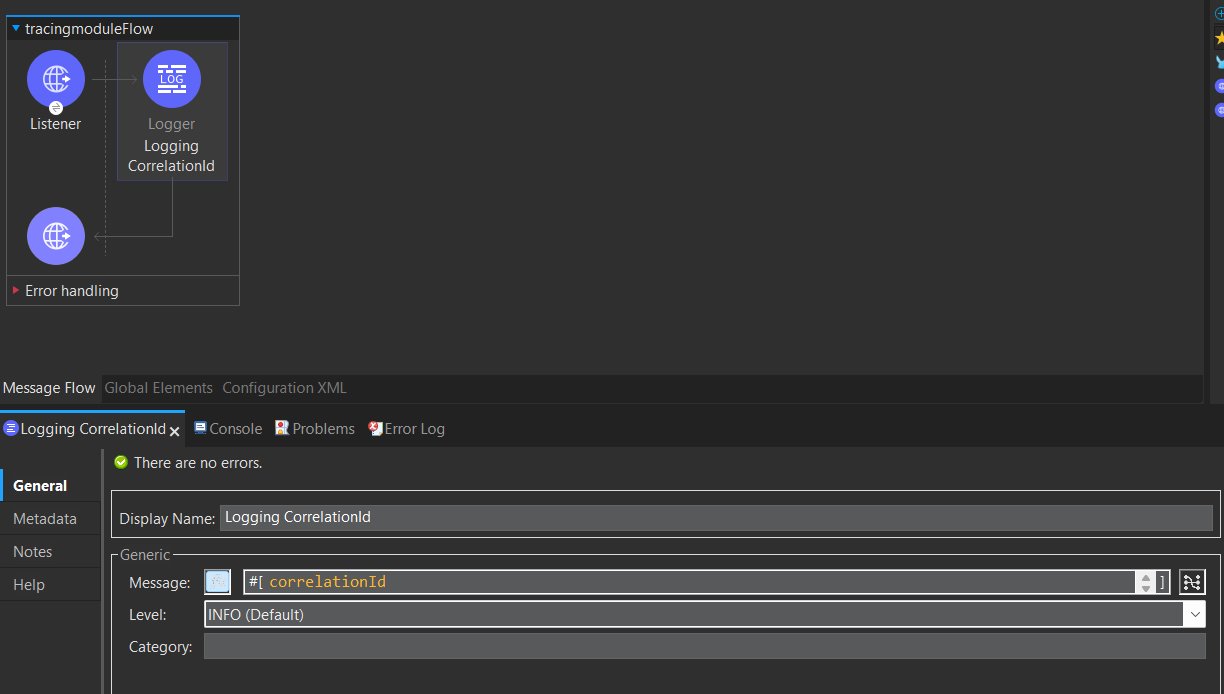
Operations:
2. Changing the Correlation ID During Flow Execution with the Tracing Module.
- For these scenarios, the Tracing module With Correlation Id scope enables you to modify the correlation ID during the execution of that scope.
a) Now add the “With Correlation ID” component and configure the correlationId with any value. I have configured it as “123”, and then wrapped two Loggers and a Transform Message component inside it. This is done to clearly demonstrate how the With Correlation ID scope works and how the updated correlationId is reflected in the logs.
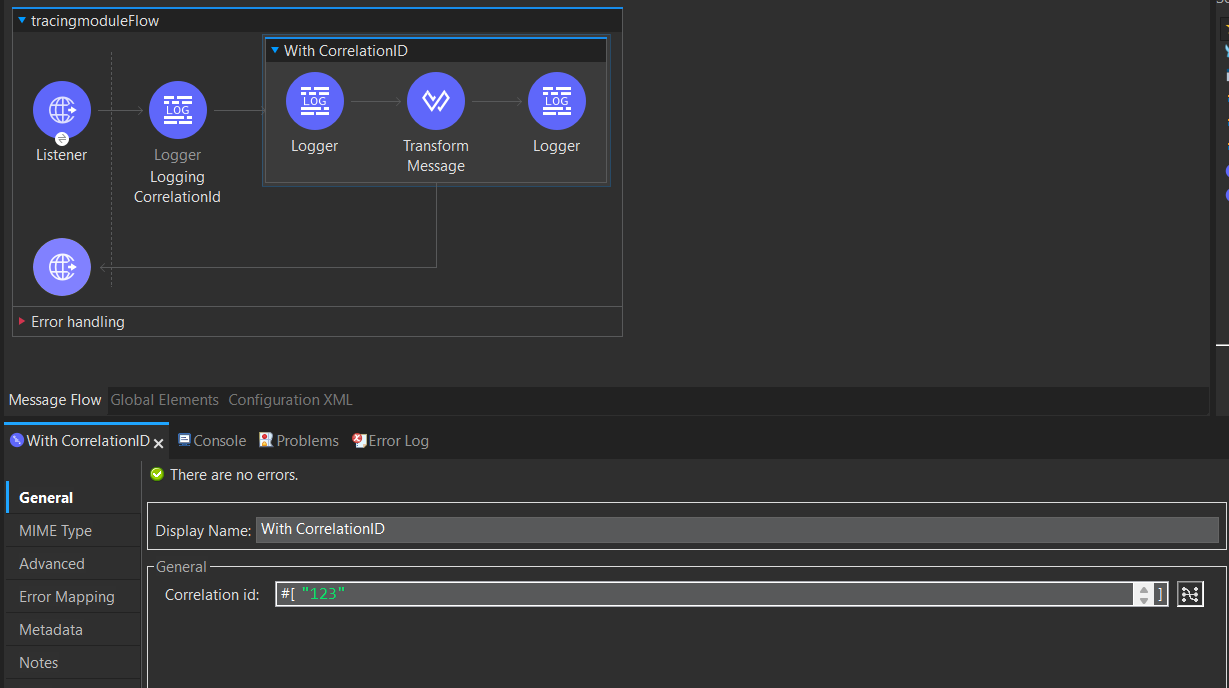
b) Now execute the flow from Postman. You will observe that the original correlation ID (karthik@123), which is passed in the header from Postman, is replaced with 123 for all the processors wrapped inside the With Correlation ID scope.

Note: When an HTTP Request is received, the request is inspected for the “X-Correlation-Id” header.
- If the “X-Correlation-Id” header is present, HTTP connector uses this as the Correlation Id.
- If the “X-Correlation-Id” header is not present, a Correlation Id is randomly generated.
In this scenario, I am using the below custom correlationId: X-Correlation-Id karthik@123
3. Configure Logging Variables:
- Here, I would describe Configuring the Clear logging variables, Removing logging variable, and the Set logging variable Tracing module operations.
a) Set Logging Variable:
With set logging Variable, you can log variables based on the request payload and attributes:
- Add the Set Logging Variable component and place two Loggers, one before and one after it. Create a logging variable named orderId and assign it the value 100. Execute the flow from Postman and observer the logs in the Console.
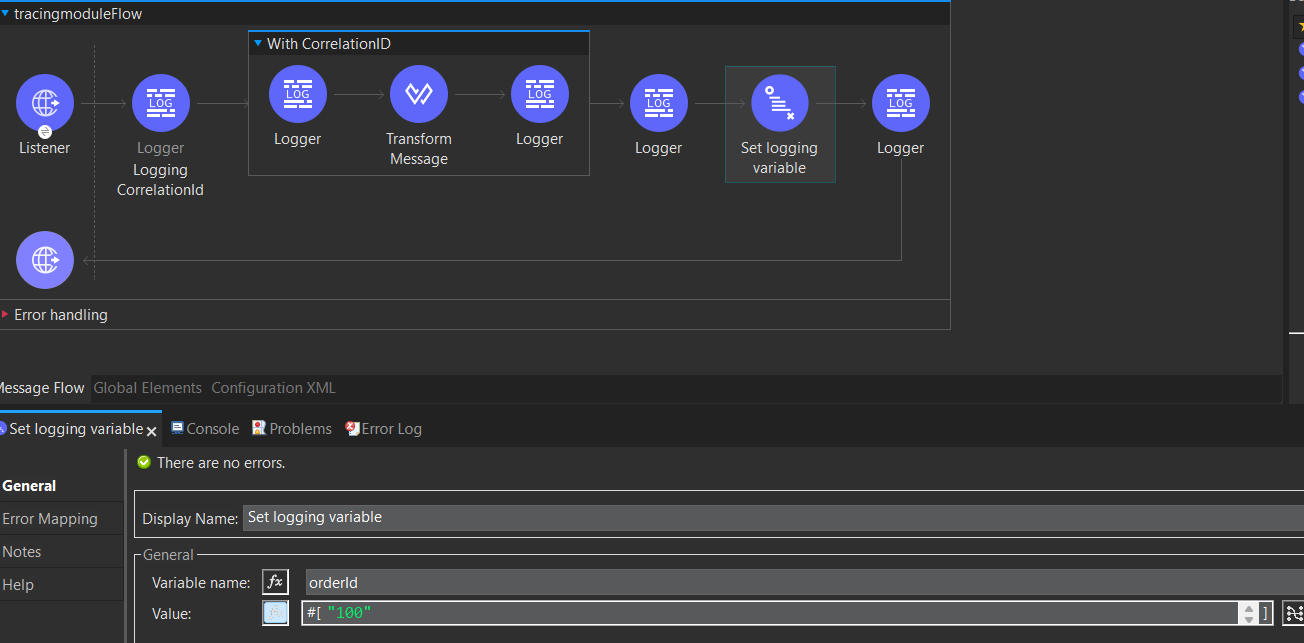


- Again add the Set Logging Variable component and Create a logging variable named customerId and assign it the value 200.


Thus, currently, both the variables are printed successfully.
b) Remove Logging Variables:
Removes a variable from the event logging context. In the below example, I’m removing the below logging variable customerId.
- Add the Remove Logging Variable component and provide the name of the logging variable that you want to remove from the logs.
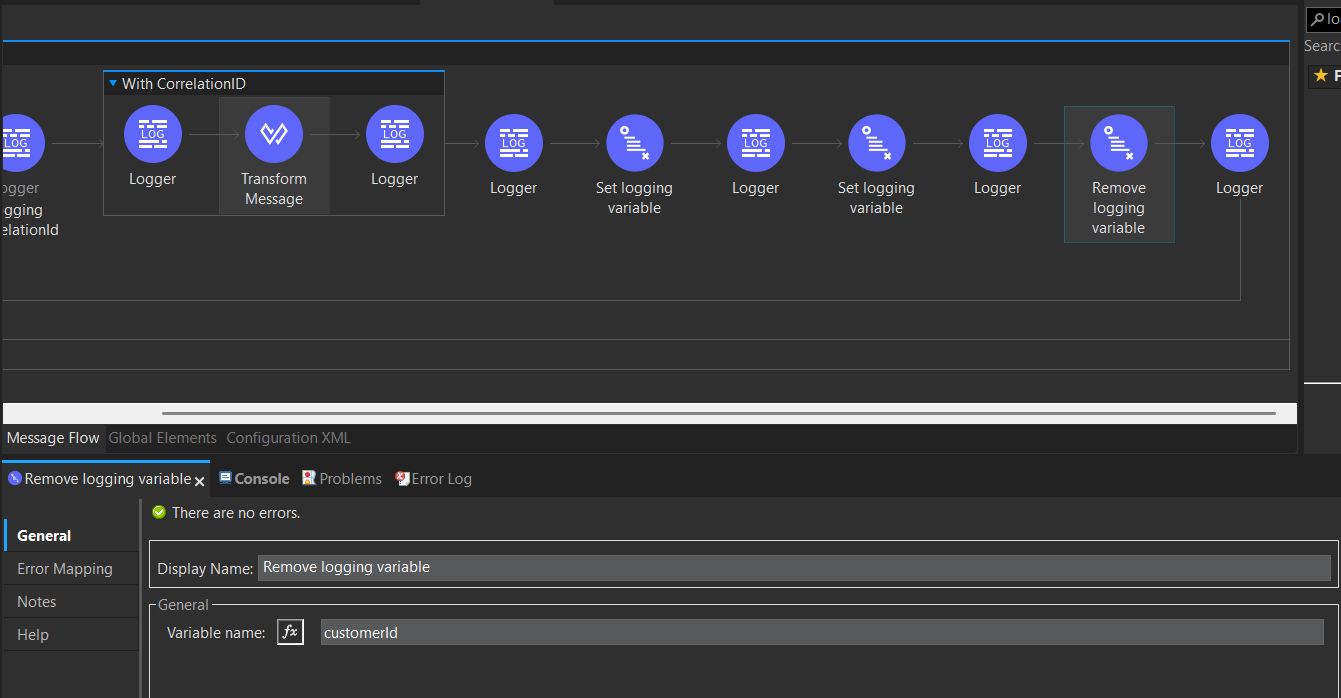

- If we observe the customerId logging variable is not logged in the Console.
c) Clear Logging Variables:
This Clears all the current logging variables.
- Add the Remove Logging Variable component and one logger at after it. As we have only one variable left now, we can see that it also gets removed after executing the Clear Logging Variables operation.
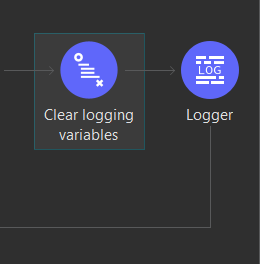

- If we observe there are variables logged in the Console as all the logging variables are cleared.
Note: This operation does not remove the correlation ID nor the current event processor because those variables are managed by the Mule runtime engine.
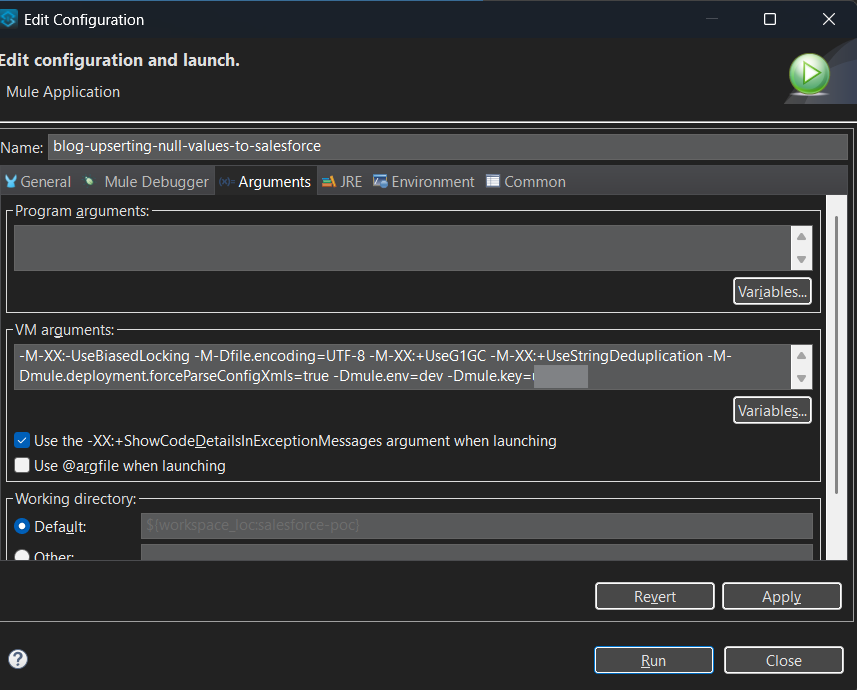
- The setup is complete. We’ll deploy the application, by passing the environment variables and key for the secure properties.
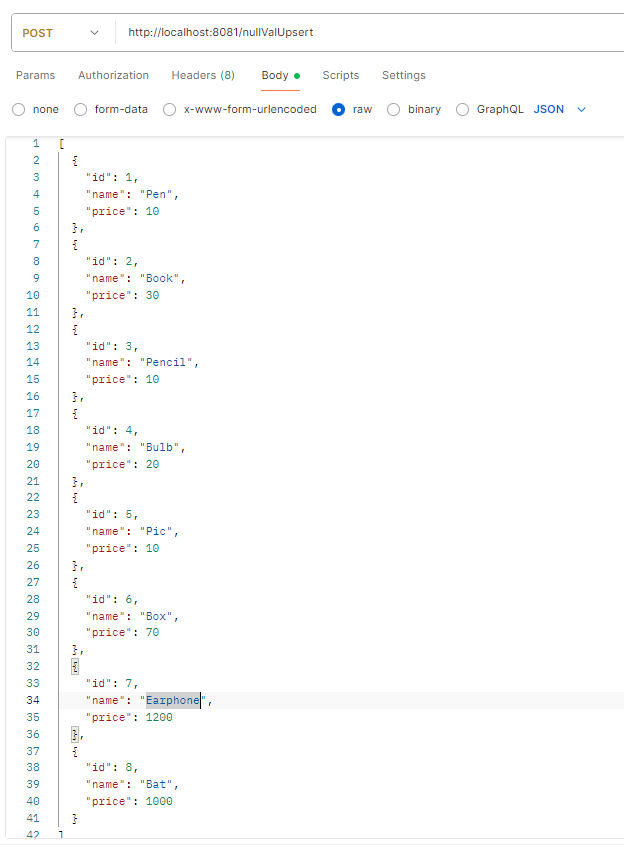
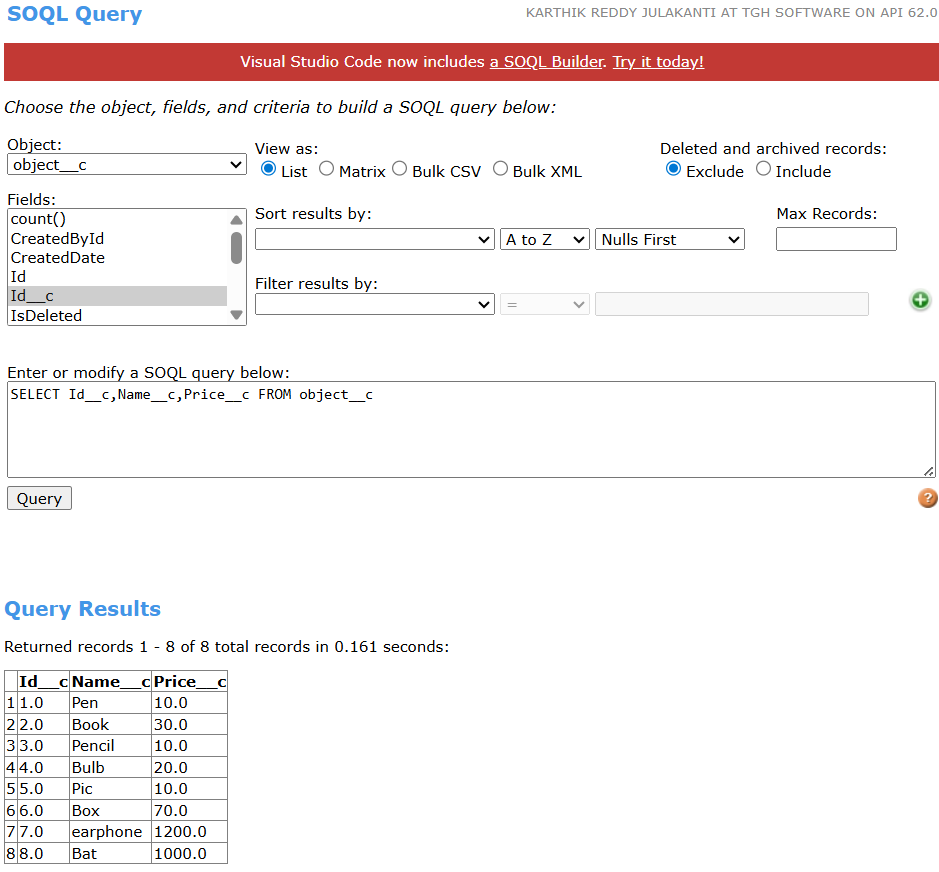
- Next, prepare a JSON array with multiple records (id, name, and price) and send it in the request body to insert those records into the Salesforce custom object object__c.
- Open Salesforce Workbench, log in with your Salesforce credentials, go to Queries → SOQL Query, and run SELECT Id, Name, Price__c FROM object__c to verify whether the records have been inserted successfully.
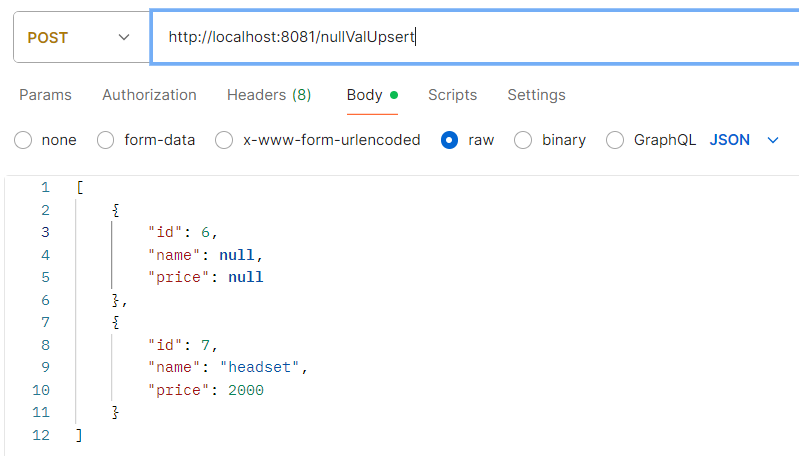
- Next, send an update request with a payload where one record has fields set to null and another record has updated values. For example, record id=6 is sent with name=null and price=null, which clears the fields in Salesforce. Meanwhile, record id=7 is updated with name=”headset” and price=2000. This demonstrates how Salesforce handles null values vs. updated values during an upsert operation.
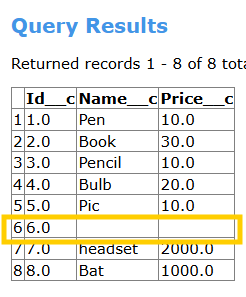
- Now, go to Salesforce Workbench, run the same SOQL query as before, and check the records. You will notice that the record updated with null values no longer holds its previous values — instead, those fields are stored as null in Salesforce
Ready to Implement Advanced MuleSoft Logging & Integration?
Whether you need help implementing the MuleSoft Tracing Module, optimizing MDC logging, managing correlation IDs, or building secure Salesforce integrations — our certified experts at TGH can help you design scalable, enterprise-grade solutions.
🚀 Let’s strengthen your integration architecture.
📩 Email: info@techygeekhub.com
🌐 Website: https://techygeekhub.com
📞 Contact Us: https://techygeekhub.com/contact-us/
Talk to our MuleSoft specialists today and accelerate your digital transformation with reliable, enterprise-ready integration solutions.