


Scheduling in BDI [Rivery]
What is a Data Integration ?
Data Integration is a cloud-based data integration and orchestration platform that enables organizations to collect, transform, and manage their data in a single environment. It is an end-to-end solution that supports the entire data development lifecycle, offering a unified and easy-to-use interface for modern data teams. With this platform, users can seamlessly build, orchestrate, and manage all their data pipelines, workflows, and transformations from one centralized location.
Introduction to Scheduling in Rivery
Scheduling in Rivery allows automated execution of Rivers at predefined intervals. Instead of manually triggering data pipelines, schedules ensure consistent and reliable automation.
Why Scheduling is Important
• Enables automated data pipelines
• Supports batch processing
• Reduces manual intervention
• Ensures SLA compliance
• Supports production-grade deployments
Plan Based Scheduling :
- Starter Plan: Schedule Rivers with a minimum interval of 60 minutes.
- Professional Plan: Schedule Rivers with a minimum interval of 15 minutes.
- Enterprise Plan: Schedule Rivers with a minimum interval of 5 minutes.
Professional and higher plans provide advanced scheduling functionalities using custom CRON expressions.
Different Scheduling Options Available in Rivery
1.Standard Schedule 2. Custom Schedule
Standard Scheduling :- It is a simplified scheduling option that allows users to configure River execution using predefined time intervals without writing CRON expressions.
Execution Frequency (Hourly/Daily/Weekly/Monthly/Yearly)
Custom Scheduling :- It allows you to define River execution using a CRON expression instead of predefined options.
It is designed for:
- Advanced timing requirements
- Complex execution patterns
What is a CRON Expression?
A CRON expression is a time pattern format that defines exactly when a River should run.
Depending on the scheduler type, it can have:
It follows a 7-Field Format (Quartz CRON)
`<second>` `<minute>` `<hour>` <day of the month> `<month>` <day of the week> `<year>`
Usecase:
Schedule a River Which is going to automatically trigger without any human Intervantion Where it will send the all accounts which got created on the Salesforce automatically without any Human Required
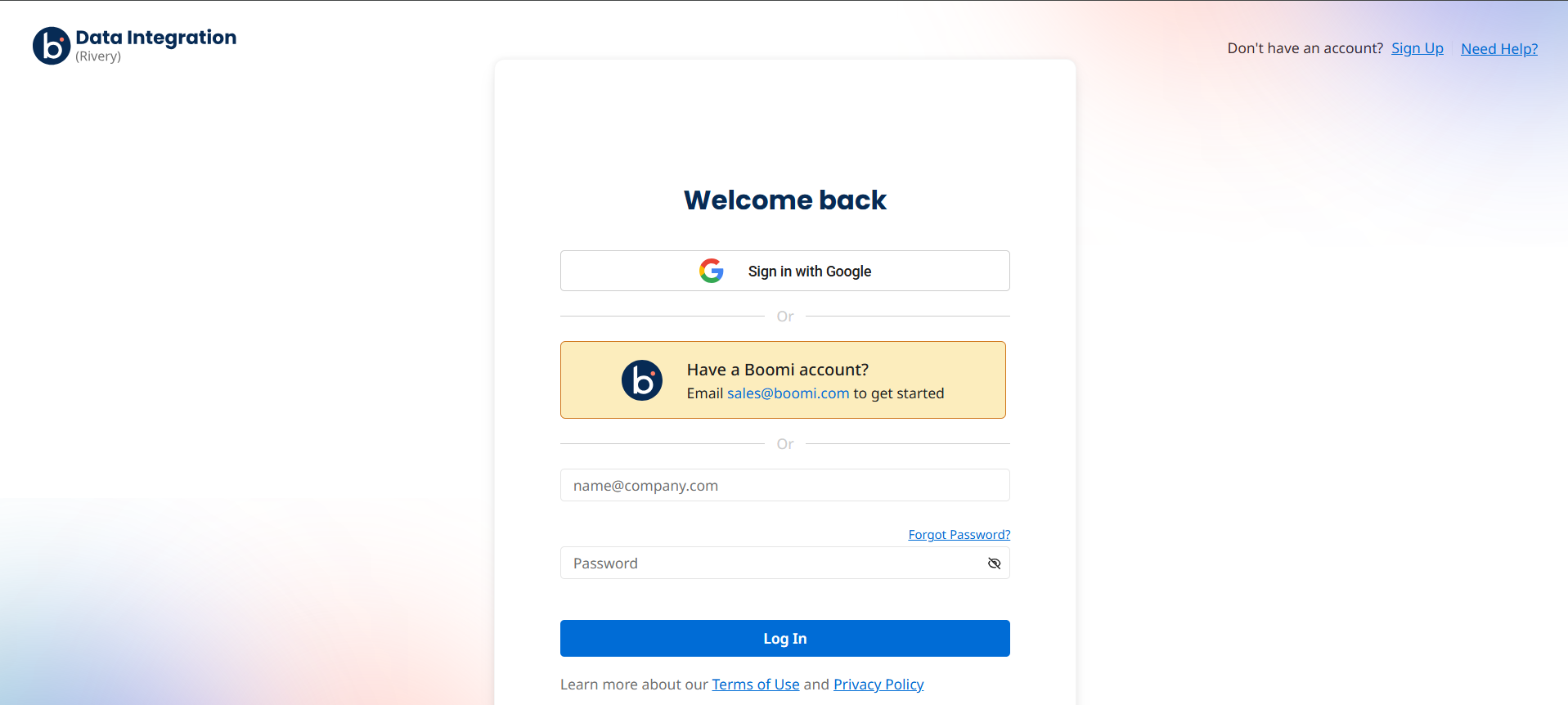
Step 1:Login into the console.rivery.io https://console.rivery.io/

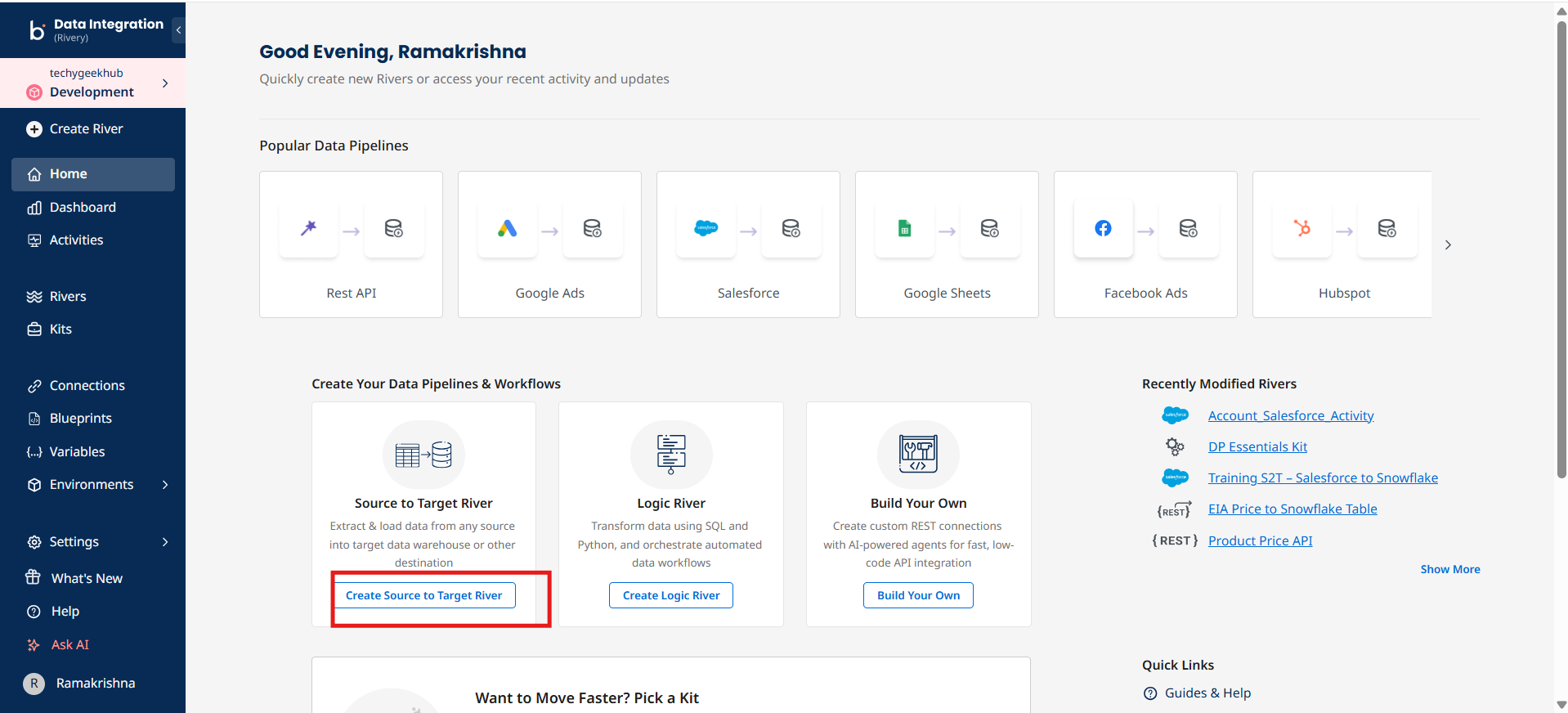
Step 2: Click on Create River and Select Source to Target River
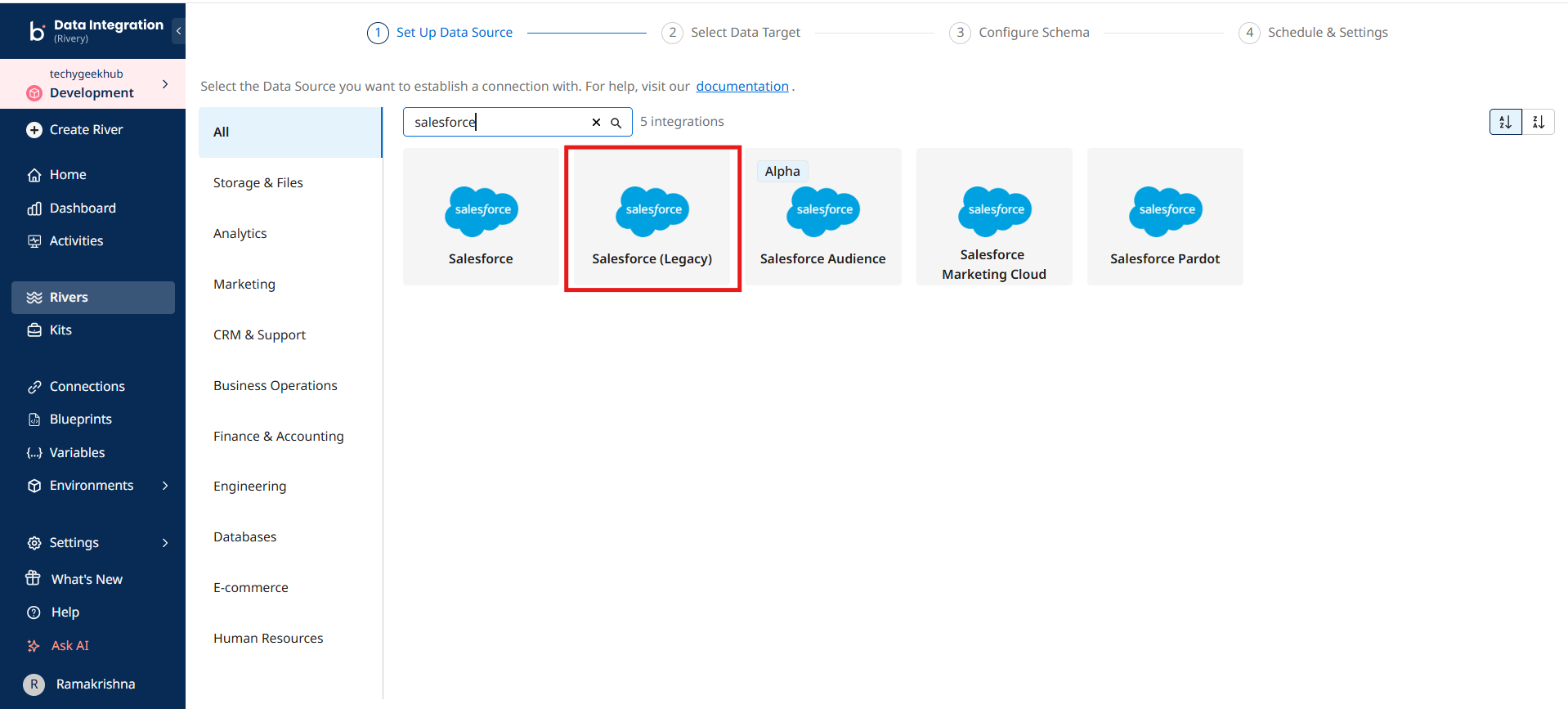
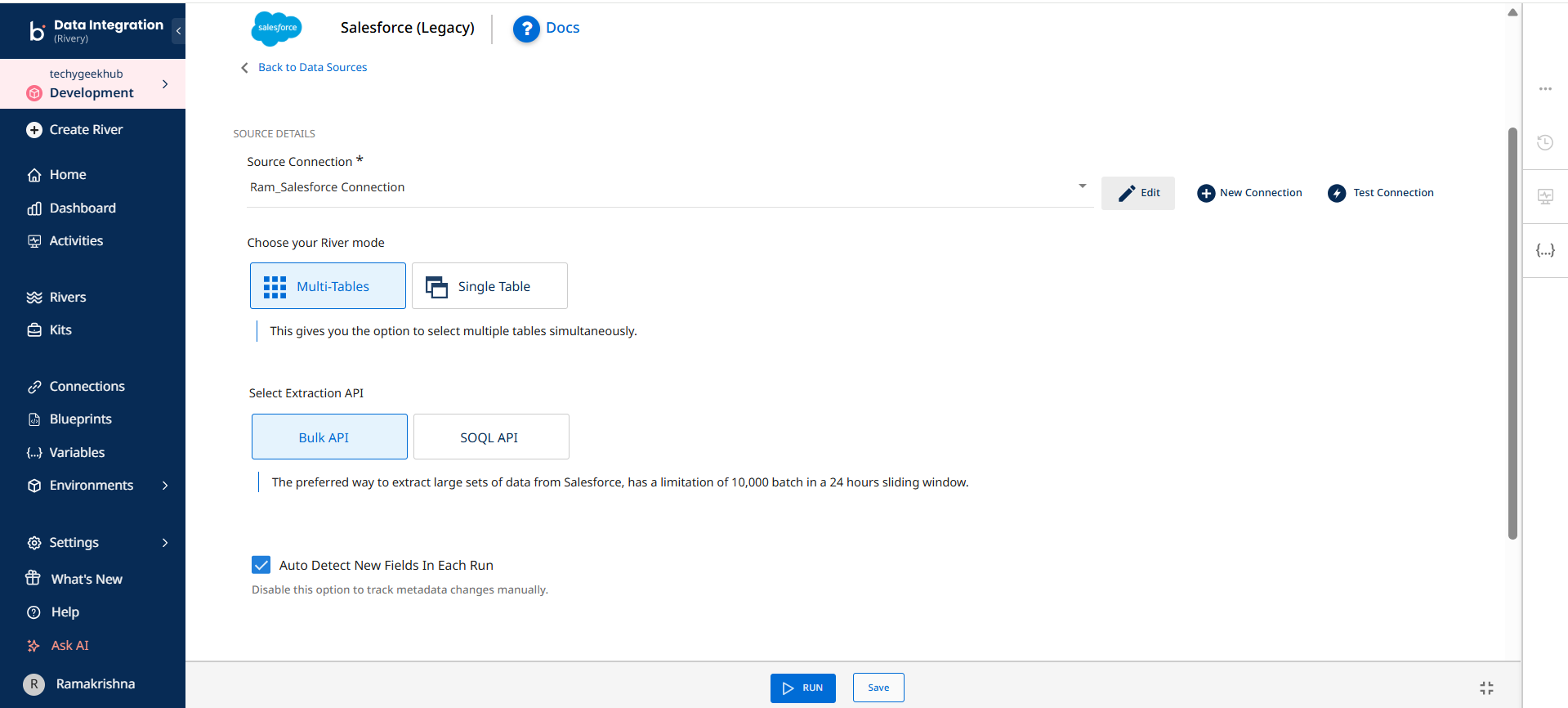
Step 3 : Select the source as Salesforce.
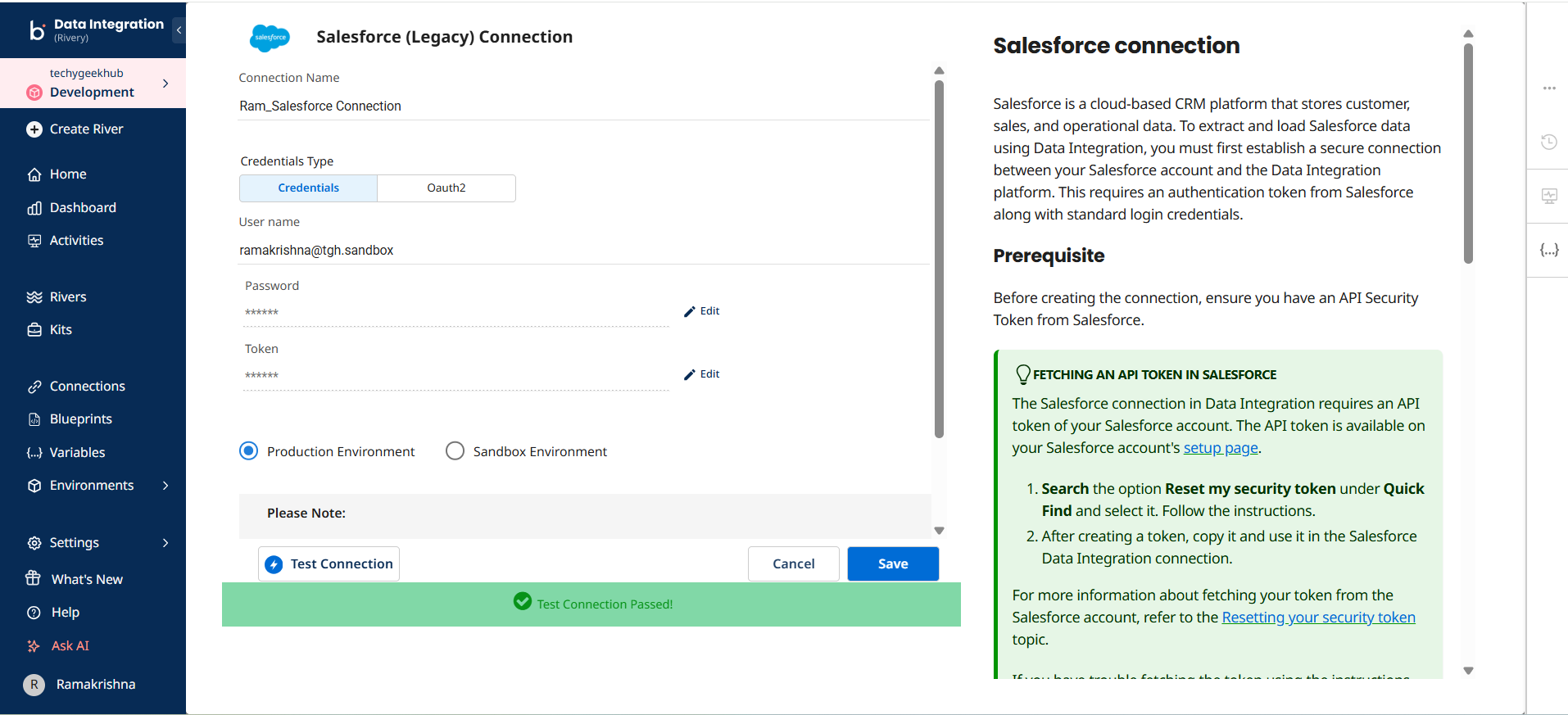
Step 4: Provide:
- Username
- Password
- API Token
Click Test Connection and confirm it is successful.
Step 5: Select River Mode
- River Mode: Multiple Tables
- Extraction Type: Bulk API
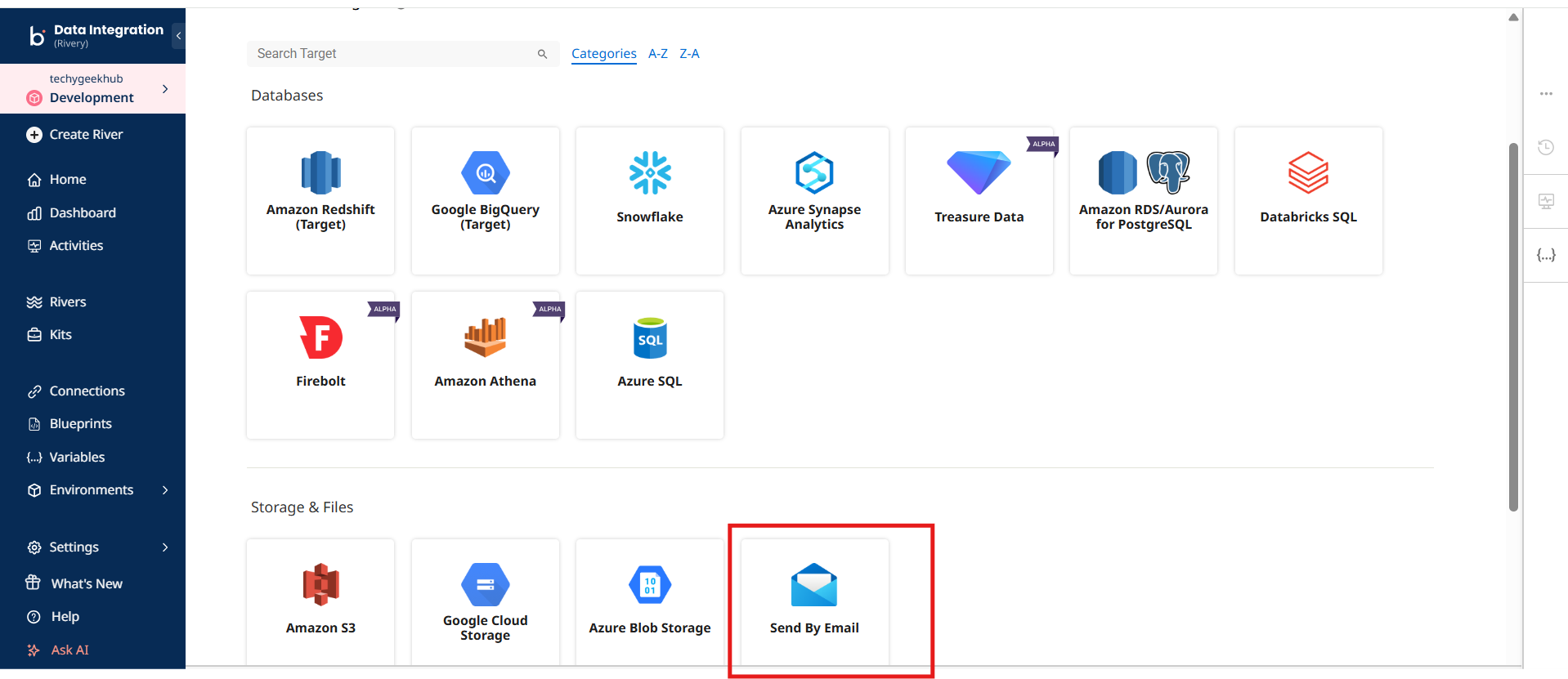
Step 6: Select Send by Email as the target.
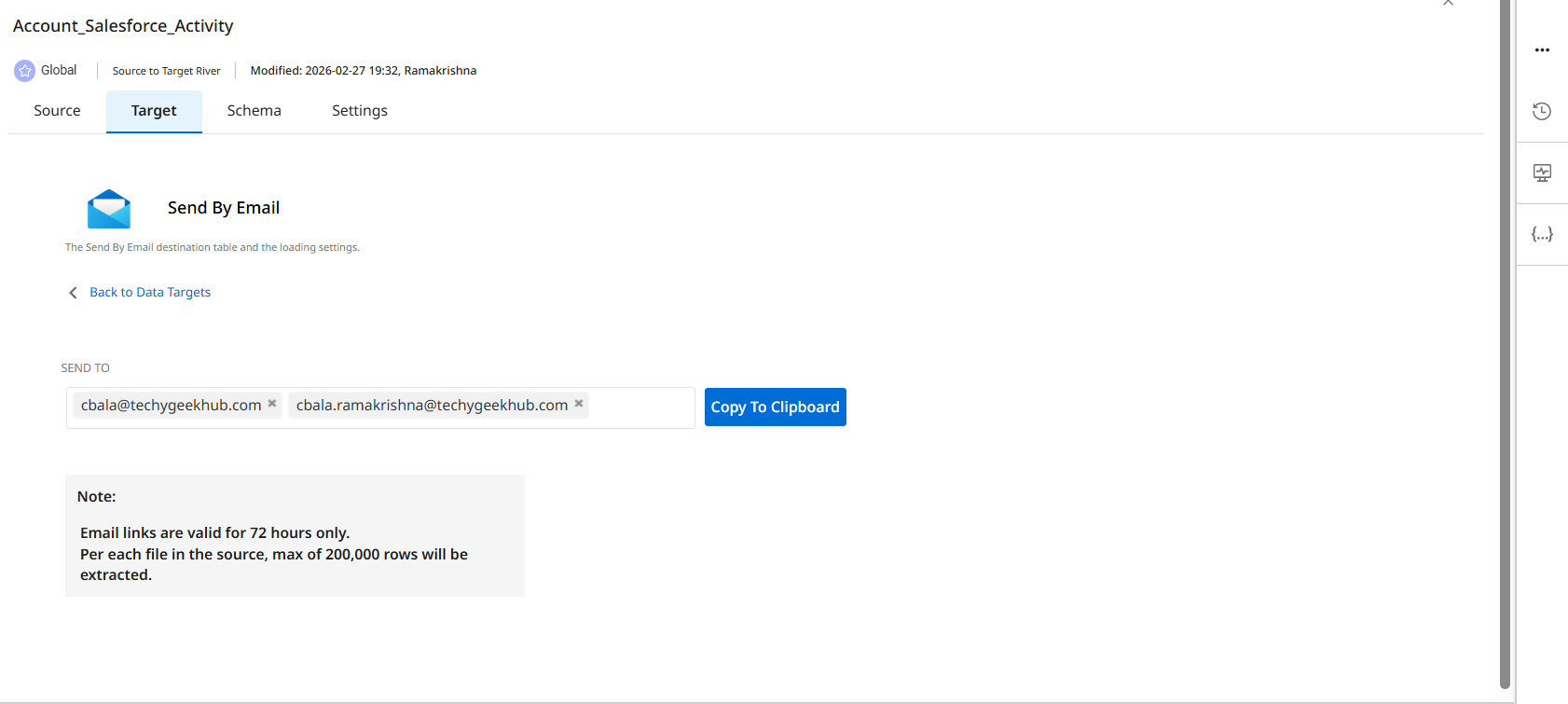
Step 7: Configure the Values which you want to send the Report of the Accounts in a Send to section and click on save.
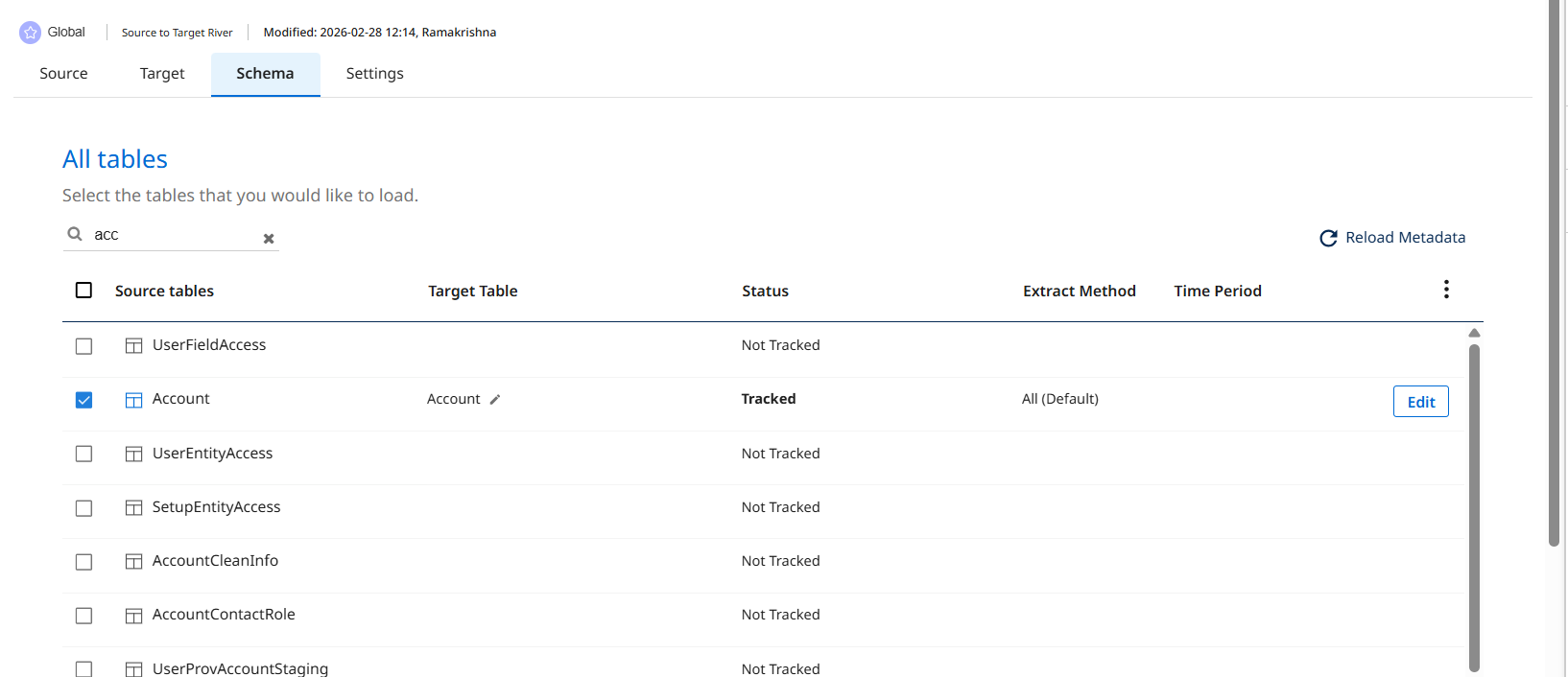
Step 8: Select the Schema and choose for the Account Object and select the Object
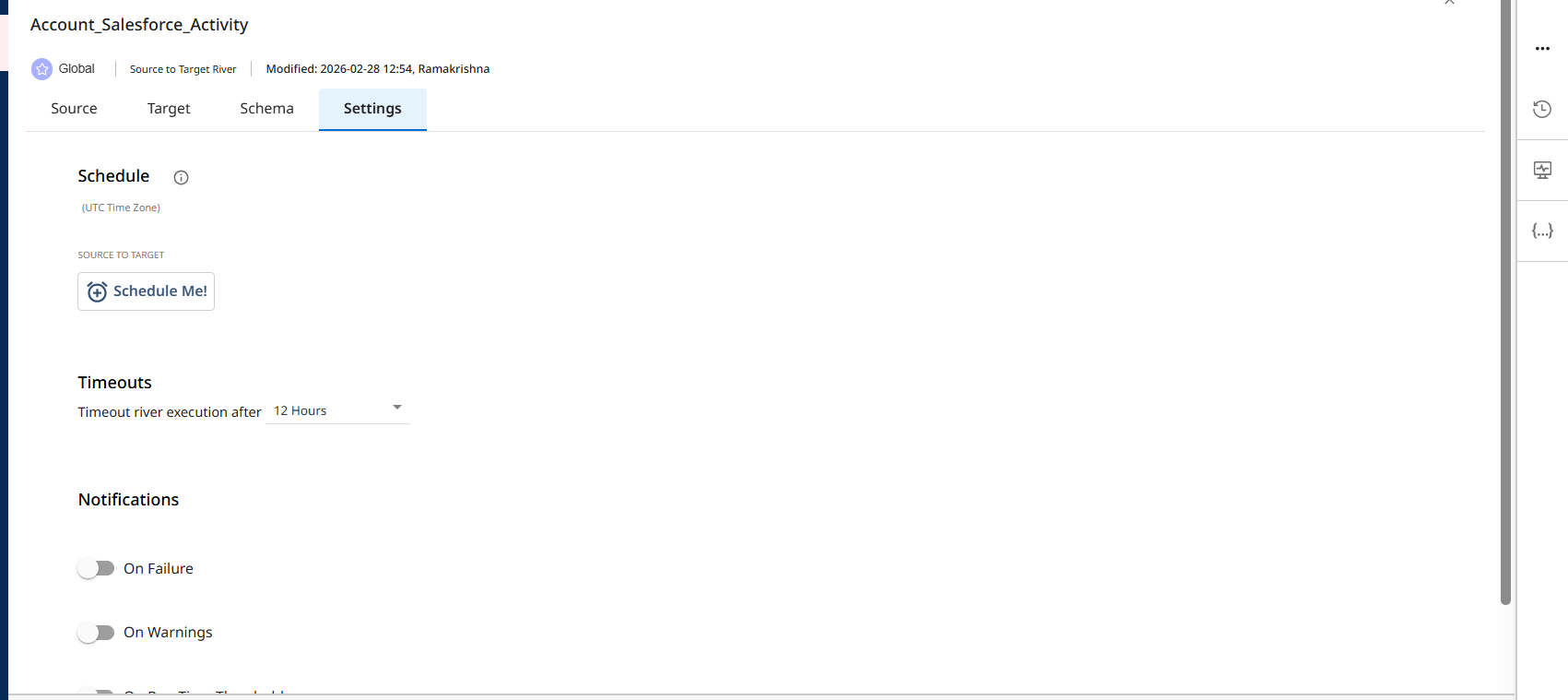
Step 9: Click on Settings and click on Schedule me Option.
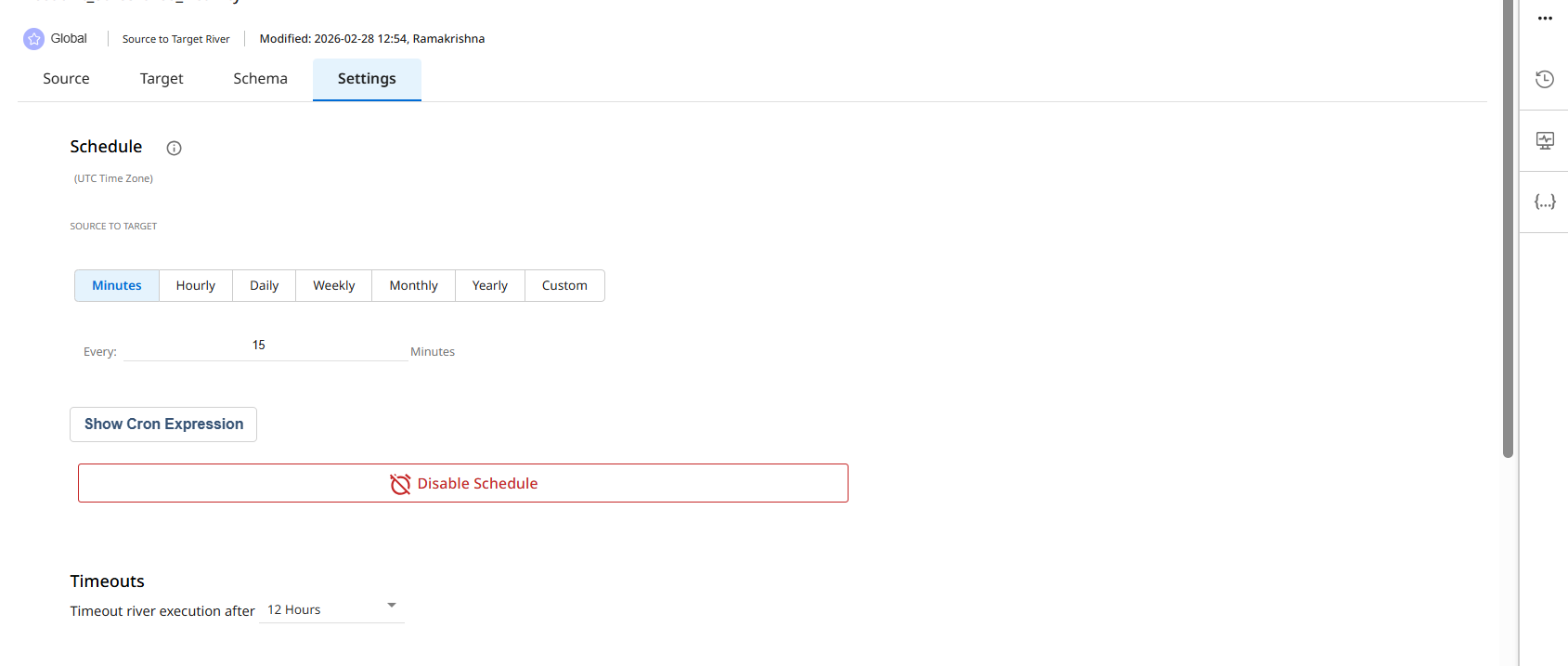
Step 10 : In that We can see various options like Minutes/Hourly/Daily/Monthly/Yearly/Custom According to that we can select so Schedule our River to execute for the every 15minutes to execute and send the report to the customer which we have configured.
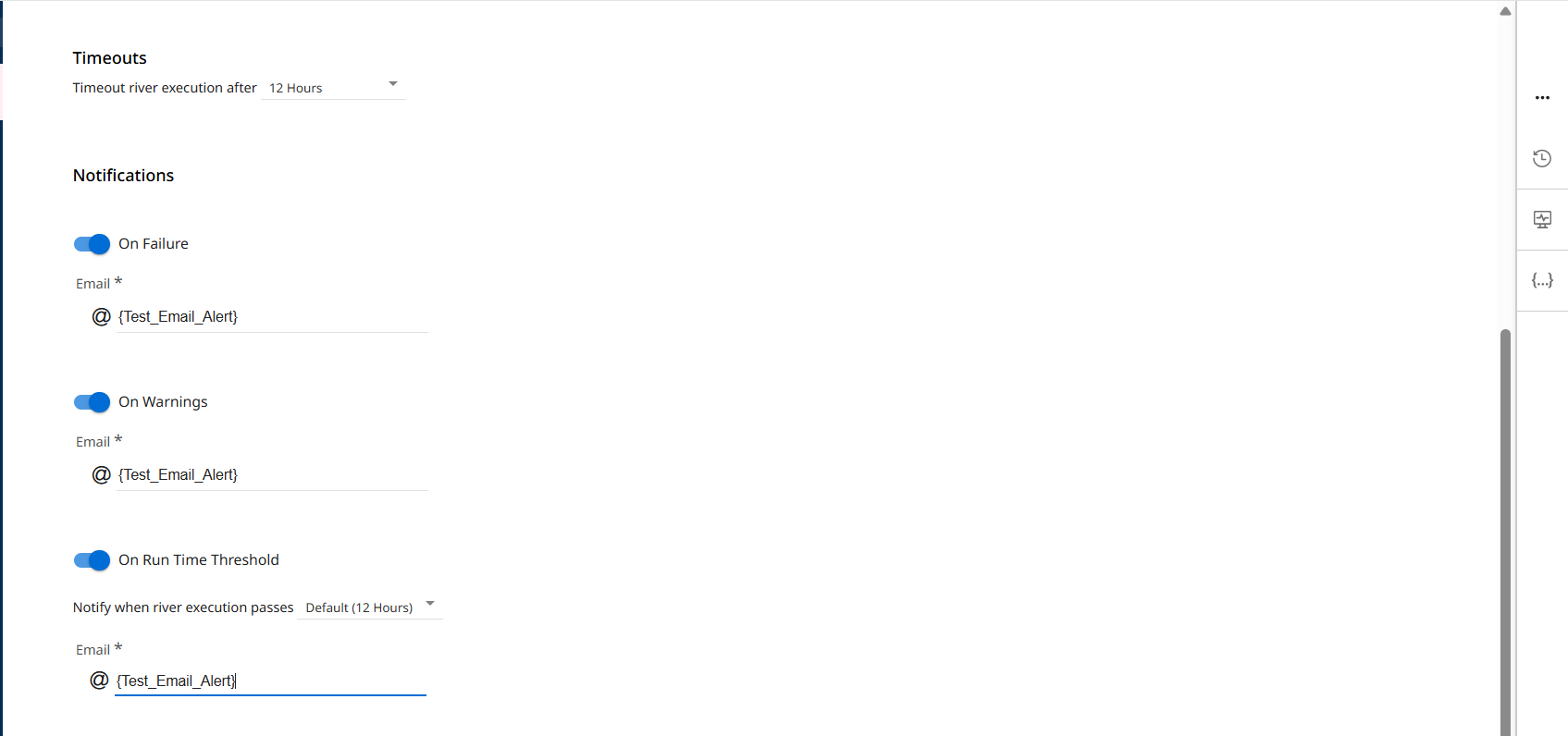
Step 11: We have various options available, such as Timeouts and Notification Options, including:
- On Failure
- On Warning
- On Run Time Threshold
If any failure or warning occurs during the execution of the River, an email notification will be sent to the customer based on the configured email settings. Additionally, if the process exceeds the defined runtime threshold, a notification will be triggered accordingly.
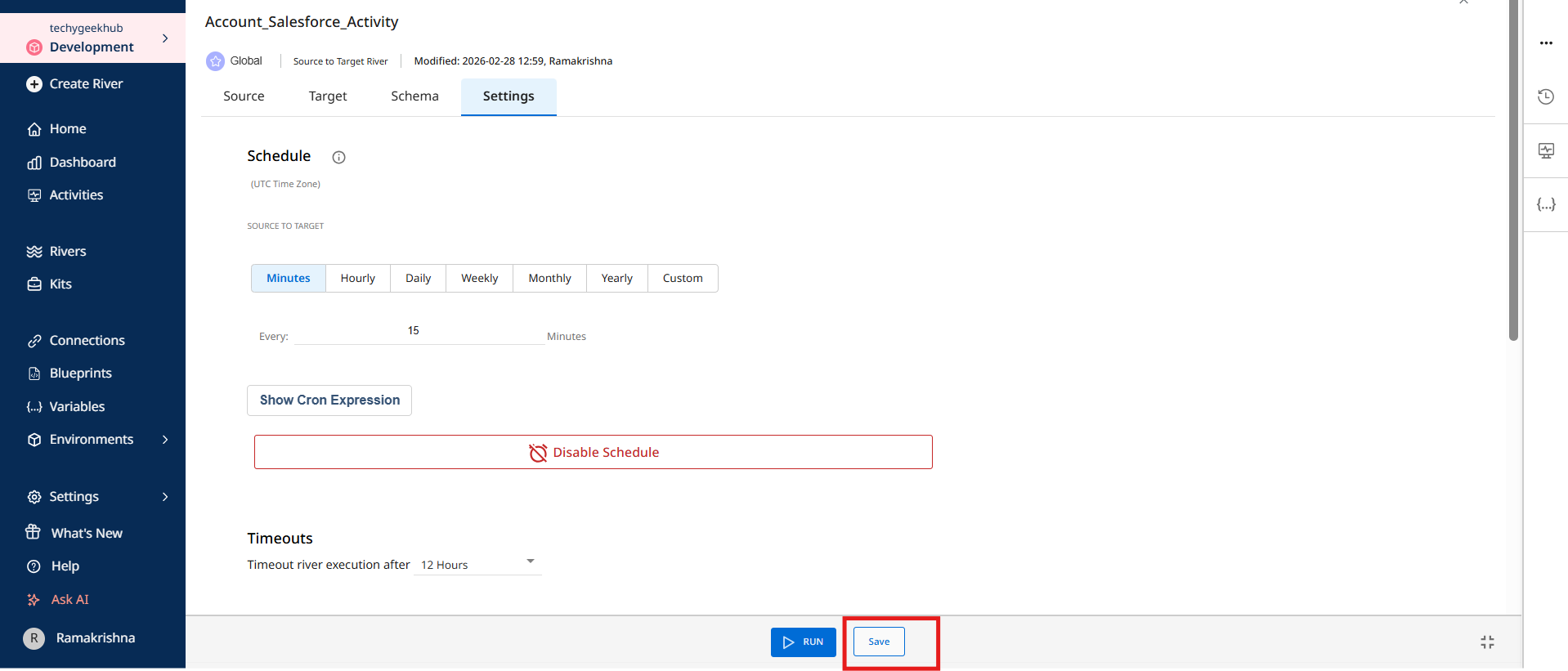
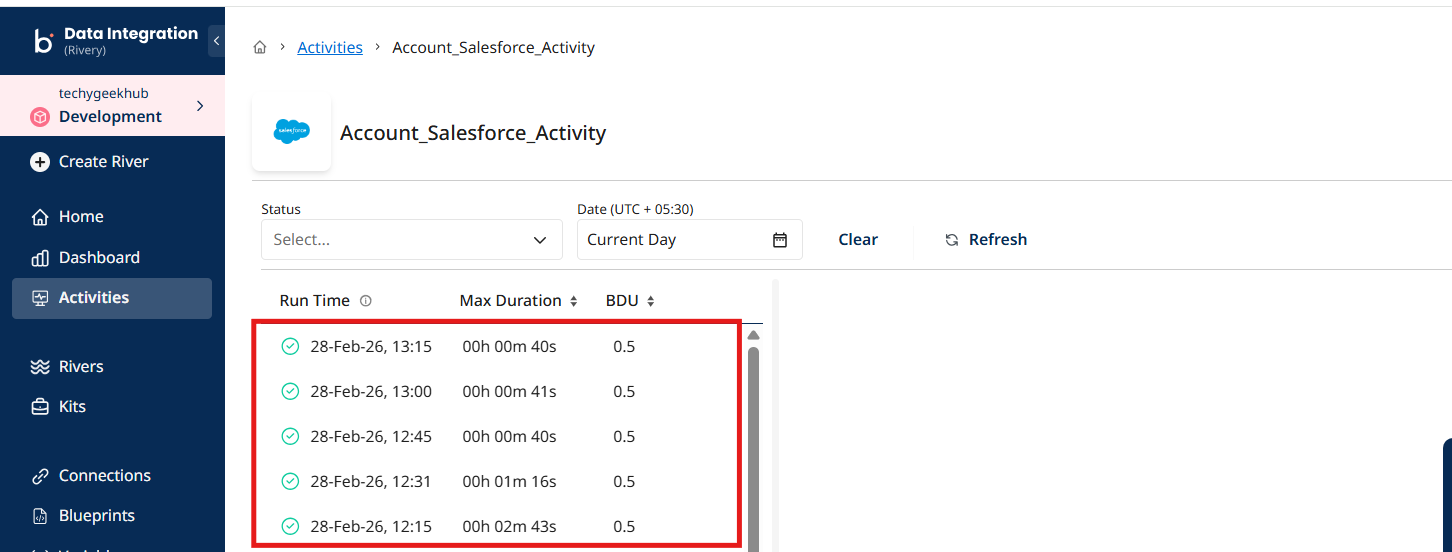
Step 12 : Click on Save the River and Confirm the email is received successfully for every 15 minutes as per the schedule or not.
Step 13: Navigate to the Activities section, open the respective River, and review the executions to verify that the River is running according to the configured schedule.
Step 13: If we want to turn off the schedule, simply click on the Disable Schedule option. After disabling it, make sure to click on Save River to apply and confirm the changes.
References
- https://help.boomi.com/docs/category/getting-started-1
- https://help.boomi.com/docs/category/source-to-target-river
- https://console.rivery.io/
- https://help.boomi.com/docs/Atomsphere/Data_Integration/GettingStarted/variables
- https://help.boomi.com/docs/Atomsphere/Data_Integration/Rivers/SourcetoTargetRiver/settings-schedule-tab
